Manage team members and watchers
Invite people, maintain project contact details, change roles and remove project membership safely.
Use Team members when team management is enabled for your project. Sign in with an active, confirmed and unlocked account, with a password set and any required invitation accepted. Your account must have the Manager role and a current assignment to this project, or global administrator authority. A Watcher receives request updates without project access and cannot manage the team.
If the project instead shows Watchers, use the established watcher workflow described below. The two interfaces have different subscription rules.
Invite someone
- Open the correct project and choose Team members in the project menu. On a phone, tap Menu first: the project menu is the first block.
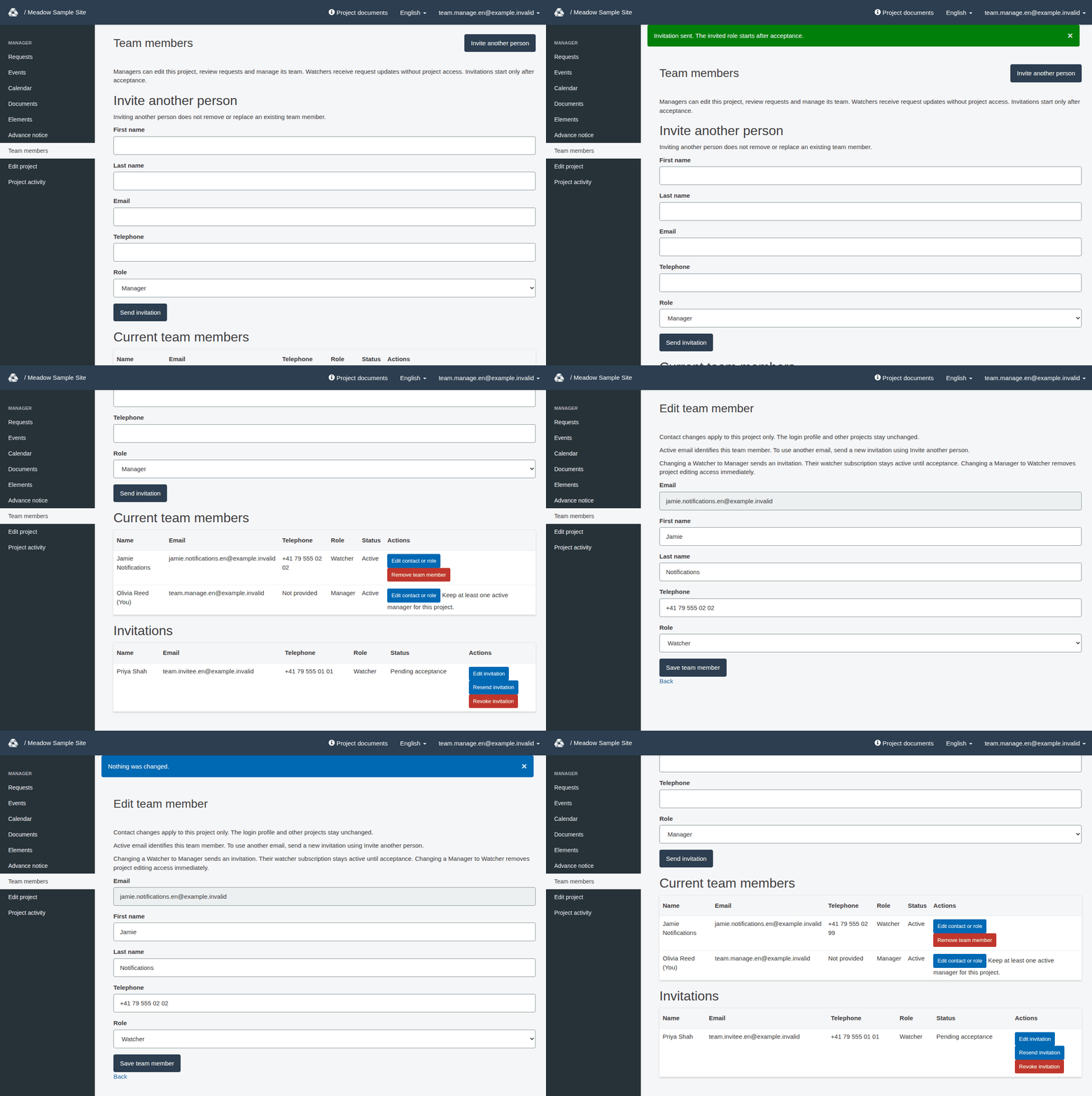
- Select Invite another person at the top right of the page. It jumps to the form of the same name further down. Enter First name, Last name, Email and Telephone.
- Choose Manager or Watcher under Role, then select Send invitation.
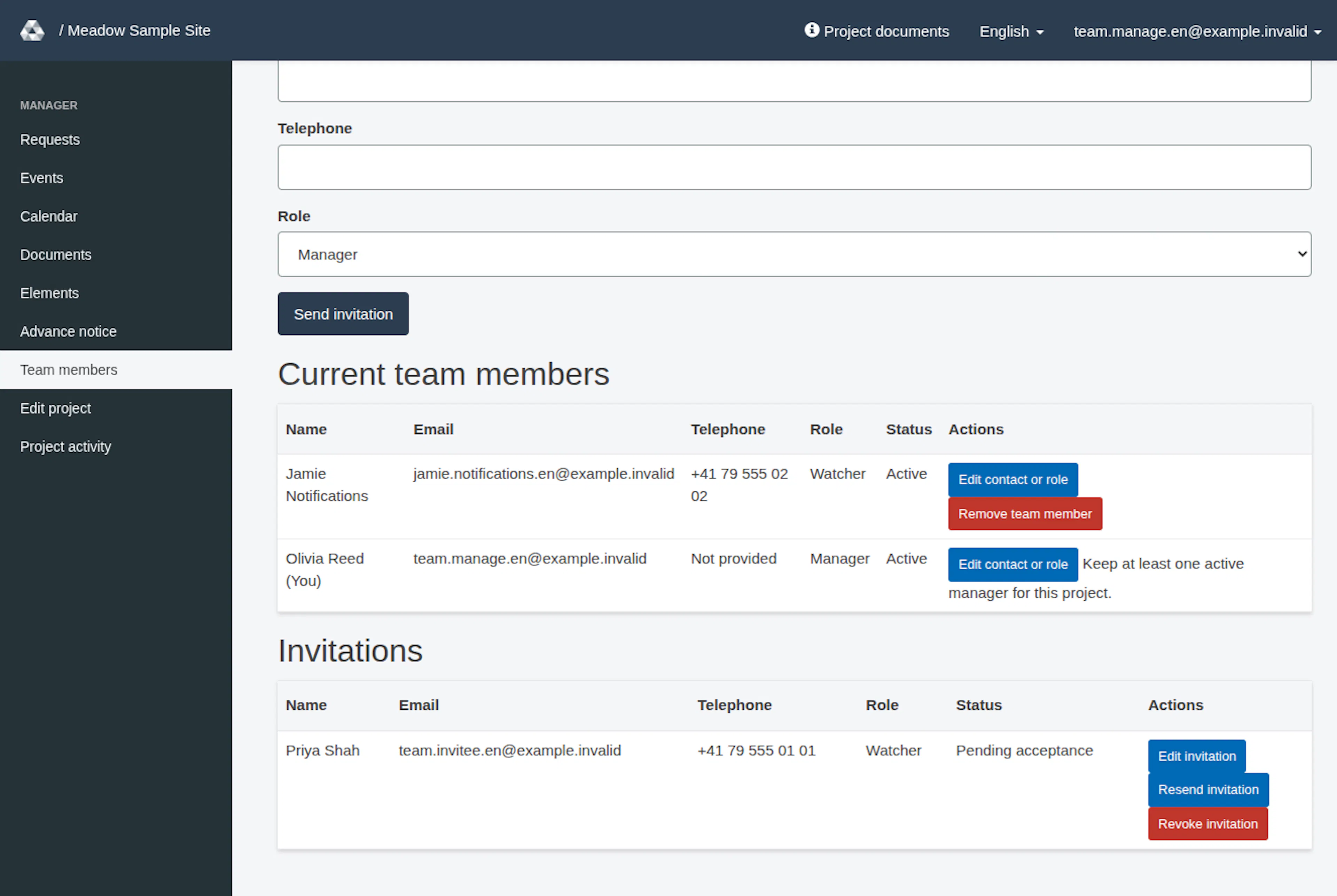
- Read the result: a green message, Invitation sent. The invited role starts after acceptance., appears once the invitation email has been sent. Then check Invitations, where the new entry shows Pending acceptance. An invited role starts only after explicit acceptance. If the invitation was saved but the email could not be sent, a red message says The invitation was saved, but the email could not be sent. Please resend it or contact support. instead.
Use a valid email address. If something is missing or wrong, a red box at the top says Please check N entries (for one problem: Please check 1 entry) and lists each problem as a link to its field. The same message also appears under the field. Nothing is sent until the form is correct.
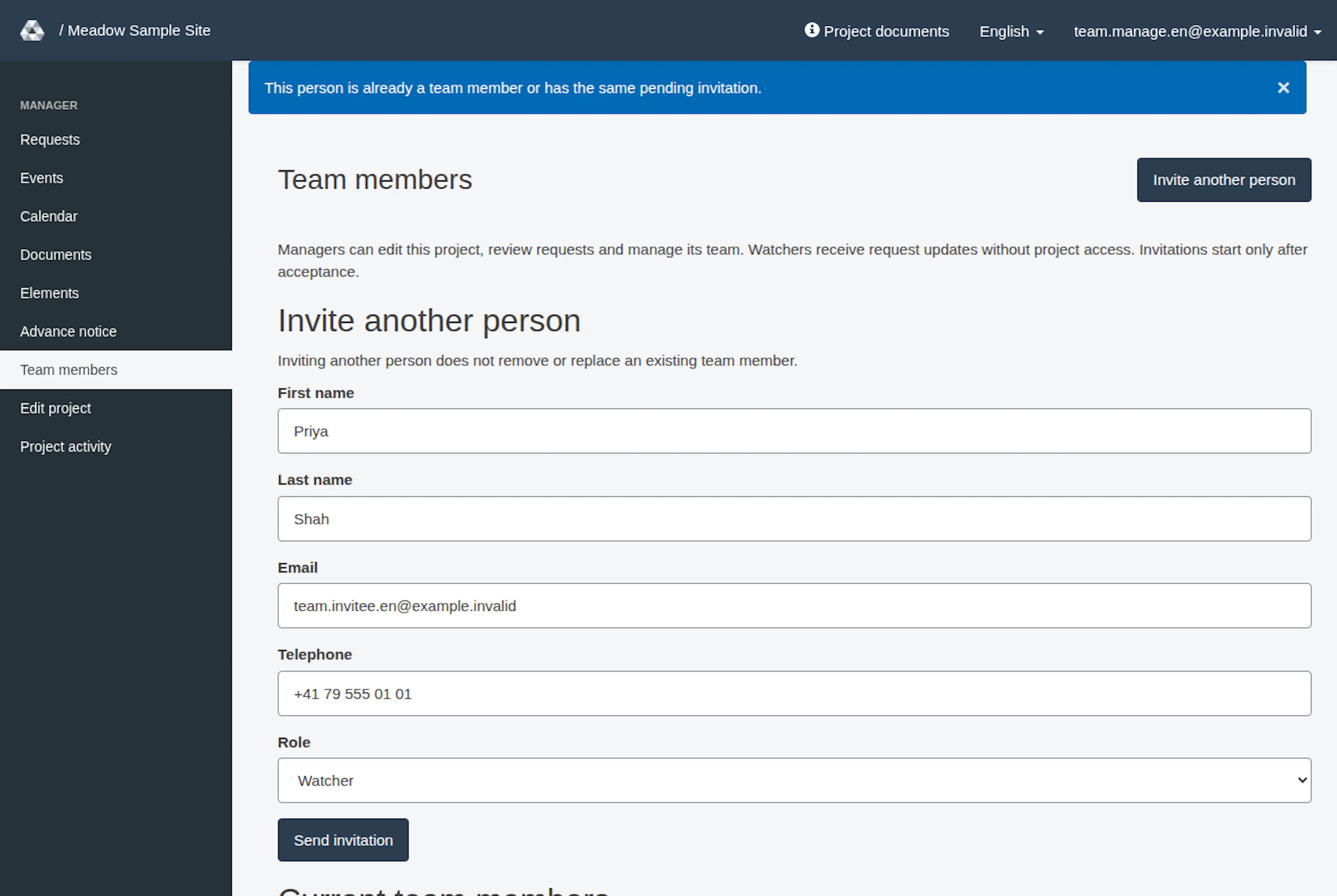
If the person already belongs to the team or has the same pending invitation, no new invitation is sent. A blue message says This person is already a team member or has the same pending invitation. The form stays filled in with what you typed. Inspect the existing entry under Invitations.
Inviting another person does not remove or replace an existing member. Share Accept a team invitation with the recipient if needed.
| Role | Project effect |
|---|---|
| Manager | Can review requests, edit the project and manage its team |
| Watcher | Receives request updates without project access or an account requirement |
Maintain invitations
For an invitation that has not been accepted or revoked, use Edit invitation, Resend invitation or Revoke invitation. A resend replaces the previous link; changing pending invitation details and choosing Save and send invitation also replaces its link. Saving Edit invitation without any change shows a blue Nothing was changed., sends nothing and keeps the form open with what you typed. Links expire after seven days. For an accepted or revoked invitation, use Invite another person if a fresh invitation is needed.
If another manager changed the invitation, reload the list before continuing. When a different invitation is already pending for the same person, edit that invitation rather than trying to create a conflicting one.
Edit an active member
- Under Current team members, select Edit contact or role.
- Complete First name, Last name and Telephone. Existing incomplete details must be completed when edited.
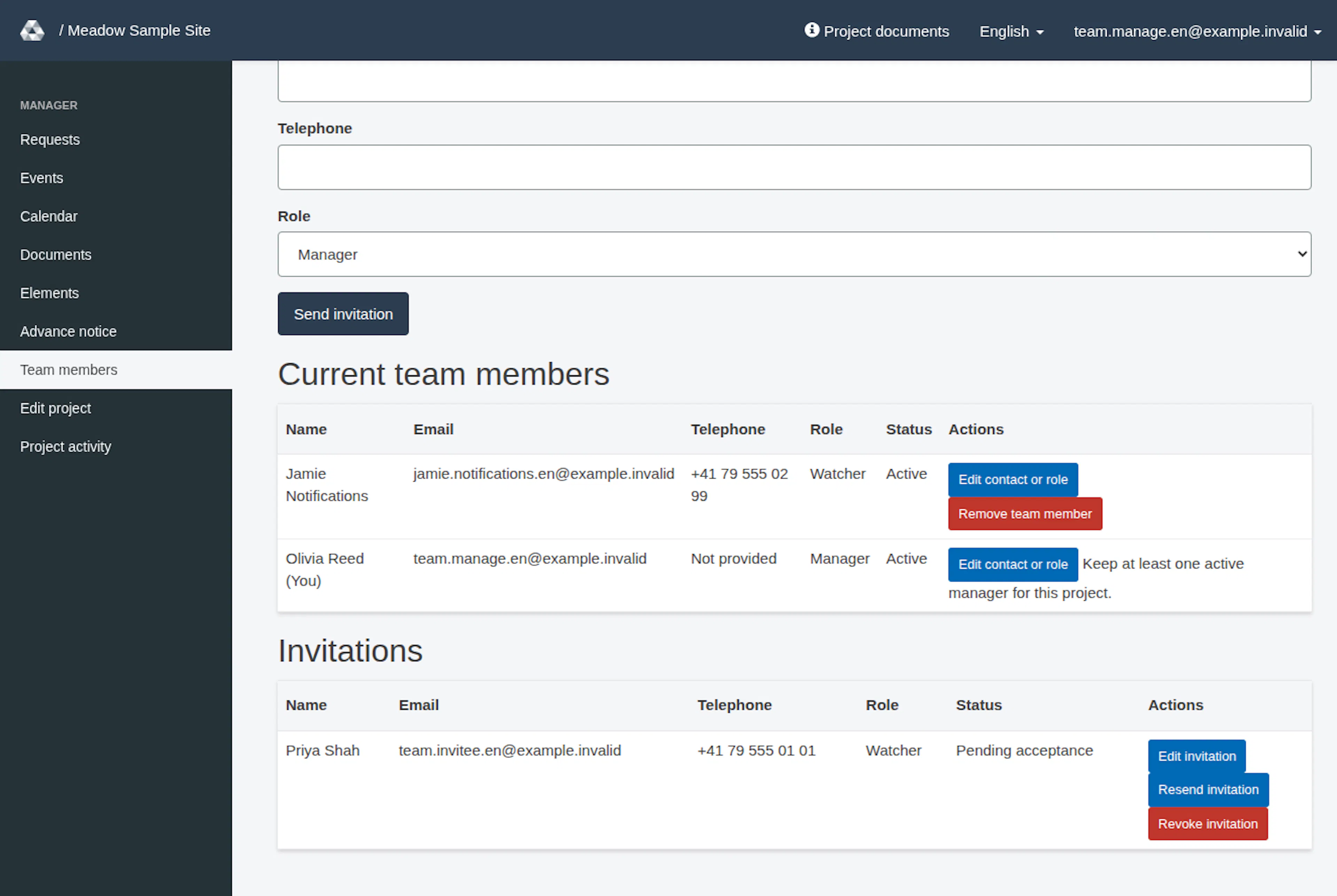
- Check Role, then choose Save team member. A green message, Team member updated for this project., confirms a change. If you saved without changing anything, a blue message, Nothing was changed., appears and the form stays open.
Contact edits apply only to this project. They do not change the login profile, password, global account roles or another project's contact details. Active Email is read-only: invite the new email separately, then remove the old member when appropriate.
| Role change | When it takes effect |
|---|---|
| Watcher to Manager | Sends a Manager invitation; the watcher subscription continues while acceptance is pending |
| Manager to Watcher | Immediately removes this project's manager grant and retains a watcher subscription |
Remove a member
Choose Remove team member and confirm the question that names the person (“Remove … from this project? Their account and other projects will remain available.”). This removes that person's project grants and project watcher subscription and revokes outstanding invitations for that project and email. Their account, other projects and request-specific watchers remain separate.
The last capable project manager cannot be removed or demoted through Team members: that row shows Keep at least one active manager for this project. instead of a remove button. Have a replacement accept first. A global administrator's separate authority is not removed by changing a project membership.
Projects using Watchers
The Watchers entry appears in the project menu only when team management is off for the project. Open Watchers, choose Add watcher, enter an email in the dialog and select Add watcher. Use Edit and Update watcher to change an address, or Delete to remove it (RERA asks Are you sure?). The email is required and must be valid. A failed create or update returns to the form without saving and shows the red banner with the list of problems. The watcher’s detail page shows the email and the project name, and its Edit button opens the edit form. These watchers remain notification recipients, not managers.
On a team-enabled project the old Watchers pages are no longer used: opening one takes you to Team members with the message People who receive project emails are now managed under Team members. Use invitation acceptance there for a new watcher address.
If you open a page your account may not use, RERA returns you to the page you came from (or your project’s request list) and shows a red message: You do not have permission to open this page. Please contact RERA support (service@rera.io) if you need access. On Team members, an account that may not manage this project sees You cannot manage this project.
An error, denied action or unchanged submission is not proof of a completed team change. Reopen the relevant list and check the current result before trying again.
Update project members and contacts
These images show the English RERA interface, captured on 13 November 2026 UTC in a synthetic local project. The GIF presents selected actual steps. Options depend on the project and your role.