Sign in, recover an account and choose a language
Sign in to an existing account, request password help or choose an interface language.
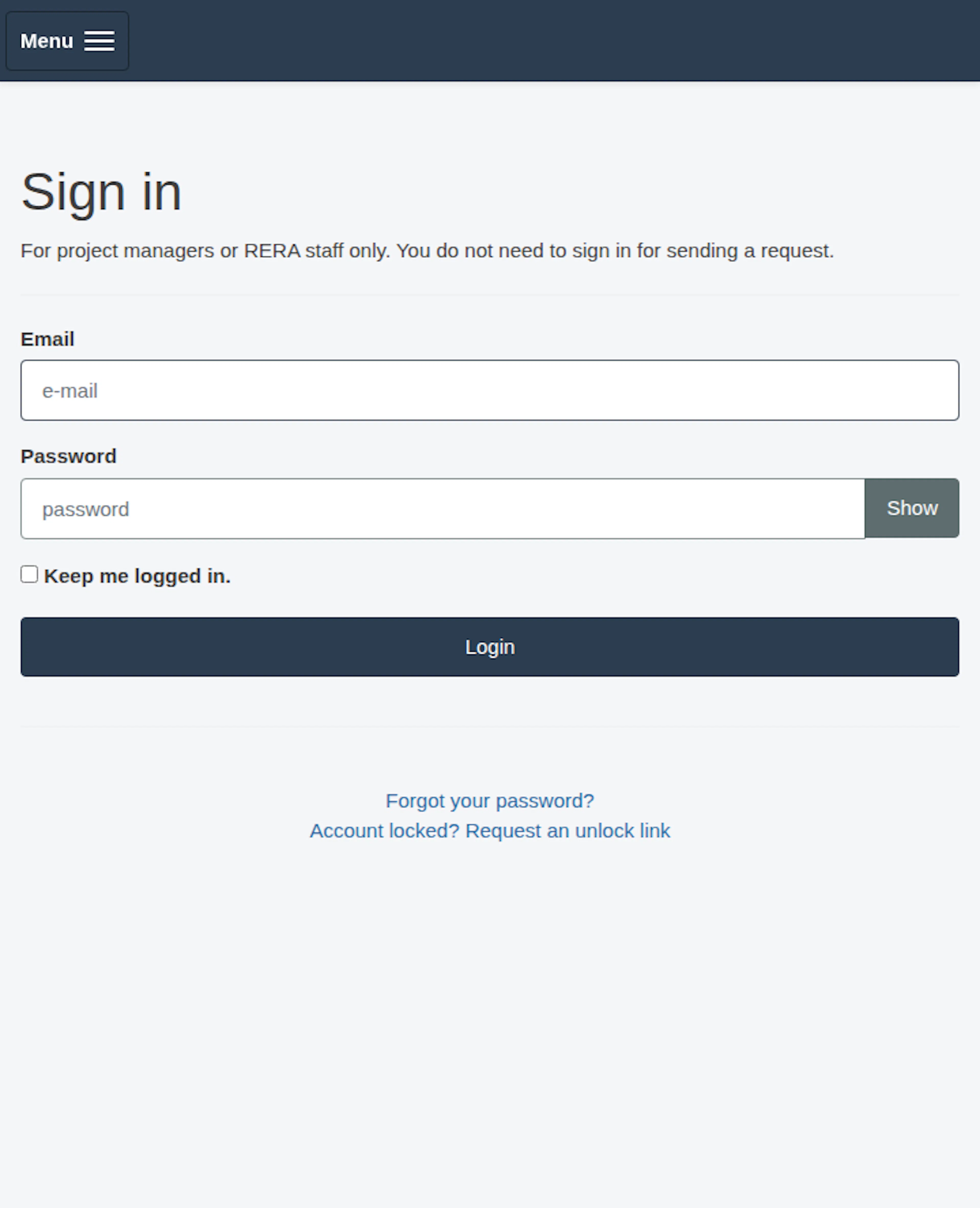
Sign in
Use the sign-in page with the email address and password associated with your account. Project managers and RERA staff use accounts to access their permitted work. A public requester can submit a delivery request without signing in; see Create a delivery request.
To see the password you typed, select Show next to the password field. The button then reads Hide.
After a successful sign-in the green message Signed in successfully. appears. A project manager lands on the Requests page of their project; an administrator lands in the administration area.
If your credentials do not work, use the password-recovery option below if you may have forgotten your password. Two cases have their own message:
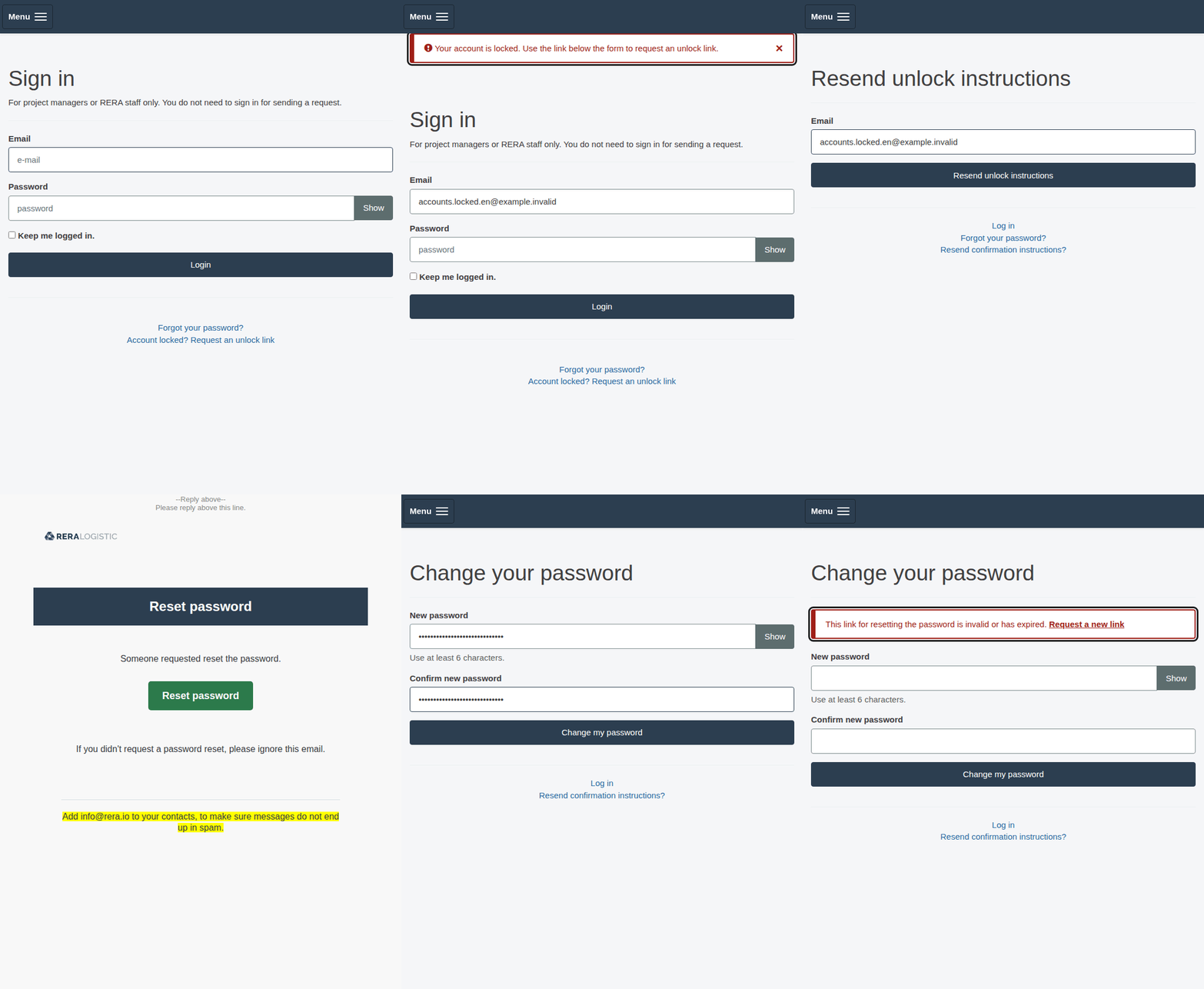
- Locked account. The page shows an error message in a red-framed box with a warning icon: Your account is locked. Use the link below the form to request an unlock link. Select Account locked? Request an unlock link under the form, enter your email address and select Resend unlock instructions. The unlock email contains the link to use. If that link is old, the page says so and shows the request form again; ask for a new one.
- Disabled account. The page shows Your account has been disabled by an admin. Not right? Contact service@rera.io for more information. A disabled account cannot sign in; contact the project administrator or RERA support through your usual channel.
If you are signed in and open a page you are not allowed to use, you stay in the application. You return to the page you came from, or to the request list of your project, and a red message says You do not have permission to open this page. Please contact RERA support (service@rera.io) if you need access. Without a project you see the same message on the start page.
Reset a forgotten password
- On the sign-in page, select Forgot your password?
- Enter the email address associated with your account.
- Select Send me reset password instructions. The sign-in page returns with the green message You will receive an email with instructions on how to reset your password in a few minutes.
- Open the reset email and select Reset password. The link works for 6 hours.
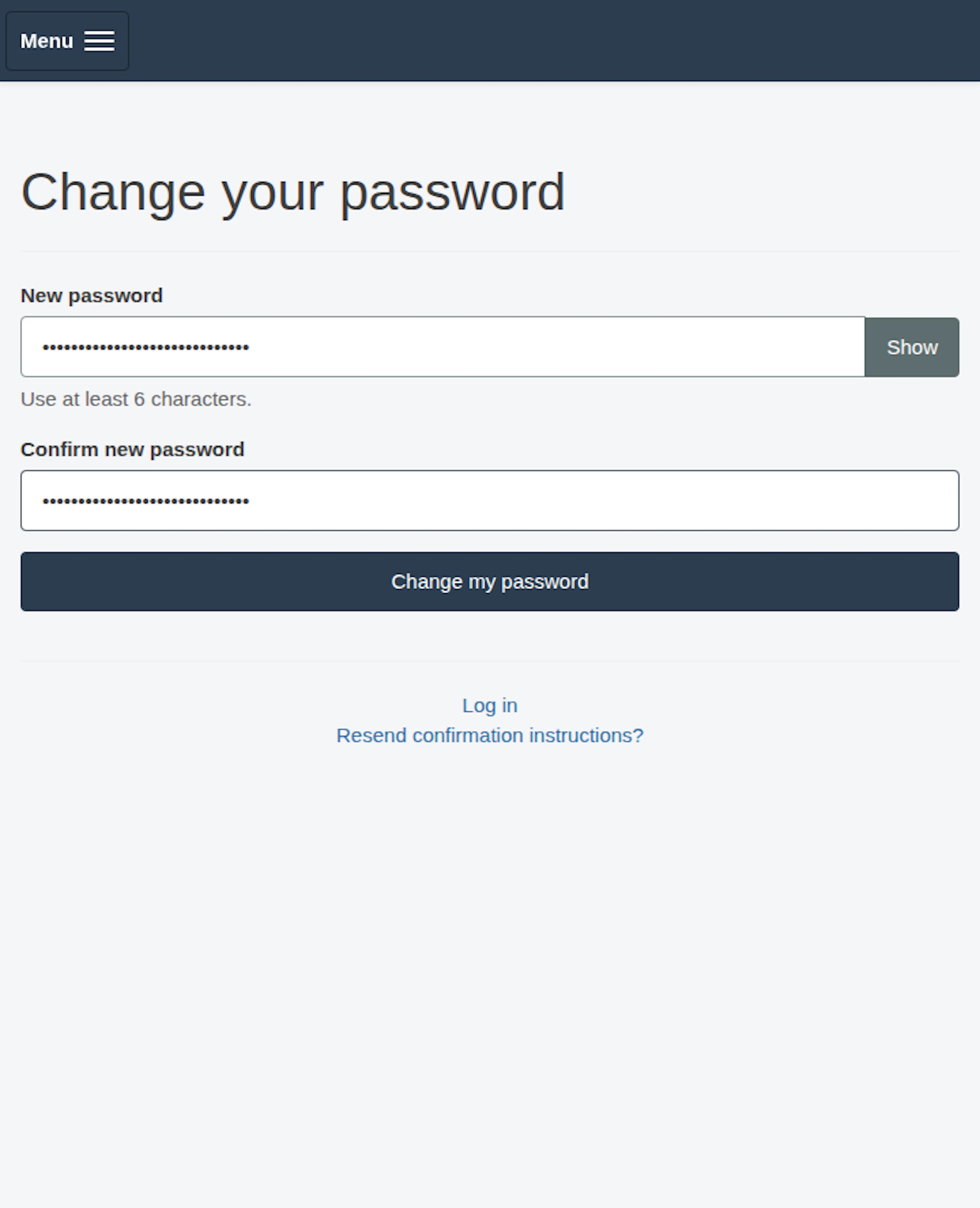
- On the Change your password page, enter the new password in New password and again in Confirm new password. Under the first field the page states the rule: Use at least 6 characters. One Show button shows or hides both fields.
- Select Change my password. The green message Your password has been changed successfully. You are now signed in. appears and you are signed in.
If the two entries differ or are too short, a red box at the top says Please check 1 entry (or the number of entries) and lists each problem as a link to its field. The same message also appears under the field. Select the link, correct the entry and send the form again.
If the link is too old or was already used, the page shows the red message This link for resetting the password is invalid or has expired. after you send the form. Select Request a new link to ask for a new reset email.
If the reset email does not arrive, check that you used the account email and check your junk folder. The email is written in the language that was selected when you asked for it. Delivery is not guaranteed by this guide; contact support if you remain unable to recover access.
Choose an interface language
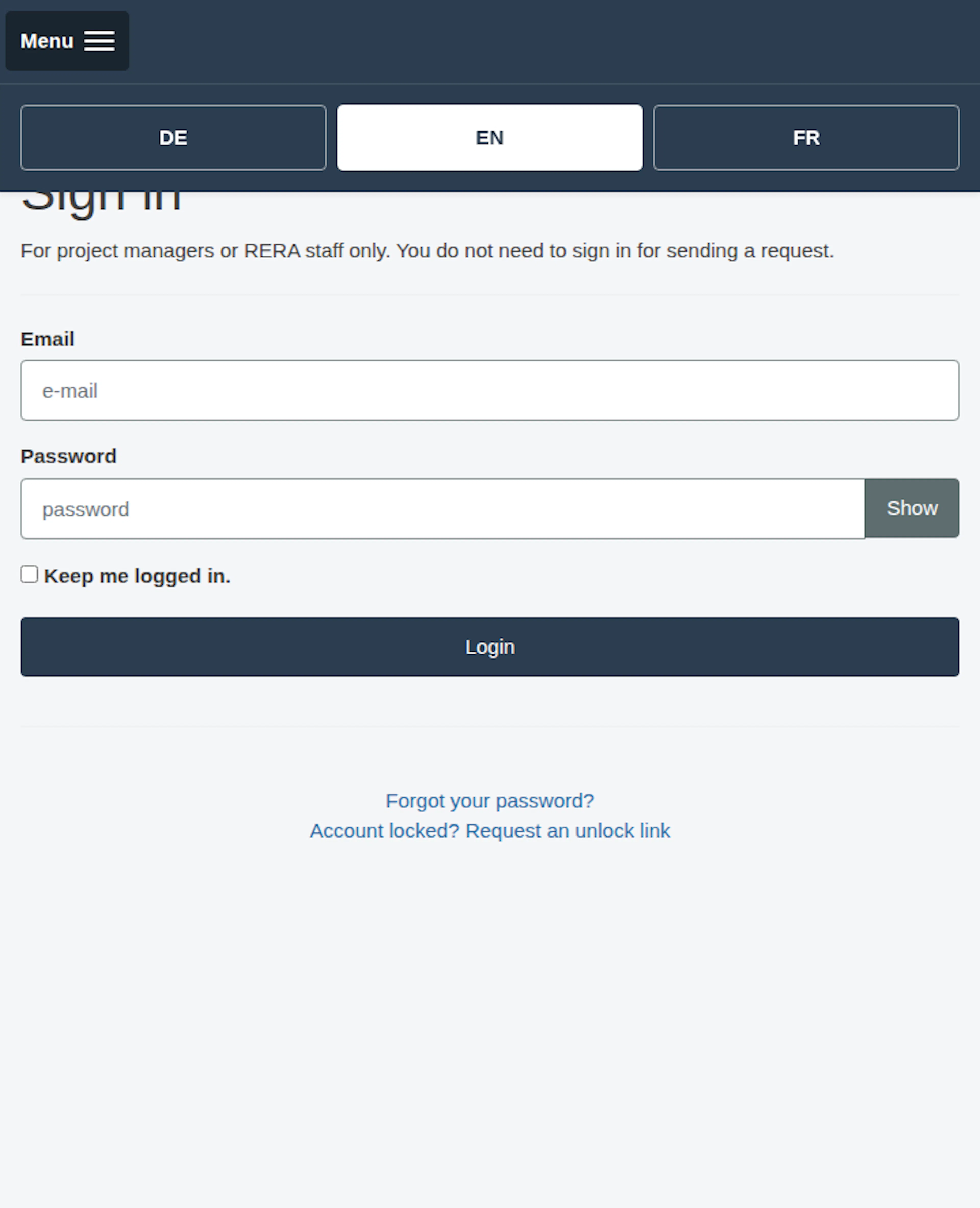
On a large screen, use the language drop-down in the page header. It shows the current language name; select Deutsch, English or Français. On a phone or tablet, select the Menu button in the header. The opened menu shows three buttons DE, EN and FR; the current language is marked.
Switching language keeps you on the same page and keeps the rest of the address, for example the date chosen in the calendar.
The selected language is stored in a browser cookie. German is the application’s default language. Translation coverage varies. Project-provided text may remain in its authored language; do not assume that every piece of content has a translation. The public start page of RERA is written in German only.
Invitations and registration
There is no public self-registration flow for creating a general RERA account. For invited access, follow the invitation link and its instructions. An invitation is not the same as acceptance or active access. For a project-team invitation, see Accept a team invitation.
If an administrator invited you to a RERA account, the link opens the page Please set your password. Enter the password twice, use Show if you want to check it, and select Continue. Under the first field the page states the rule: Use at least 6 characters. If the link is not valid, was already used or has expired, you reach the start page with the red message This invitation link is not valid or has expired. Please ask the person who invited you to send you a new invitation. Ask the person who invited you for a new invitation.
Account language and sign-in
These images show the English RERA interface, captured on 13 November 2026 UTC in a synthetic local project. Example dates use a synthetic January 2030 clock. The GIF presents selected actual steps.