Manage project elements
Create, order and maintain unloading zones, tools and areas, and review the effect on existing bookings.
Managers assigned to a project can use Elements for that project; global administrators can use it for any saved project. The account must have the appropriate role, be confirmed, enabled and unlocked, have a password and have accepted any invitation. A pending invitation or a Watcher subscription alone does not grant access.
Find and order elements
- Open the correct project and select Elements. On a phone, open Menu first.
- Choose Element type: Drop off area, Tool or Area. Choose Availability, then Show. Current, Upcoming and Ended describe the status at the displayed Europe/Zurich time; booking choices use the selected delivery time instead.
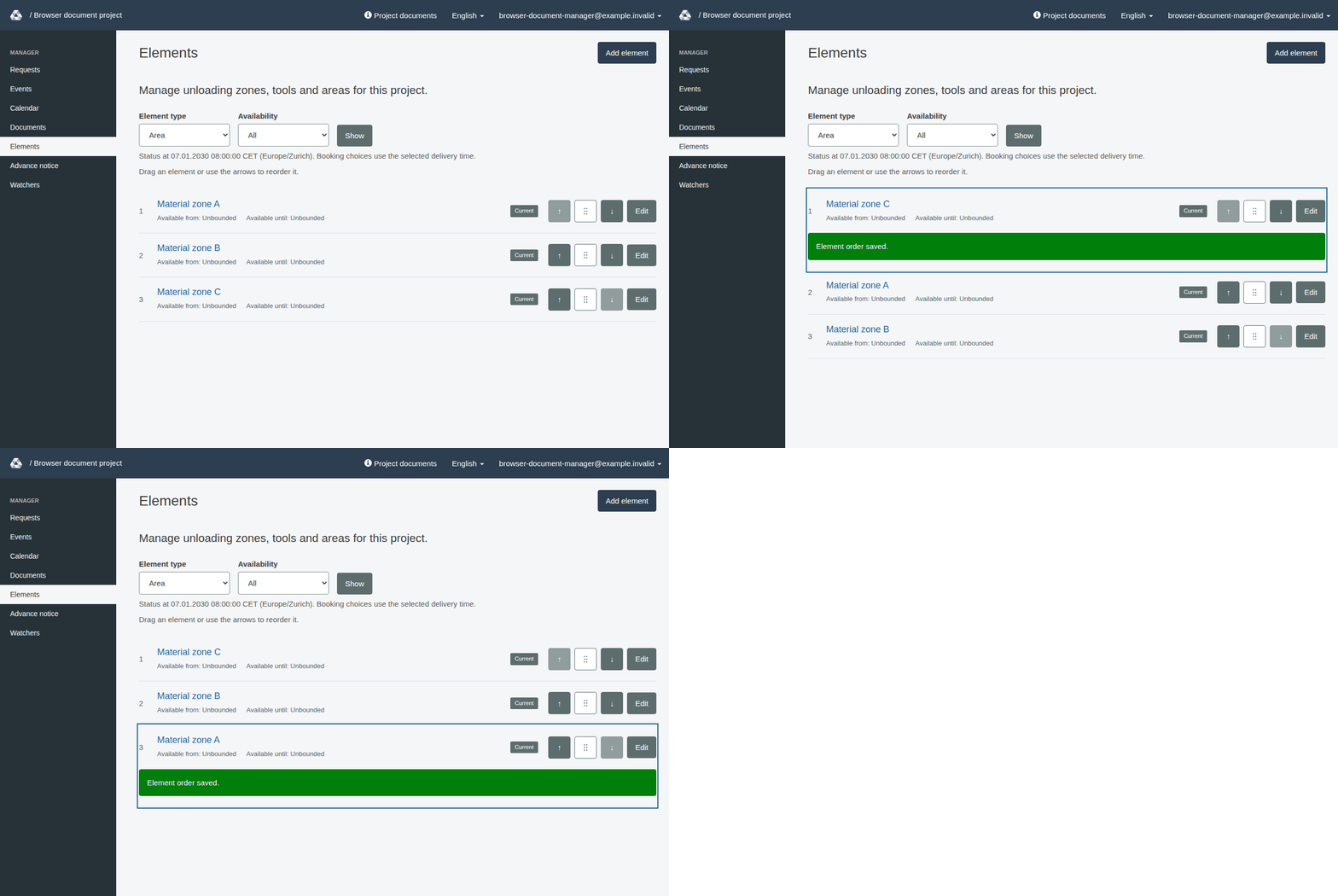
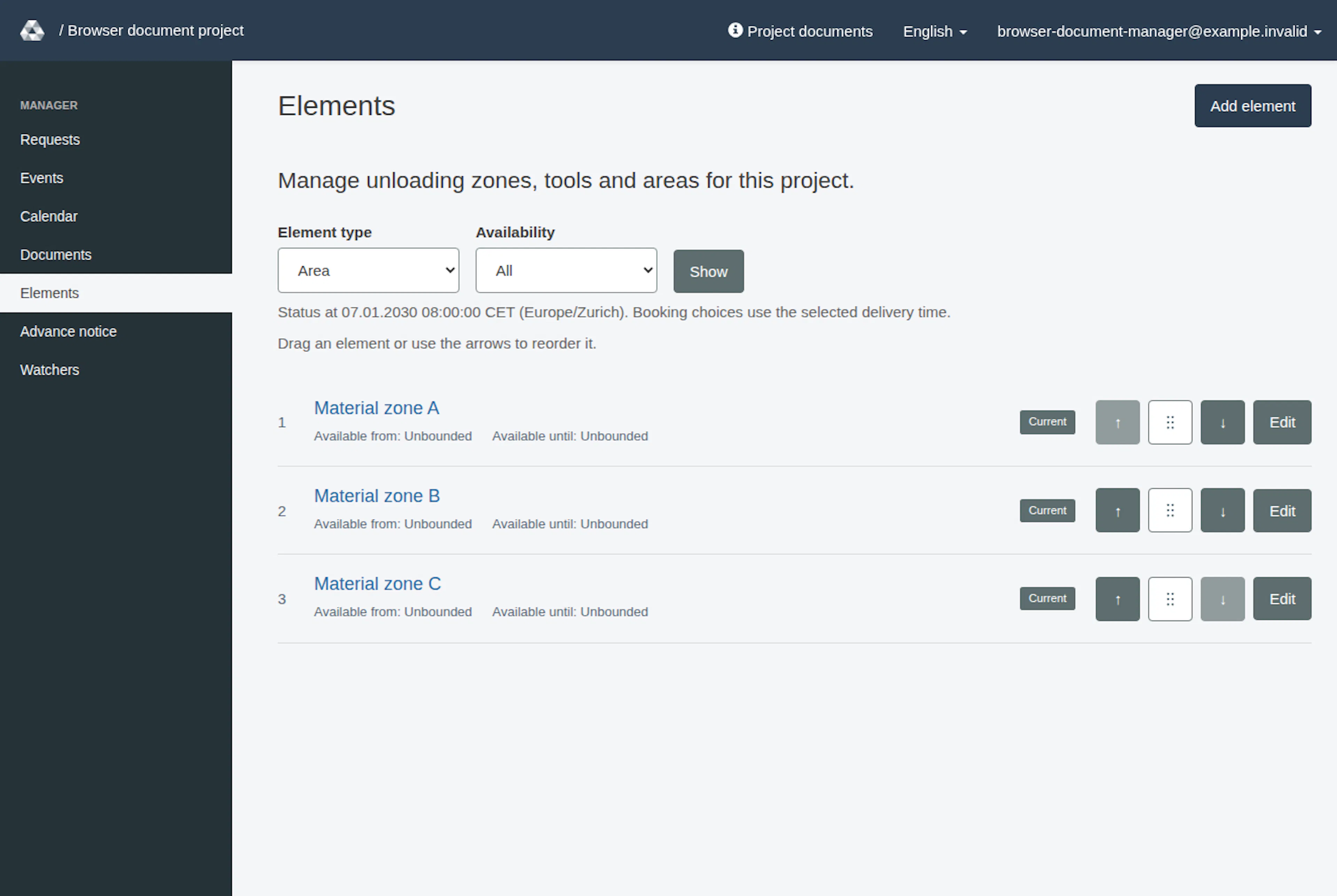
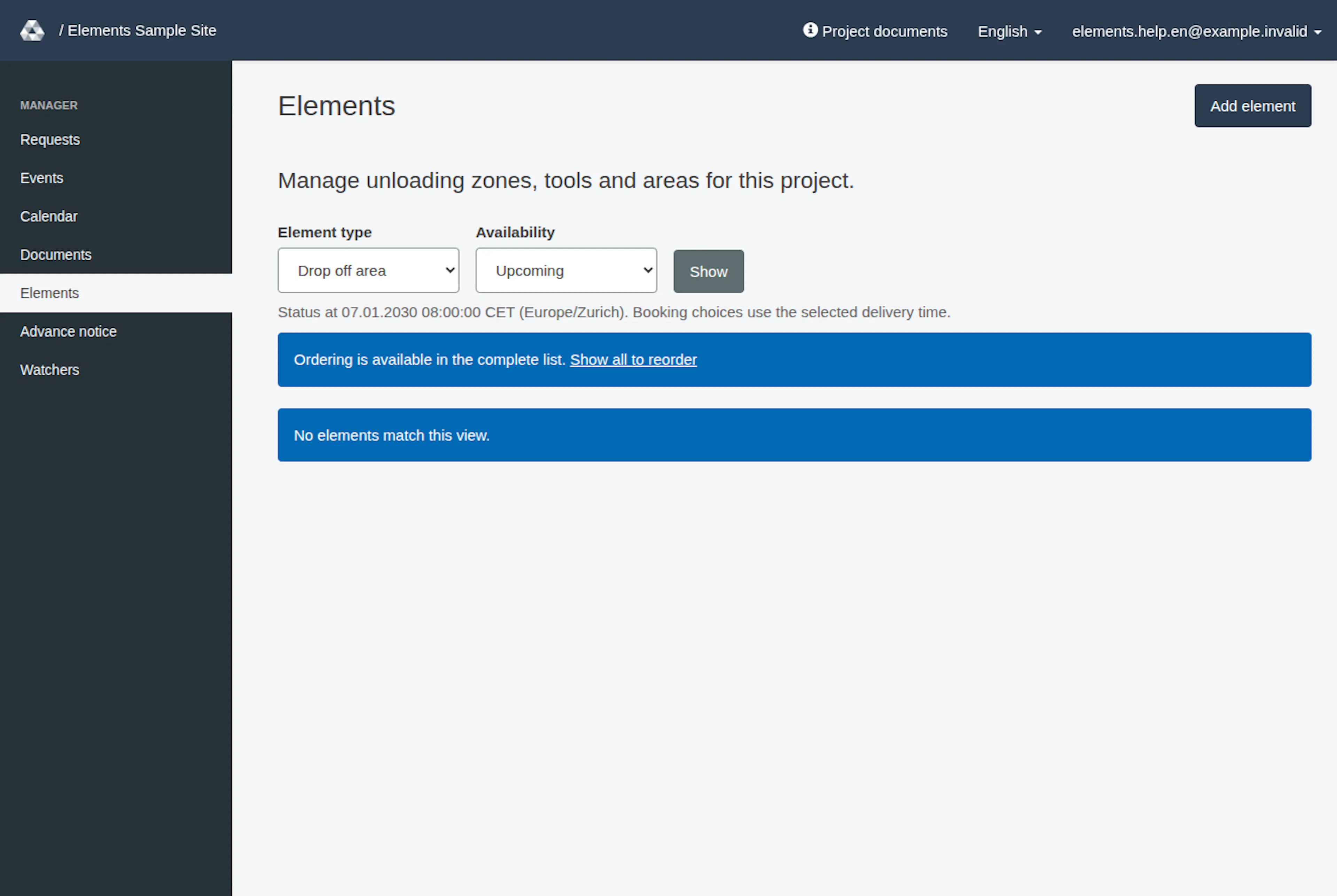
- To change the order, select All in the active list and use the up/down arrows. In supported browsers with JavaScript enabled, you can also drag an element by its grip and drop it before or after another element of the same type. Ordering is unavailable in filtered or archived lists. Ordering is separate for each type. If the order changed in another session, review the refreshed list and try again. New elements are added at the end of their type list. Ordering tools or drop-off zones also changes their row order in both RERA calendars.
In supported browsers with JavaScript enabled, successful order changes update the row positions without reloading the whole page or returning to the top. Adding and editing still use separate pages. In this mode, a successful save returns to the full list for the saved element’s type (or its archived list after archiving), without a full-page reload. Validation and booking-review messages appear in the editor. Otherwise, the page uses normal full-page submission.
During an in-place update, if saving cannot be confirmed, your entries remain and the original form is blocked to prevent saving twice. Check current state opens the current list in a new tab. Check whether your change took effect before continuing from a freshly opened management page. Keep the original tab open if you need its entries. RERA does not automatically resend the change.
Add or edit an element
- Select Add element, or Edit beside an existing element.
- Enter Name. Choose Element type for a new element; an existing element's type cannot be changed. For a tool, select Tool category (optional) when the field is shown, using this project’s generic categories in the category list; an existing category can be retained. If the field is absent after selecting Tool, save the new element and edit it to choose a category.
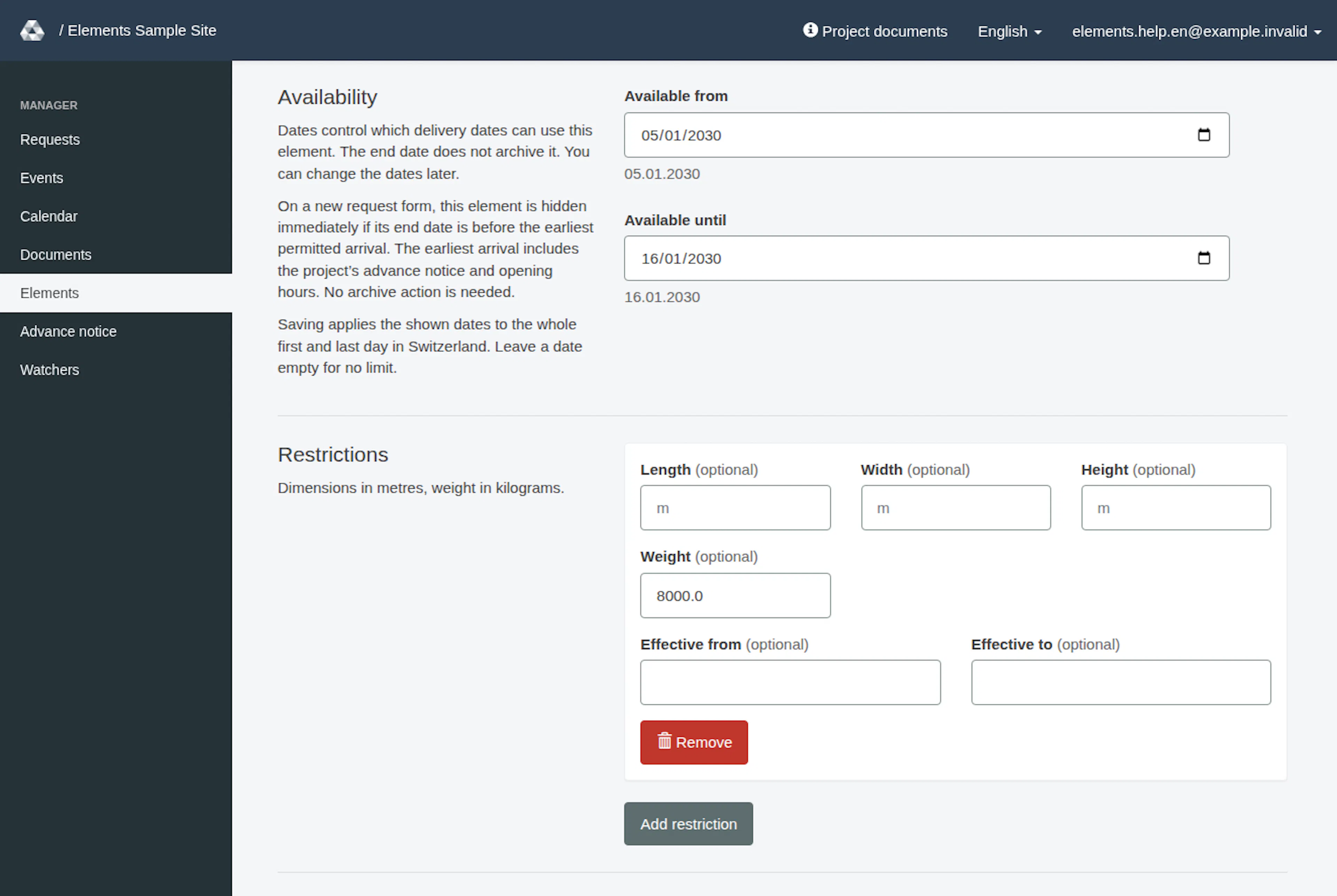
- Set Available from and Available until as needed. Leave a date empty for no limit. Saving applies the shown dates to whole calendar days in Switzerland (Europe/Zurich). The start date includes the whole day, as does the end date. An older end stored at midnight on 11 November is shown as 10 November. Saving applies the shown whole days, making 10 November the last available day in this example; existing records are not changed in the background. To limit future arrival dates, set Available until.
- When Restrictions is shown, use Add restriction to enter positive length, width or height limits in metres, or weight in kilograms. Each restriction must limit at least one value. Optional Effective from and Effective to dates limit when it applies; the end must follow the start. You can keep prefilled dates in the format shown, or enter dates as
dd.mm.yyyy, adding- HH:MMwhen a time is needed, for example01.12.2026 - 10:00. If Please check the date and time appears, re-enter the full restriction date with the separator and any time shown above (HH:MM, 00:00–23:59). For availability dates, use the date controls in step 3. Only one permanent restriction (with neither date set) is allowed. If Only one permanent restriction allowed appears, remove or date the extra undated rows and save the corrected proposal. Use Remove to remove a row. - The editor does not offer connection changes. Saving an element keeps its existing saved connections.
- Select Save element, then follow the review step below if it appears. On success, the list shows Element saved. Check the saved element there. Read any validation errors, correct the form and save again. If opening the editor returns This element changed. Open it again from the list., reopen it from the refreshed list. Renaming an element keeps its identity; a rename alone is not shown as a removed/new allocation in request history or email.
Review affected bookings
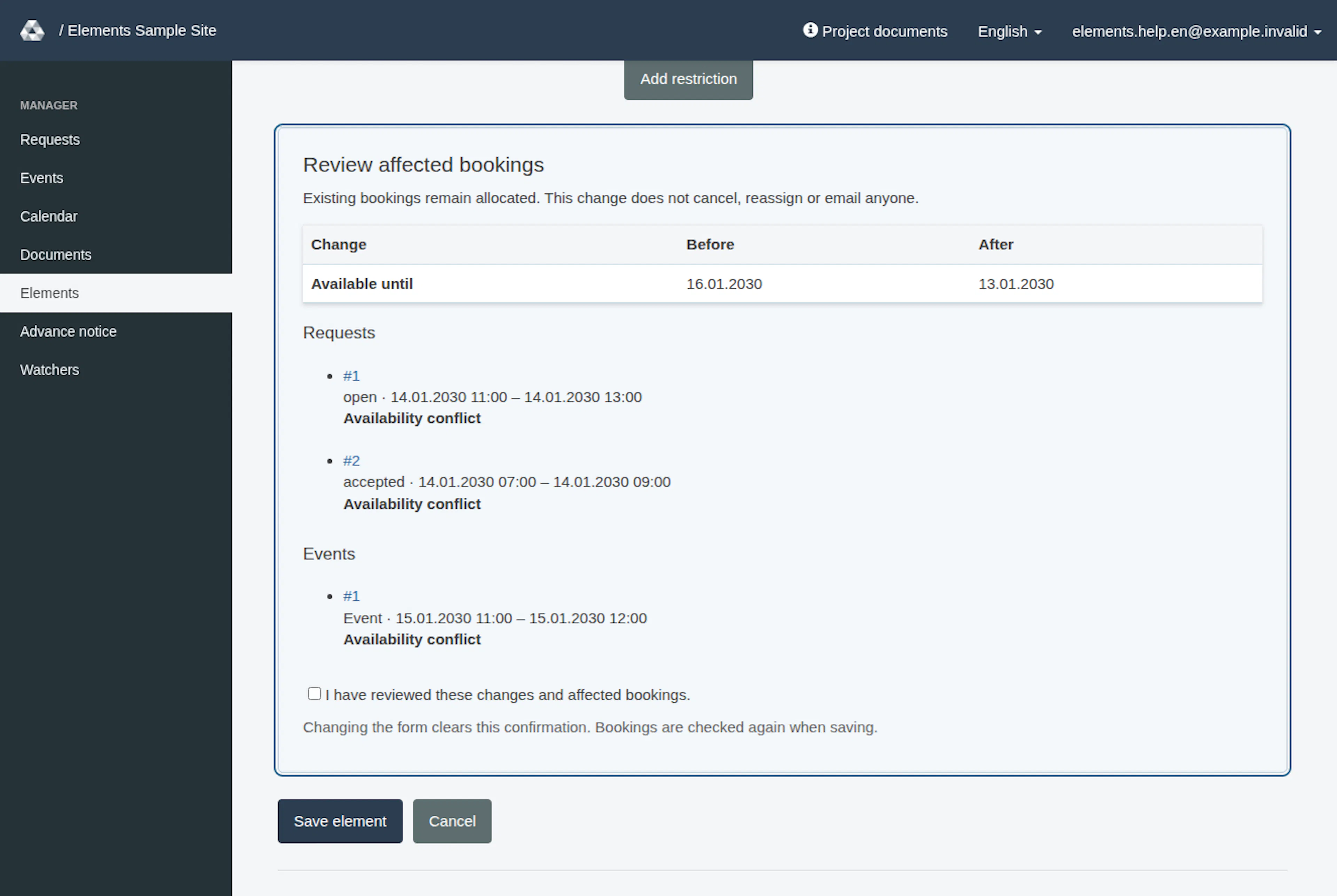
Review affected bookings shows before-and-after values and links to listed upcoming or ongoing bookings: open or accepted requests, and project events. Events are not filtered by status. Availability conflict identifies a booking whose arrival/start would no longer fit. Restriction review (informational) identifies changes needing operational review; it does not automatically cancel a booking. Restriction review covers tools and drop-off zones at the request’s arrival instant only; it does not cover events or Area restrictions. Availability is compared at arrival/start only: a booking that starts within the new boundaries but ends after the new end is not listed for that reason. A timed restriction that is not yet active at arrival is not checked for later in the booking. Before retiring an element or changing restrictions, check full booked intervals and any Area restrictions manually.
Inspect the listed bookings, then tick I have reviewed these changes and affected bookings. and save again. Changing the form clears the confirmation. If bookings or element details changed since the preview, first correct any listed errors and save again if needed, then inspect and confirm the updated review when it appears.
In Elements, saving an element keeps existing allocations. It does not cancel, reassign or email anyone. Coordinate any necessary request or event changes separately. Existing unavailable selections remain visible rather than silently disappearing. New bookings, approvals, resubmissions, changed arrival/start times and newly assigned elements must satisfy current availability. A title, description or message-only edit need not remove an unchanged historical allocation.
On a new request form, an element is immediately hidden or shown as unavailable when its end date is before the earliest permitted arrival. This cutoff includes the current time, the project’s advance notice and opening hours. The visitor does not need to choose a date first, and you do not need to archive the element.
Archive or restore
Only administrators can archive or restore elements. To archive one, open Elements, select its Element type and choose Show, then Edit beside the element. Choose Archive element, review any affected bookings RERA lists, acknowledge that review if prompted, then choose Archive element. Archiving removes the element from normal booking choices immediately for every date while retaining its identity and history; it is not a scheduled end date.
To restore an element, open Elements, choose Archived elements, select its Element type and choose Show, then Restore element beside the intended element. Review and acknowledge any affected-booking review shown, then choose Restore element. The same element returns to active management at the end of its type list, with its availability dates unchanged. If its end date has passed, it remains unavailable for booking until a project manager or administrator changes its dates in the active element editor. Managers can change availability dates but cannot archive or restore elements. Permanent deletion is not offered in this workflow.
Manage project elements
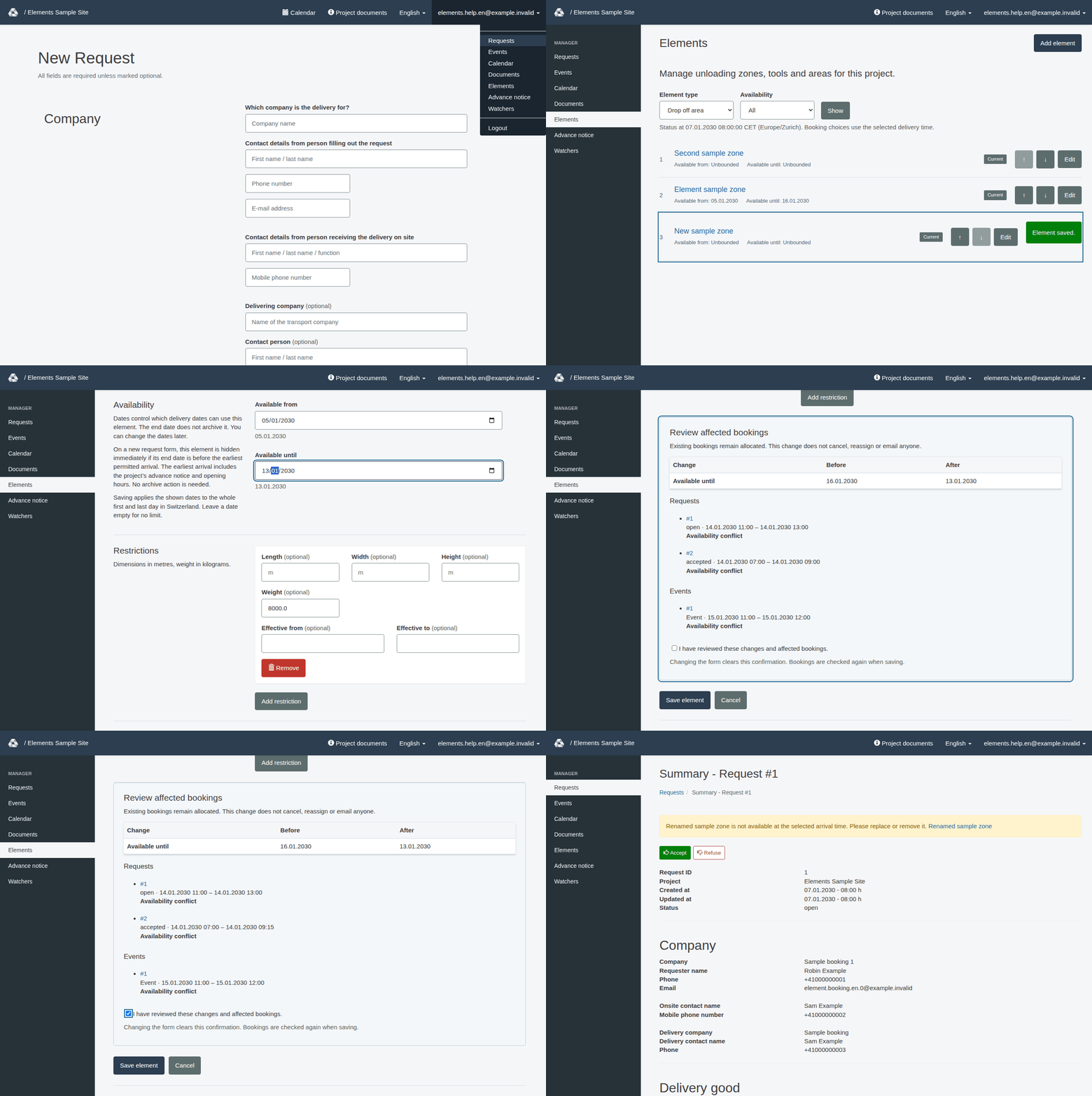
These images show the English RERA interface, captured on 13 November 2026 UTC in a synthetic local project. The GIF presents selected actual steps. Options depend on the project and your role.
The walkthrough and three images below are dated task illustrations. They omit the newer drag grips and Help links; the additional states at the end show the newer list controls.
Current drag controls
Additional synthetic local states captured on 13 November 2026 UTC. The animation combines selected states and does not record continuous pointer movement or every step of the task.