Choose a delivery time and enter transport details
Enter the requested date and times, then complete any configured duration or vehicle details.
Enter the requested date and times
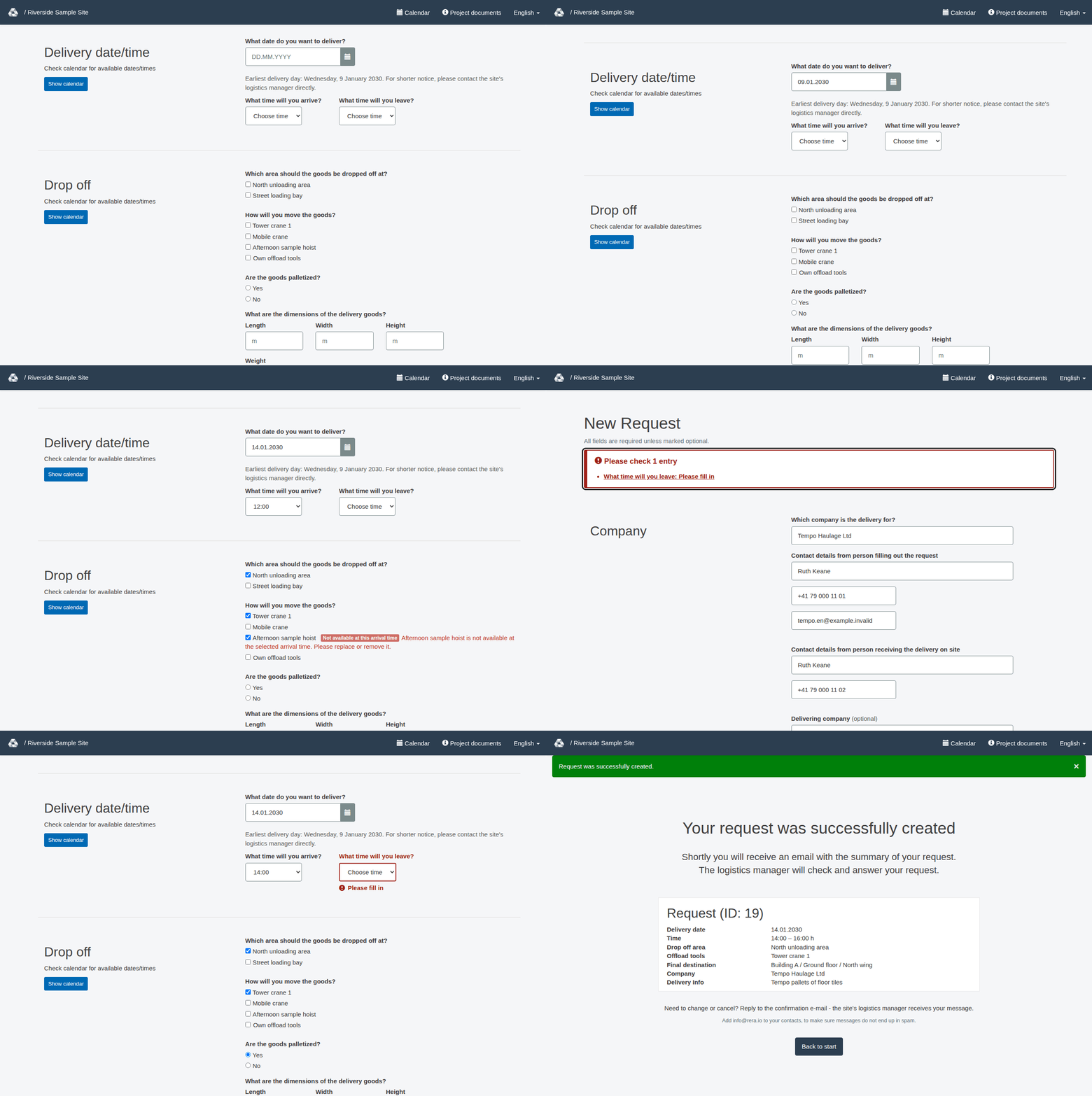
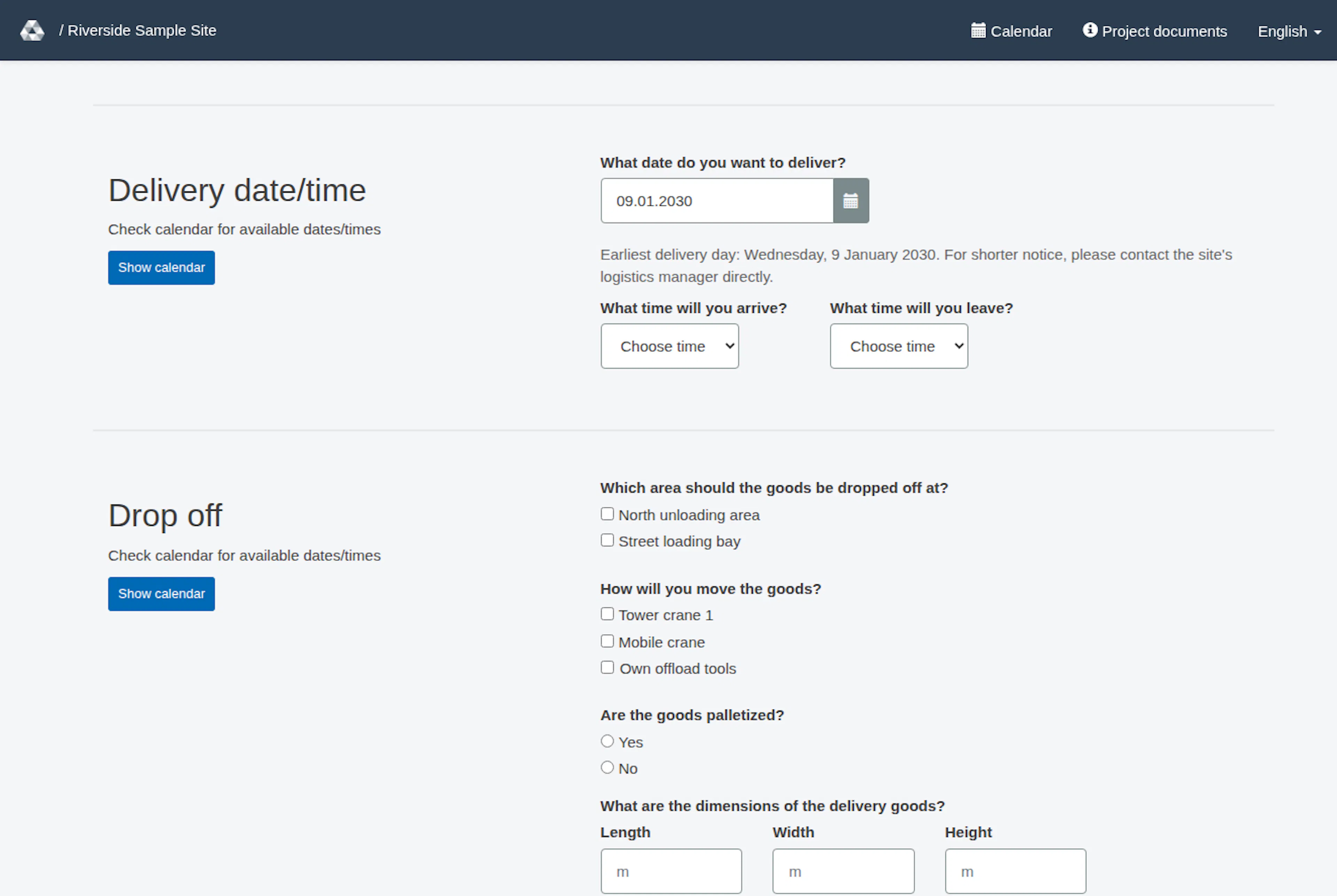
In the request form, open the Delivery date/time section. Enter the date (What date do you want to deliver?) by typing it as dd.mm.yyyy or picking it in the calendar. Then choose the arrival (What time will you arrive?) and the departure (What time will you leave?). These fields are required. Departure must be after arrival. A new or changed departure, including when you move the request to another date, must be no later than the closing time, if one is set. For a new request, choose a delivery date on or after the earliest permitted day and an arrival offered by the form. The minimum notice also applies to the arrival time; if a timing error gives an earliest arrival, choose that time or later. The public sentence below the date names the weekday of the earliest delivery day; for shorter notice, contact the site’s logistics manager directly. Managers do not see that sentence, but the same project notice limit applies to their new requests. For new requests, arrival choices use 15-minute steps, starting at a configured opening time (rounded up to a step if needed) or midnight if none is set, and ending at the last step at least 15 minutes before a configured closing time, or at 23:45 if none is set.
Arrival and departure are plain lists in 15-minute steps. Each starts on Choose time. They only offer times inside the site's opening hours: arrivals from opening until one step before closing, departures until closing. On the earliest bookable day, arrival times that are already too early are greyed out. If you change the date to that day after choosing a too-early arrival, the arrival is cleared and you choose it again. Departure times at or before the arrival are greyed out, so you cannot pick a departure that is not after the arrival. The server also refuses times outside the opening hours and names the allowed window in the message.
If the form shows a duration field (How long will the delivery take?), enter the requested delivery duration. Use Show calendar to check which dates and times are free.
If a duration field is missing or validation does not match the choices shown, contact the project team.
Complete transport details when requested
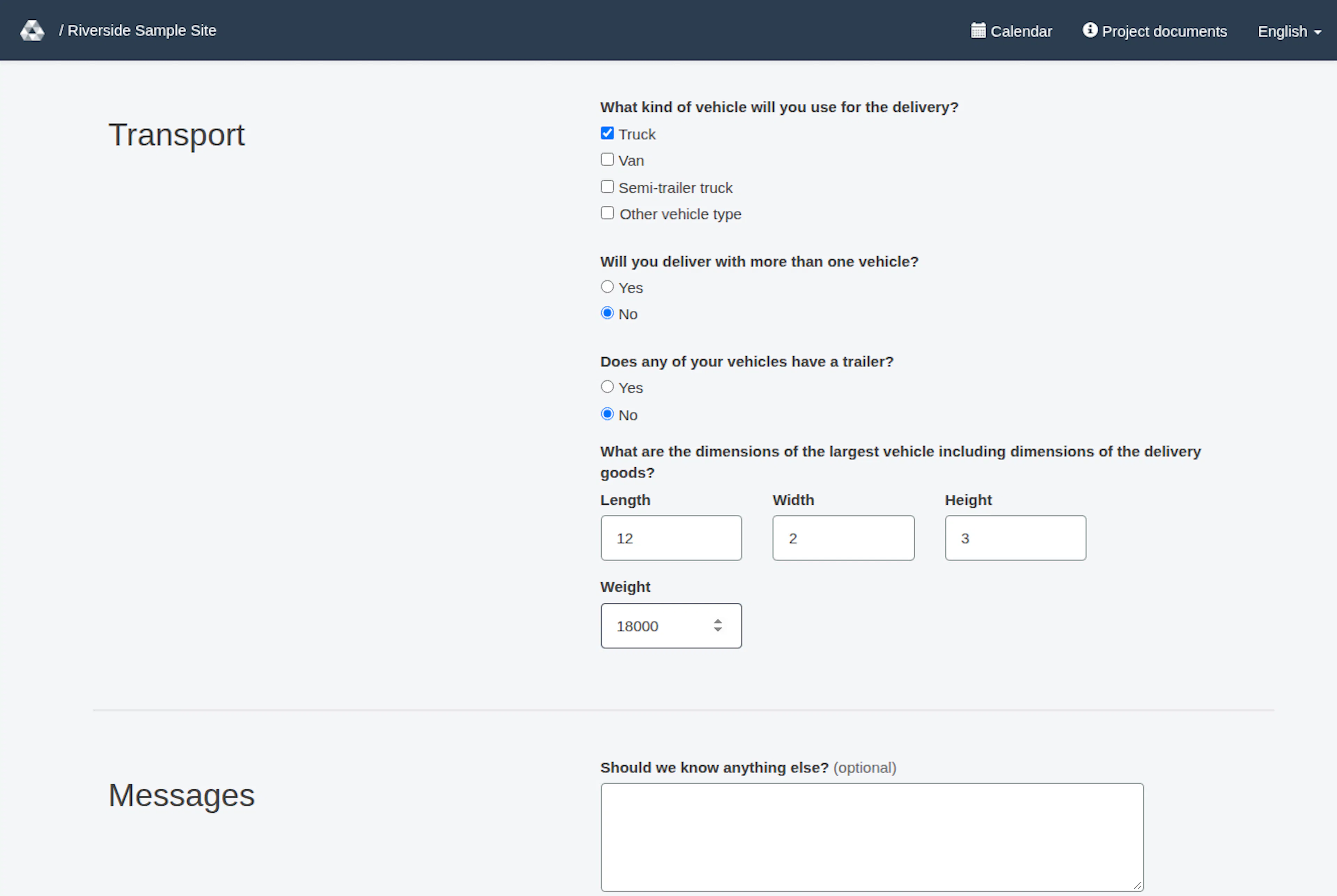
If the form asks for dimensions, complete all required transport and load fields shown, which can include whether goods are palletized, size and weight information, a vehicle type (or Other vehicle type if yours is not listed), number of vehicles, whether there is more than one vehicle, whether the vehicle has a trailer, and the largest vehicle’s dimensions. Lengths, widths and heights are entered in metres (m). Weights, for the goods and for the vehicle, are entered in kilograms (kg). Vehicle types appear in the language of the page: for example Van, Truck and Semi-trailer truck in English. These details are conditionally required. Follow the required fields shown and contact the project team if they appear inconsistent.
Configured date and size restrictions can affect which tools or drop-off zones are available. On a new request, elements whose availability ends before the earliest permitted arrival can already be omitted or shown as unavailable before you enter a date. Enter the date and arrival to check availability for your delivery. If a resource is unavailable, review the date, time and selections, then choose an available option or ask the project team for help.
If validation fails
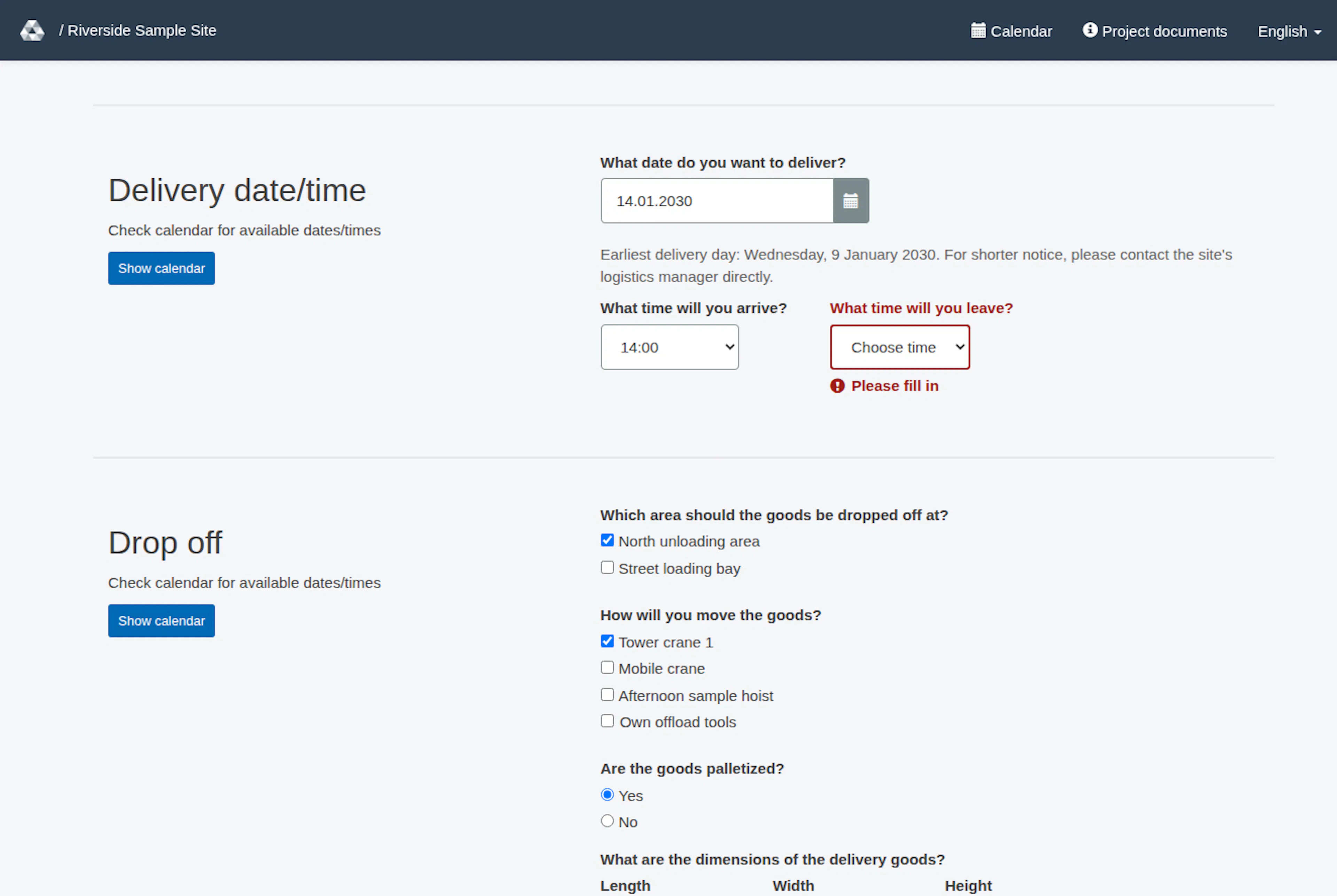
When the form cannot be saved, a red summary appears at the top, for example Please check 1 entry. It lists each problem as a link to its field; select one to jump there. A field with a problem is marked in red with its own message, such as Please fill in under a leave time left on Choose time. Correct the reported date, time, duration or transport fields. Fields marked (optional) are not required; all others are, except that a few are needed only in certain cases (for example, the other vehicle type is needed only when no listed vehicle type is chosen). The messages show what is missing.
After completing these details, select Create request (for a new request) or Update request (when you change and resubmit one). A submission creates an open request for review; it does not confirm that the project accepted the delivery time. You then see the confirmation Your request was successfully created with a summary of what was booked, including the date and the time from arrival to departure. See Create a delivery request.
Element availability
Element availability is checked at the selected arrival instant in Europe/Zurich, using both the delivery date and arrival time. This does not guarantee availability throughout the booked interval: an element can reach its availability end after arrival and before departure. Check the full planned use with the project team when needed. Changing the date or arrival can make a selected area, drop-off zone or tool unavailable. Replace or remove the affected selection, then submit again. Overlap warnings and size/weight limits also apply. If a selection fails both size and time checks, the time message can appear after you correct the size issue.
Set delivery times and transport details
These images show the English RERA interface, captured on 13 November 2026 UTC in a synthetic local project. Example project dates use a synthetic January 2030 clock. The GIF presents selected actual steps. Options depend on the project and your role.