Find a project and start a delivery request
Open a project page, review its terms and continue to the delivery request form.
Open the project page
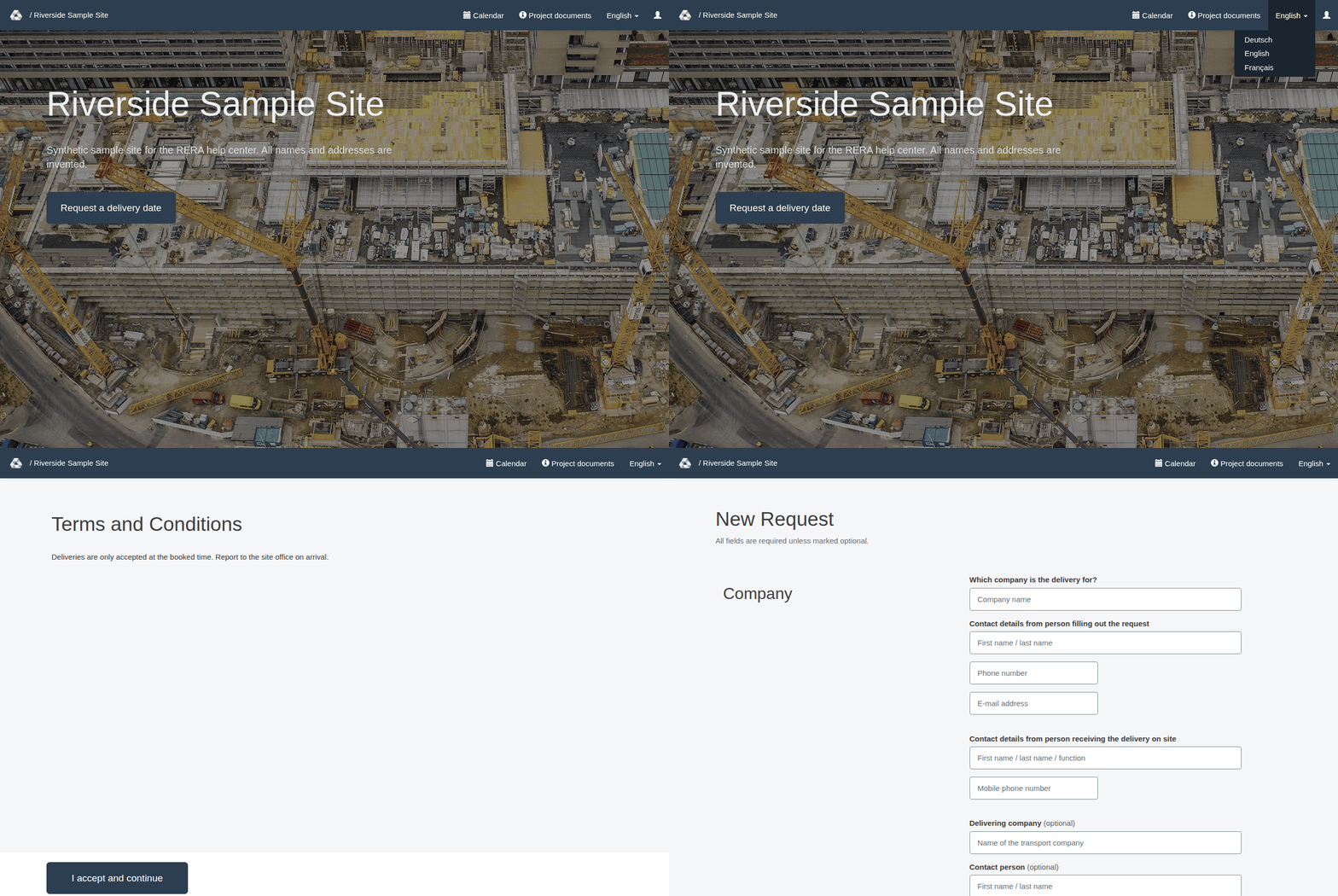
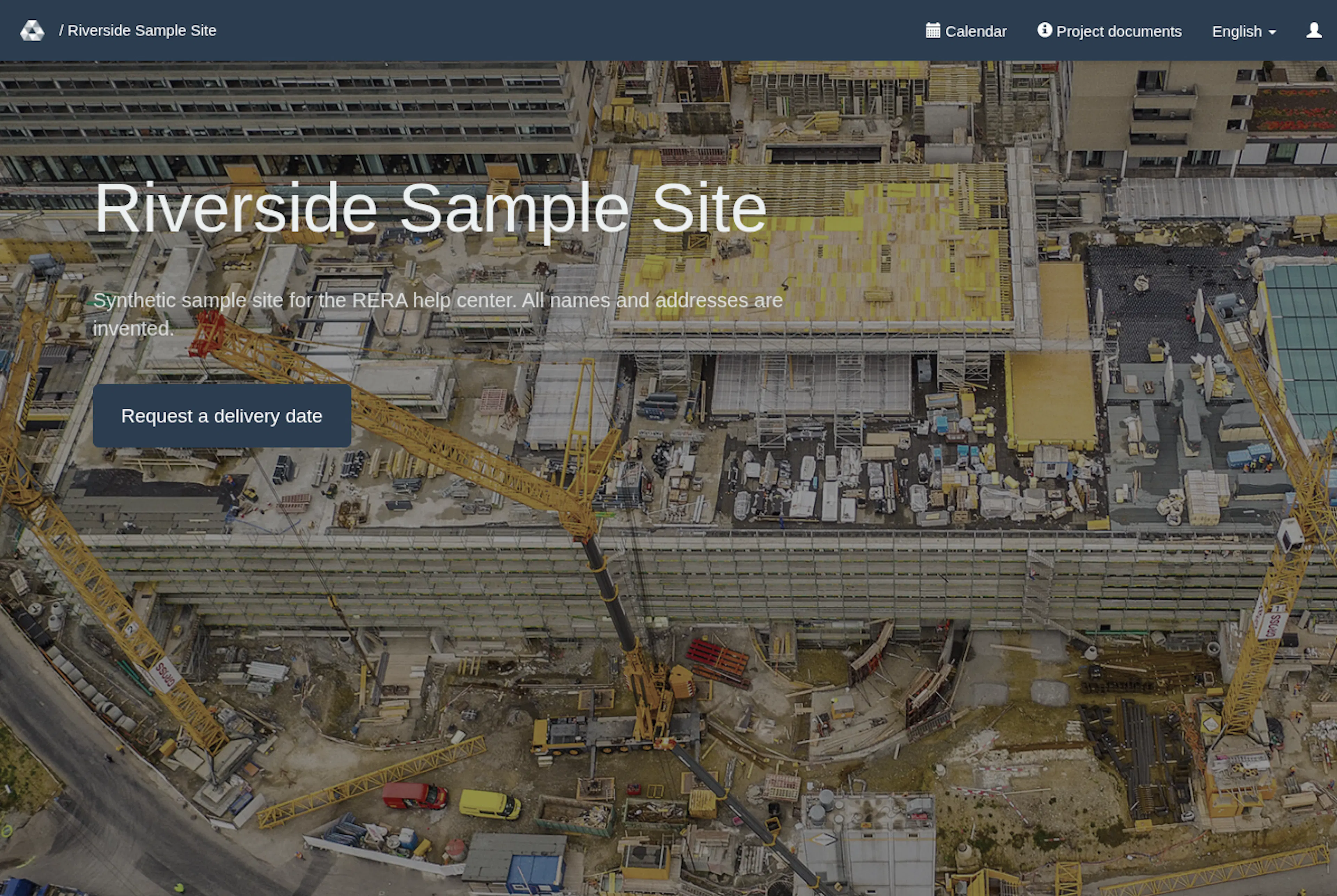
Use the project link supplied by the project team. The page displays the project name, also in the top bar next to the RERA logo. A logo and description appear when configured; the background uses a configured image or the default image. Select Request a delivery date to review the project’s rules (Terms and Conditions) and continue.
On a large screen the top bar offers Calendar (on pages without the side menu), Project documents and the language drop-down. On a phone or tablet the top bar shows the project name, Calendar (managers also see Requests) and a Menu button; the other links are inside the menu.
If you cannot find the project page or the address does not work, ask the project contact for the correct link. An address with an unknown project name shows the text “No project named … was found. Contact service@rera.io to get support”. Other addresses that match no page at all, for example a longer path that is not a project page, show a “404 – Seite nicht gefunden” page, which is in German only.
Review the project rules
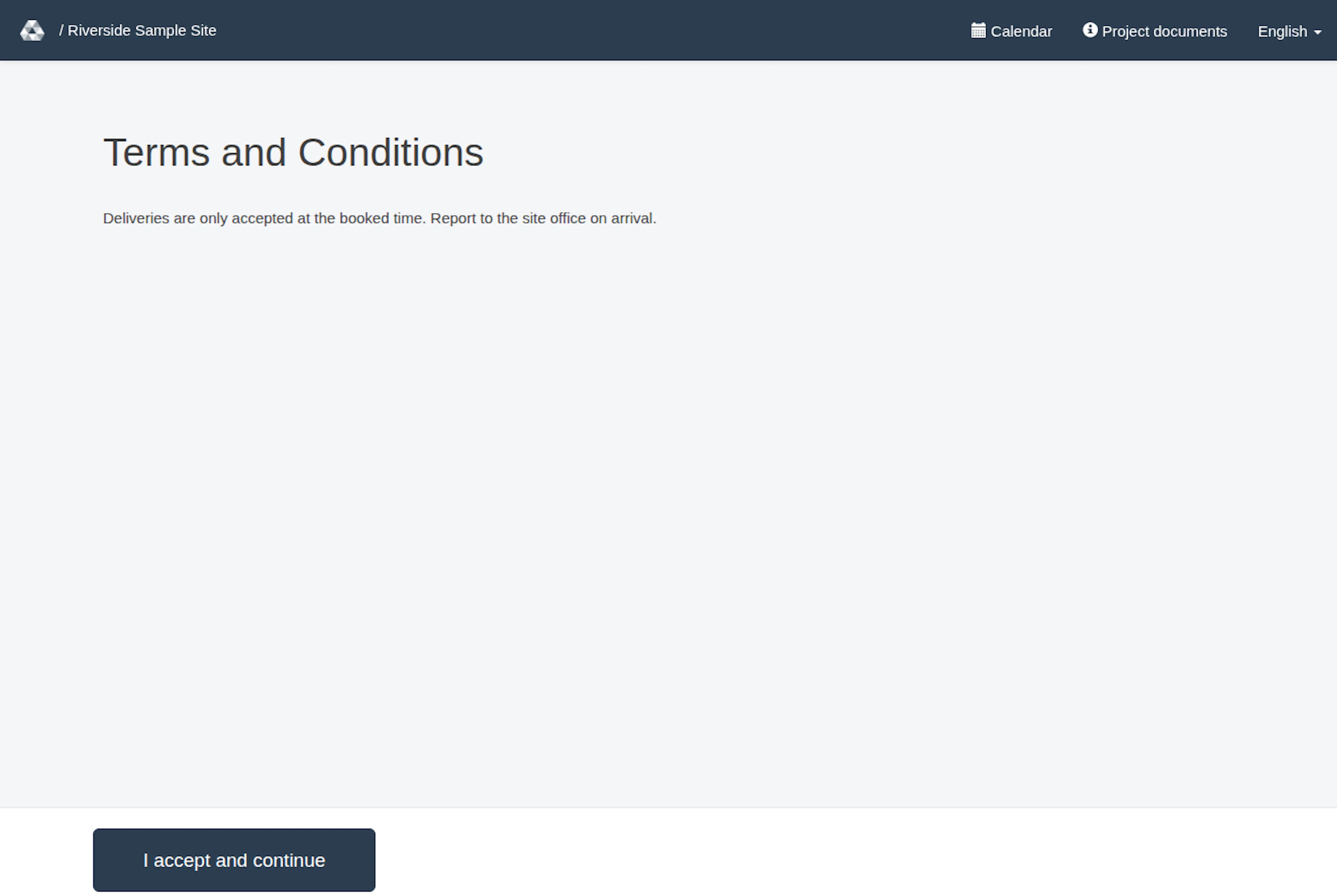
Read the rules on the page Terms and Conditions. At the bottom of the page is one button, I accept and continue. There is no checkbox to tick. Select the button to open the request form (New Request).
No separate acceptance receipt is shown. You can return to the rules page from the project page.
Some sites have no rules text. For such a site, Request a delivery date opens the request form directly and the rules page is skipped. If you open the address of the rules page for such a site, RERA sends you on to the request form.
Continue without signing in
You can submit a delivery request as a public requester; a RERA account is not required for this step. The project page and rules are separate from manager sign-in and administration. If you need to manage requests as a project manager, use the account and language guide: Sign in, recover an account and choose a language.
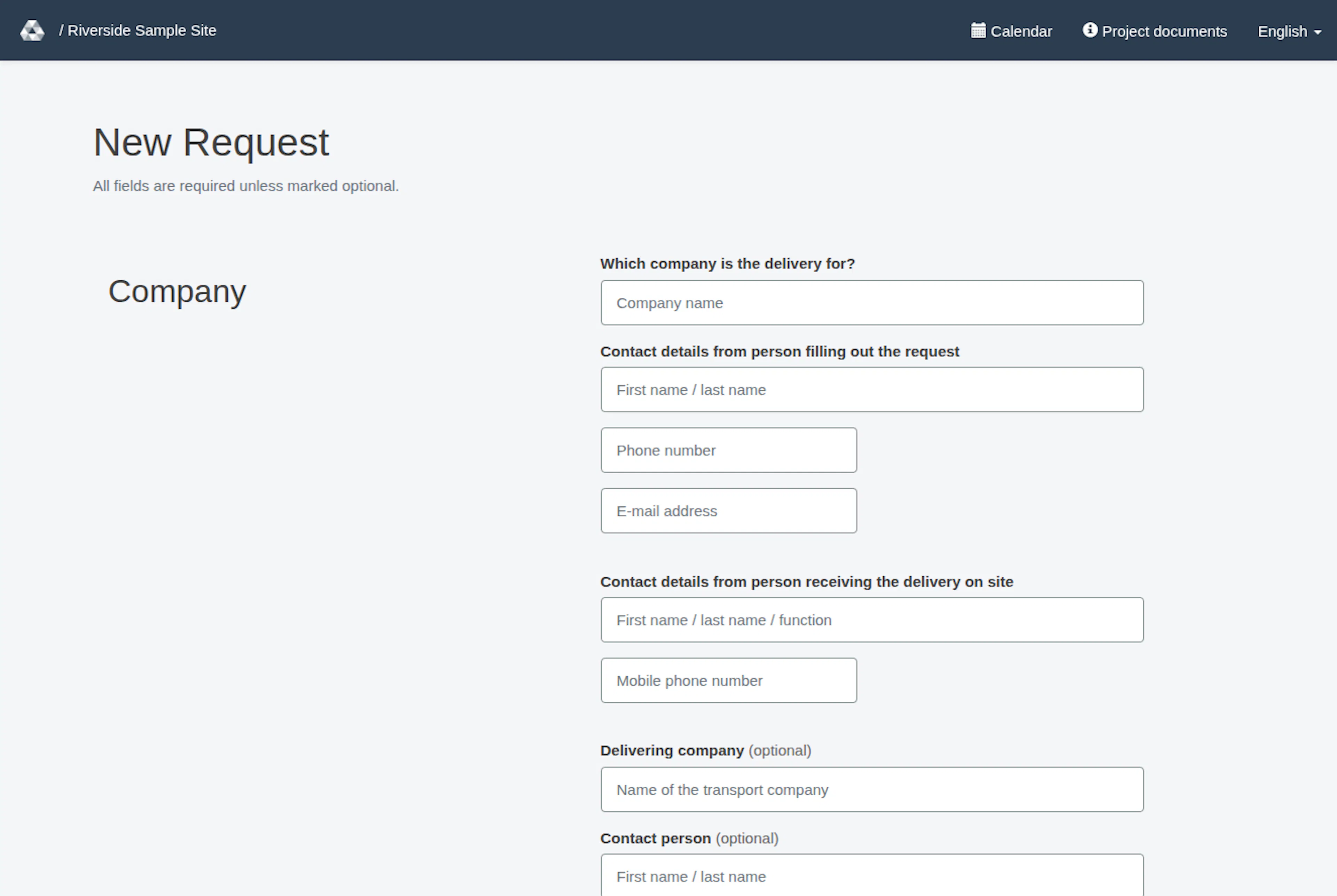
Continuing opens the request form; it does not submit a request, reserve a delivery time or mean that a manager has approved a delivery. Complete the form and submit it separately. The request guide explains the information needed: Create a delivery request. At the top of the form, the line “All fields are required unless marked optional.” tells you that fields you can skip are marked “(optional)”.
The form remembers some entries on your own device only. After a successful booking, your browser keeps your contact details for this project and fills them in the next time you open an empty form; an unsent draft is kept for 7 days. A note at the top of the form tells you when something was filled in. Nothing is sent to RERA for this. On a shared computer, select Clear form.
After you submit the form, a confirmation page shows what you booked. It tells you to reply to the confirmation e-mail if you need to change or cancel the request.
Project options and information can differ. A page may not show a description, logo or a particular request option when that project has not configured it. Contact the project team if displayed information appears incomplete or you need help understanding its terms.
Language
The interface offers German, English and French. On a large screen, open the language drop-down in the top bar; it shows the name of the current language, for example English. On a phone or tablet, open Menu: the three buttons DE, EN and FR are in a row, and the current language is highlighted. Switching keeps you on the same page, and the choice is remembered in your browser.
The rules page displays the project’s stored rules text. Do not assume that project-authored content has a translation; ask the project contact if you need clarification.
Open a project and start a request
These images show the English RERA interface, captured on 13 November 2026 UTC in a synthetic local project. The GIF presents selected actual steps. Options depend on the project and your role.