Create and manage project events
Record events affecting delivery availability, repeat single-day events and maintain their affected resources.
Use Events to record project activities that affect delivery destinations, offload tools or drop-off zones. You must be signed in as a manager assigned to the project, or as an administrator. Events influence the RERA calendar: an event appears in the calendar cell of each affected resource, labelled with its Title. Events can also conflict with existing deliveries, so check the affected resources before saving.
Create an event
- Select Events in the project’s manager navigation, then Add event (the button is next to the page heading). On a phone, tap Menu first to reach the navigation.
- Enter a Title. Add a Description if people need additional instructions or context.
- Choose the appropriate Event type from the available choices.
- Set Start date, Start time, End date and End time. For each date, select the calendar button or type the date as dd.mm.yyyy (for example 24.01.2030). For each time, open the list (Choose time) and pick a time; the list goes in 15-minute steps. The end must be later than the start. Events can span dates, but only events that start and end on the same calendar date can be repeated.
- Under Affected components, select the relevant destination and resources. Use the table below to check the scope you intend to block.
- If needed, set Repeat event using the counting rules below. Leave it empty or zero for one event without copies.
- Review the feedback for the current dates, times, destination and resources. It shows Checking this selection…, then Conflicts remain for this selection or No conflicts found for this selection. For incomplete selections or failed checks, see Handle errors and conflicts. Only the interval shown in the form is checked: This check covers the displayed dates and times. Repeat dates are not included. Changing a date, time, destination or resource starts a new check. Use the suggestion’s offered links to focus a date, destination or resource field; time focuses Start date. You can still save an intentional overlap. Inspect the Conflict warning. It groups overlapping accepted requests, open requests and events. It lists requests as Request ID # n: 24.01.2030 12:00 - 14:00 (the date, then the start and end time) and overlapping events as Event ID # n: title. Where offered, enter Send a message to requestors of the conflicting requests to explain the disruption to affected accepted deliveries.
- Select Create an event. Check for Project event was successfully created., then inspect the event list and the affected calendar dates.
Select affected components carefully
| Selection | Effect or limit |
|---|---|
| Building without a selected floor in that building | Affects the whole building, including its floors and sectors. |
| Floor without a selected sector in that floor | Affects the whole floor, including its sectors. |
| Sector | Narrows the affected destination to that selection. |
| Which offload tools will be affected? | Select the project tools unavailable during the event. |
| Which drop off zones will be affected? | Select the affected project drop-off zones. |
Floor choices depend on the selected building, and sector choices depend on the floor. Recheck lower-level selections after changing the destination. Submitted destinations, tools and zones must belong to this project; resources from another project are rejected.
Repeat a single-day event
Repeat creates separate events on successive calendar days, preserving the times and resource selections. It is not a weekly or weekday recurrence rule.
| Where you enter Repeat event | Meaning of the number |
|---|---|
| Creating an event | Total occurrences including the original. Entering 3 creates the original and two next-day copies. Empty, 0 or 1 creates no copies. |
| Editing an existing event | Additional next-day copies. Entering 3 creates three copies after the existing event. Empty or 0 creates none. |
An event crossing midnight cannot repeat, even if its duration is less than 24 hours. The original, copies and associated conflict-message work are saved together; a validation failure does not intentionally leave a partly saved repeat batch. Saving repeats also schedules conflict emails for requestors of accepted requests that overlap a copy, even if those requests were absent from the preview; any message you entered is used for them too.
Edit or delete an event
- Open Events and locate the entry. Use the sortable #, Title, Start date or End date headings and page controls as needed.
- Select Edit (pencil icon) to edit its details. The same conflict check applies when editing. Check Repeat event before submitting: a positive value while editing adds new copies.
- Save and check for Project event was successfully updated. Inspect each affected date; copies are separate event records.
- To remove an event, select Delete (trash icon) and confirm the question Delete event "Title"?, which names the event you selected. Check for Event was successfully destroyed. The deletion applies to that selected event; do not assume it removes other copies.
See an event in the calendar and on its own page
- In the calendar, the event is drawn on each affected resource row with its own Title. Where requests overlap the event, the label lists the title first, then the request numbers, separated by commas. In narrow cells the text is shortened; hover over it to read the full label.
- Each event also has its own read-only page. It shows the title, Event type, Start date, End date, Description (if there is one) and the affected Buildings, Floors, Sectors, Tools and Drop off areas, followed by the links Edit and Back. You can open it from the event’s entry in Project activity, if that page is available for your project.
Handle errors and conflicts
The check does not save the event: Changes are not saved yet. applies even when no conflicts are found. Use the create or save button to save, then check the success message. Missing or invalid dates/times, or invalid resource selections, show Check the start and end dates, times and selected resources. Review the interval, including whether the end is after the start, and recheck the destination and resource selections. If this message remains while editing, return to Events and try reopening the event; it may have been removed or moved. A failed check shows The conflict check is unavailable. Please try again. Select Check again to retry; this message does not mean the selection is clear.
If saving returns to the form, a red summary at the top says Please check N entries (Please check 1 entry for a single problem) and lists every problem. Select a problem in the list to jump to its field. Each field with a problem also shows its message in red, for example Please fill in. Fields that are not required are marked (optional). Check the required title, event type, start and end. A date or time that cannot be read shows Please check the date and time. An end that is not later than the start shows Please choose an end after the start. A resource from another project is refused with Resources must belong to this project. Correct the problem before submitting again.
Conflict notifications concern requestors of accepted requests; they do not automatically amend or cancel deliveries. The path sends to the request email, copies request subscribers and project watchers, and BCCs active administrators. A blank conflict message creates no in-app request message but does not by itself suppress scheduled conflict mail. Coordinate the actual arrangements using scheduling conflicts. Scheduled mail is not proof that recipients received it.
Element availability
A new event, a changed start date or time and newly assigned tools or drop-off zones must satisfy element availability at the event’s start. Repeated copies are checked at each copy’s own start. If any occurrence fails, nothing in that batch is saved, including the edit to the original event. The errors identify failing dates. Replace or remove the unavailable selection, change the start date/time or reduce the repeats, then save again. An unchanged older allocation can remain during a title/description-only edit. In Elements, changing an element leaves existing events allocated. It does not automatically cancel events or reassign their elements, and sends no email notification; inspect affected events and coordinate changes.
If RERA returns you to the event list with This action could not be completed. Please reload the page and try again., check the current event list first. If the event is still listed, reopen it, check its current state and re-enter your unsaved changes. If it is missing, it may have moved to another project; ask the project team to locate it and check your access before recreating it.
Manage a project event
These images show the English RERA interface, captured on 13 November 2026 UTC in a synthetic local project. Example dates use a synthetic January 2030 clock. The GIF presents selected actual steps.
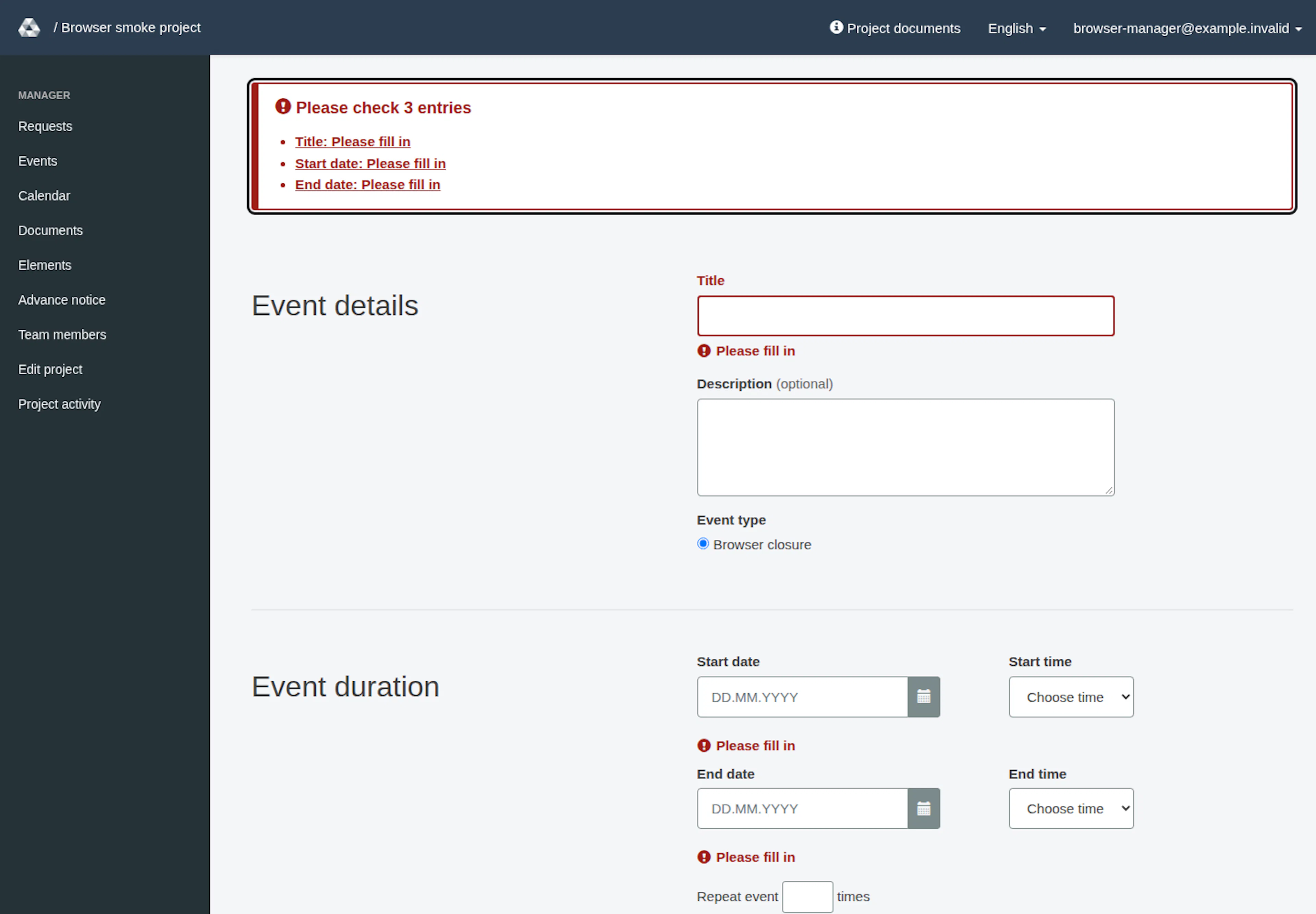
Empty-form validation messages
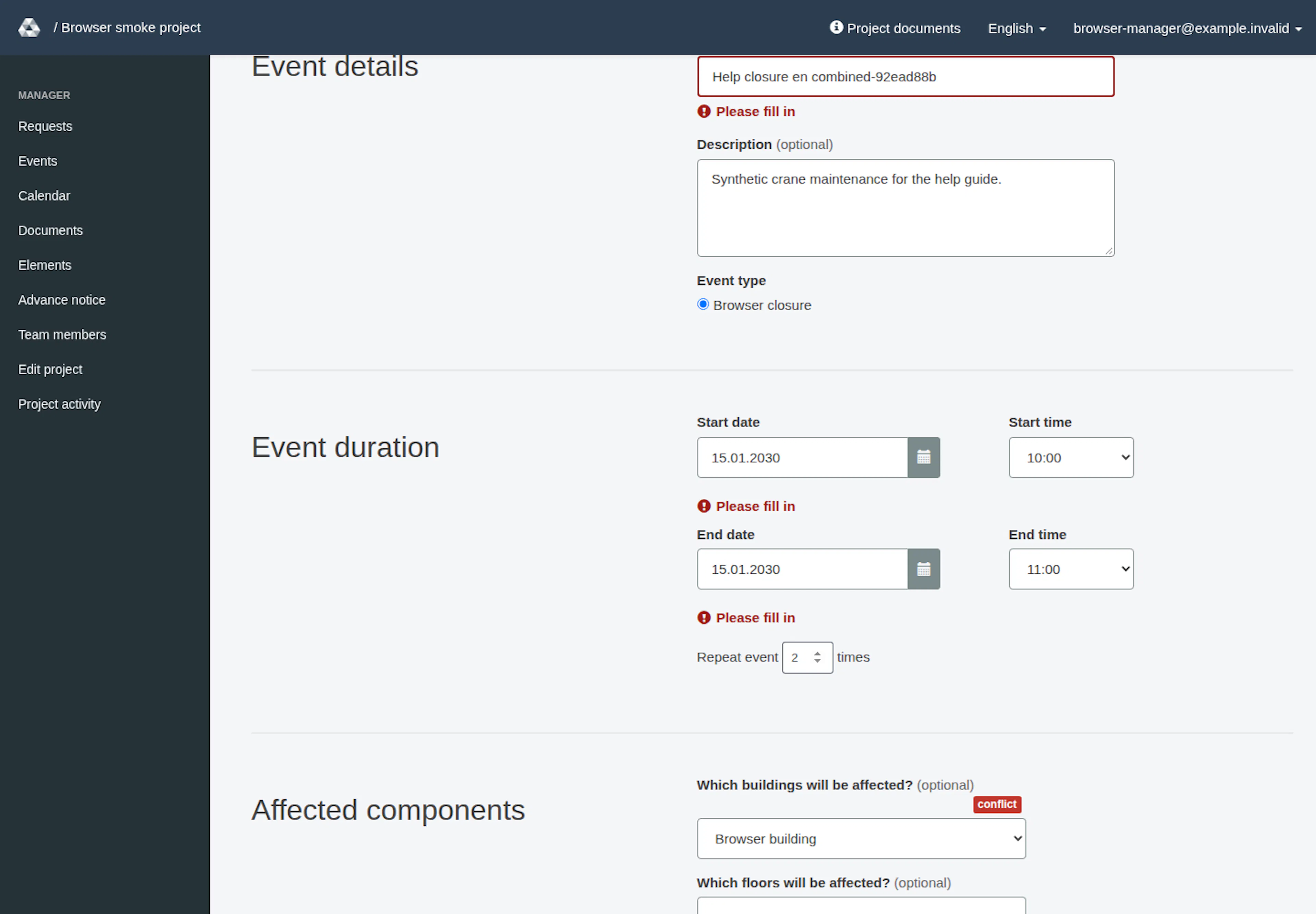
Entered details; validation messages remain visible
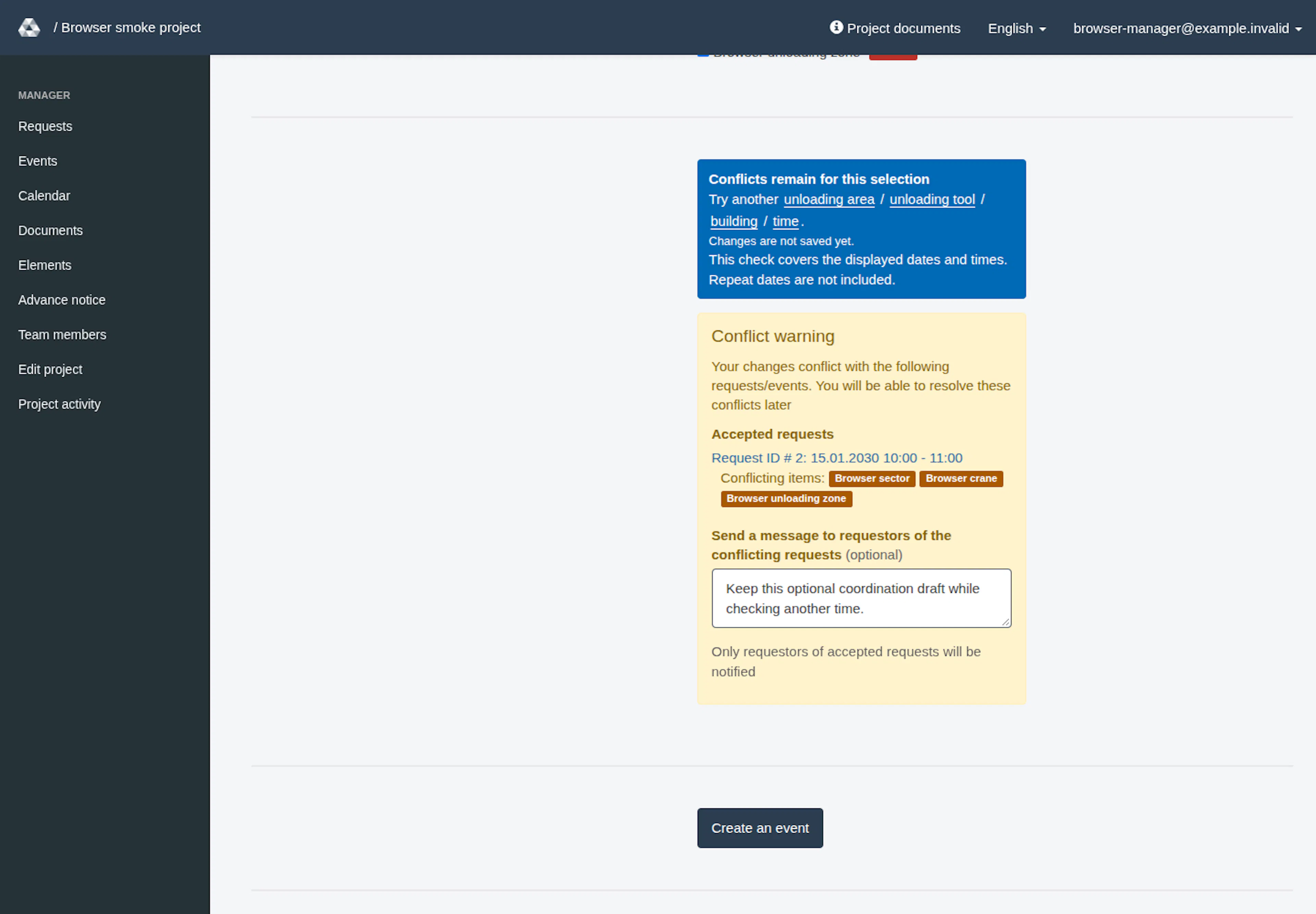
Conflict warning for accepted request ID 2
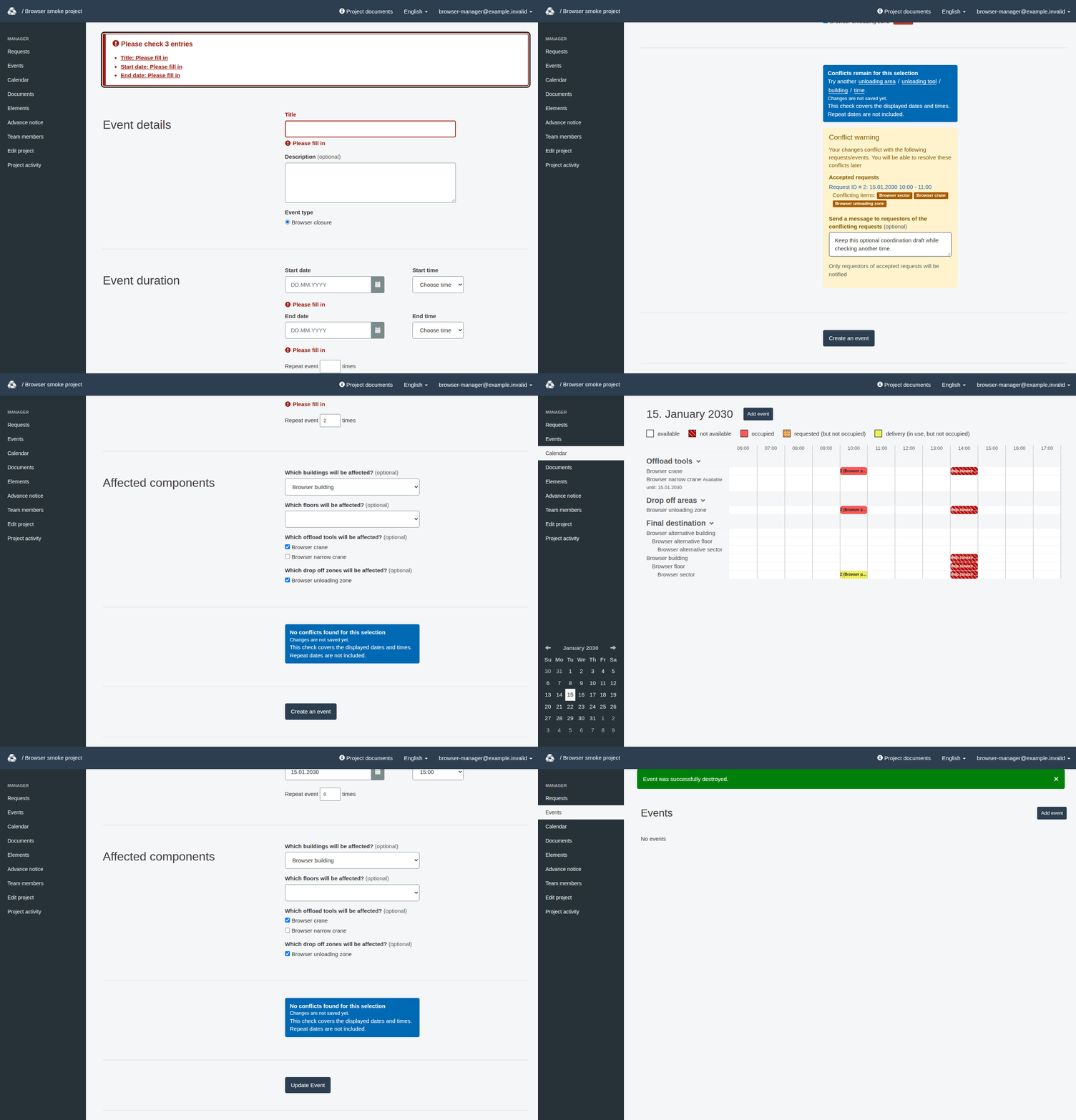
Selected checkpoints, not a continuous recording. Both events were deleted separately before the final empty list. Calendar titles are truncated; validation messages remain visible after entry.