Read and edit project information and documents
Find project documents and understand who can change project details, branding, calendar settings and files.
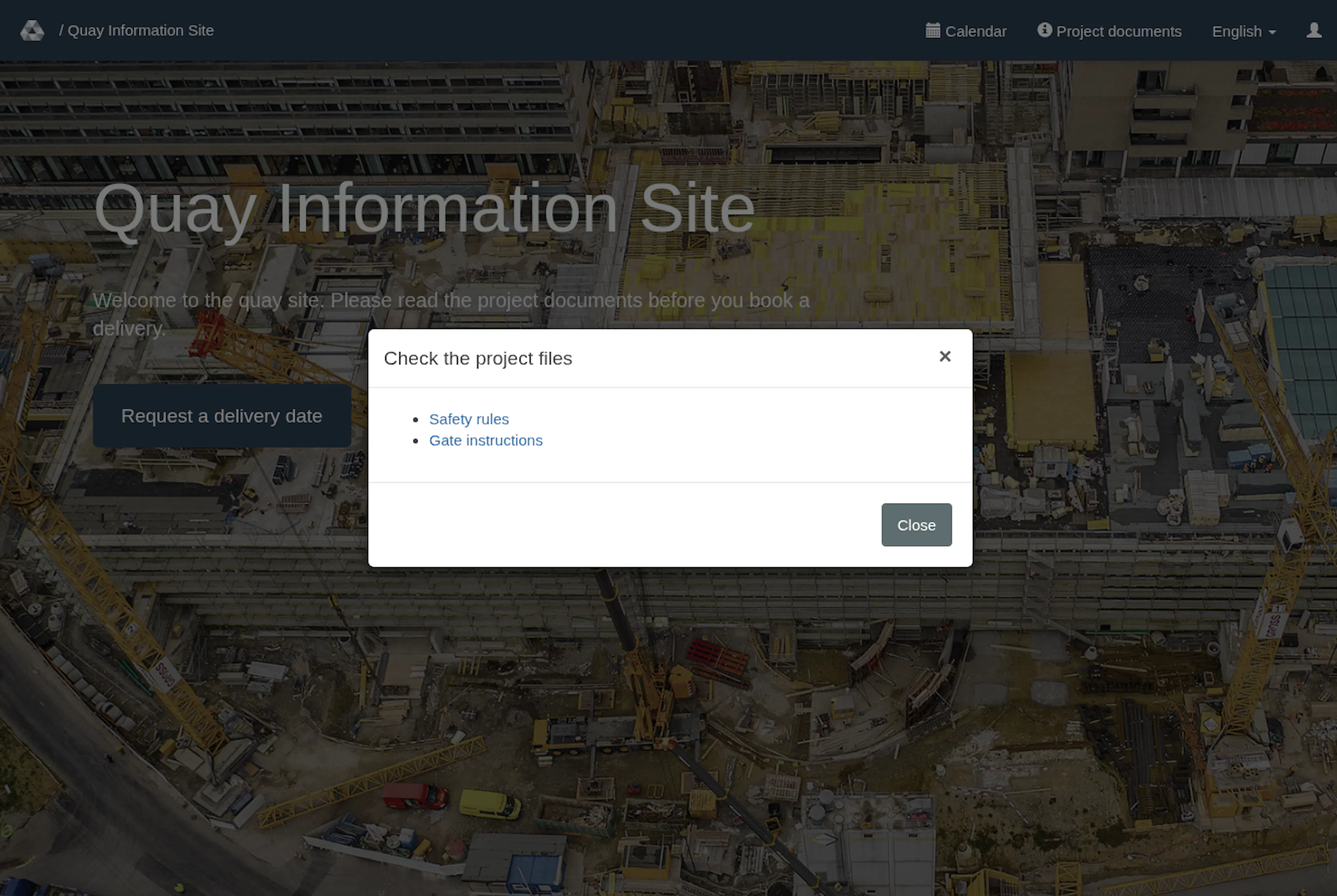
The project start page shows its name, description and configured branding. Project terms appear in the delivery-request journey. Project documents opens the project's document list from the header.
Project document links are shareable: anyone with an active link can open the file without signing in. Limiting document management to managers and administrators does not make the linked contents private.
Read project information and documents
- Open the project's shared start-page link and check the project name.
- Read the description and any project guidance provided there.
- Choose Project documents in the header. On a phone, tap Menu in the header bar first; Project documents is in the opened menu. The dialog is headed Check the project files.
- Select a document title to open it in a new tab. Verified PDF and supported image files can open in the browser; other files download. Your browser settings may download a file instead of displaying it. To save a displayed PDF, use your browser’s native PDF controls.
- Choose Close to dismiss the document list. To read project terms as part of requesting a delivery, select Request a delivery date from the start page. A project with terms text shows its terms page first, with the button I accept and continue; a project without terms text opens the booking form directly.
Temporary viewing links generated by RERA last 24 hours. If a temporary viewing link has expired, return to Project documents and open the file again. Opening a document link resolves the current active document. Avoid slashes, backslashes and control characters in display names: the delivered filename is sanitized and may differ from the typed title. Renaming changes the download filename; it does not convert the file or rewrite a PDF’s embedded title. After renaming, open the document again from Project documents to get a link with the new filename.
Who can edit
Use an active, confirmed account with the Manager role and a current assignment to this project. A password must be set. Sign in with that account; it must not be locked, and any required invitation must have been accepted. Document management does not depend on whether team or content-management features are enabled. Editing project settings remains a separate permission: an assigned manager who meets the account requirements above can edit those settings when team management is enabled. For document management, global administrators need no project assignment or Manager role; all other account requirements above still apply. Watchers and public visitors cannot edit merely because they can read the files.
If Edit project is absent or a settings change is refused, ask your project manager or administrator to check your current role, assignment, account status and the project’s team-management setting. A visible link does not itself grant permission to save. When an action is refused because your signed-in account lacks permission, RERA shows the permission message: "You do not have permission to open this page. Please contact RERA support (service@rera.io) if you need access." See Manage team members and watchers.
Manage project documents
The dedicated Documents page is standard for current project managers with the account and assignment requirements above. Administrators have separate authority. Watchers and public visitors cannot manage documents. If Documents is missing, ask an administrator to check your current project assignment; seeing the public document list does not grant editing access.
- Open the correct project. Open the existing menu under your signed-in email address and choose Documents. On a phone, open Menu first. For the same project, role and other feature settings, this account menu offers the same manager destinations on public project pages and manager pages.
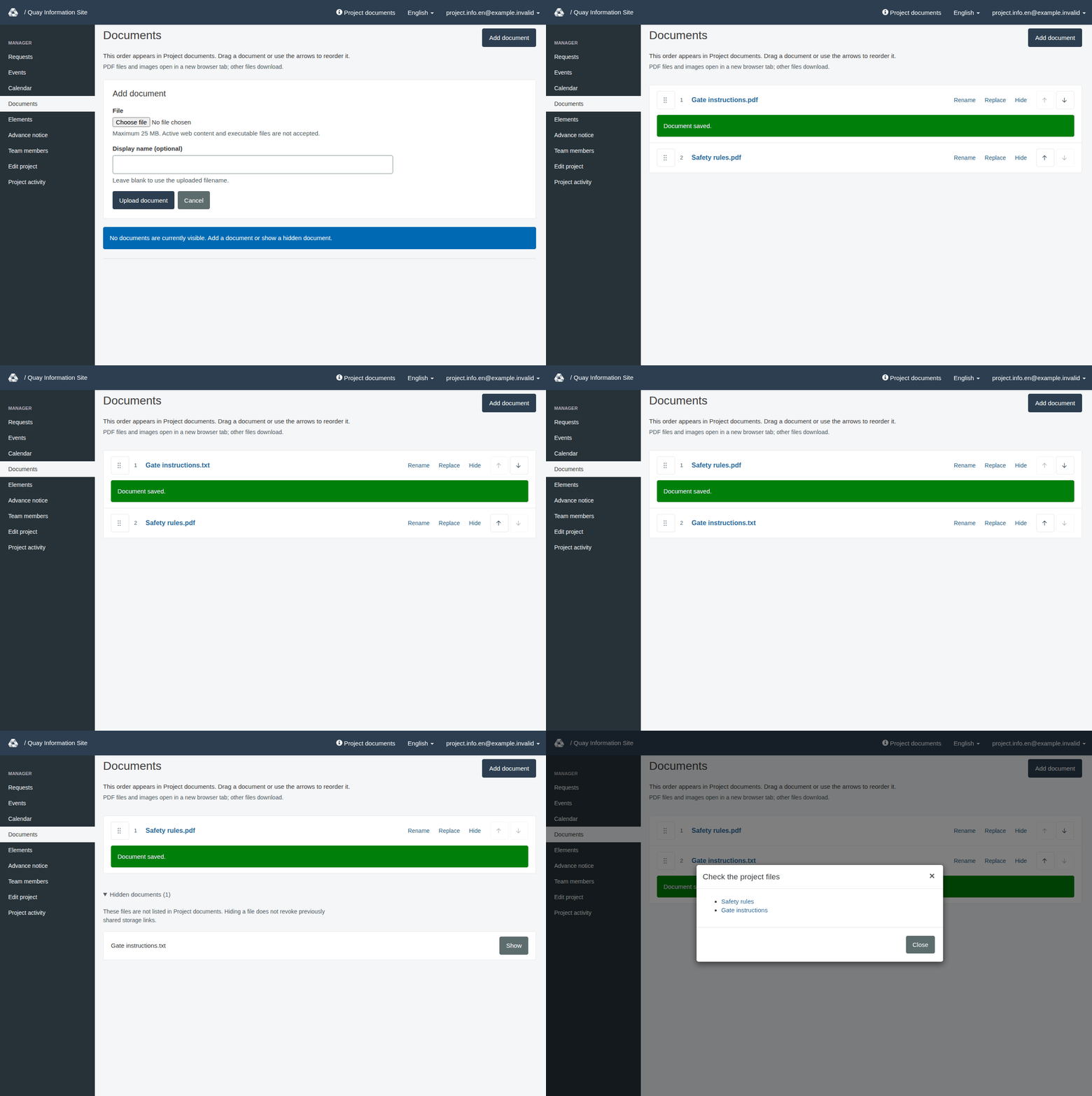
- If the upload form above the list is closed, choose Add document at the top to open it. Select the File and optionally enter a Display name (optional). Leave the name blank to use the uploaded filename, then choose Upload document. Use Cancel to close the form without uploading. A successfully uploaded document is added after the active documents; choosing a local file alone does not save it.
- Select a document’s filename to open it in a new tab. PDF and supported image files can display in the browser; other formats download using the displayed filename. To save a displayed PDF, use the browser’s PDF controls.
- Choose Rename beside the document, change Display name, then choose Save or Cancel. The file type is kept automatically; you do not need to add its extension. Renaming changes the filename shown in the list and used for download.
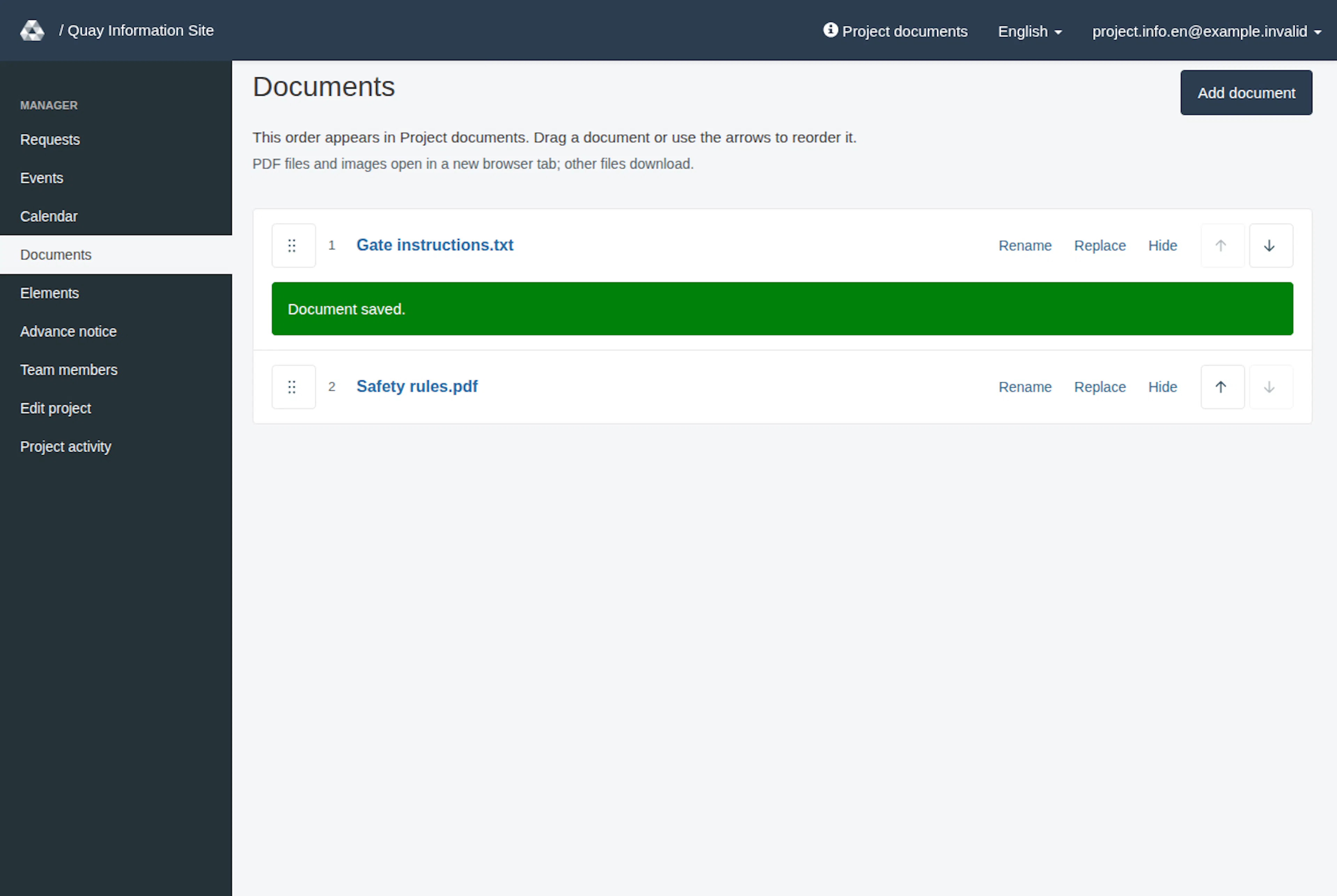
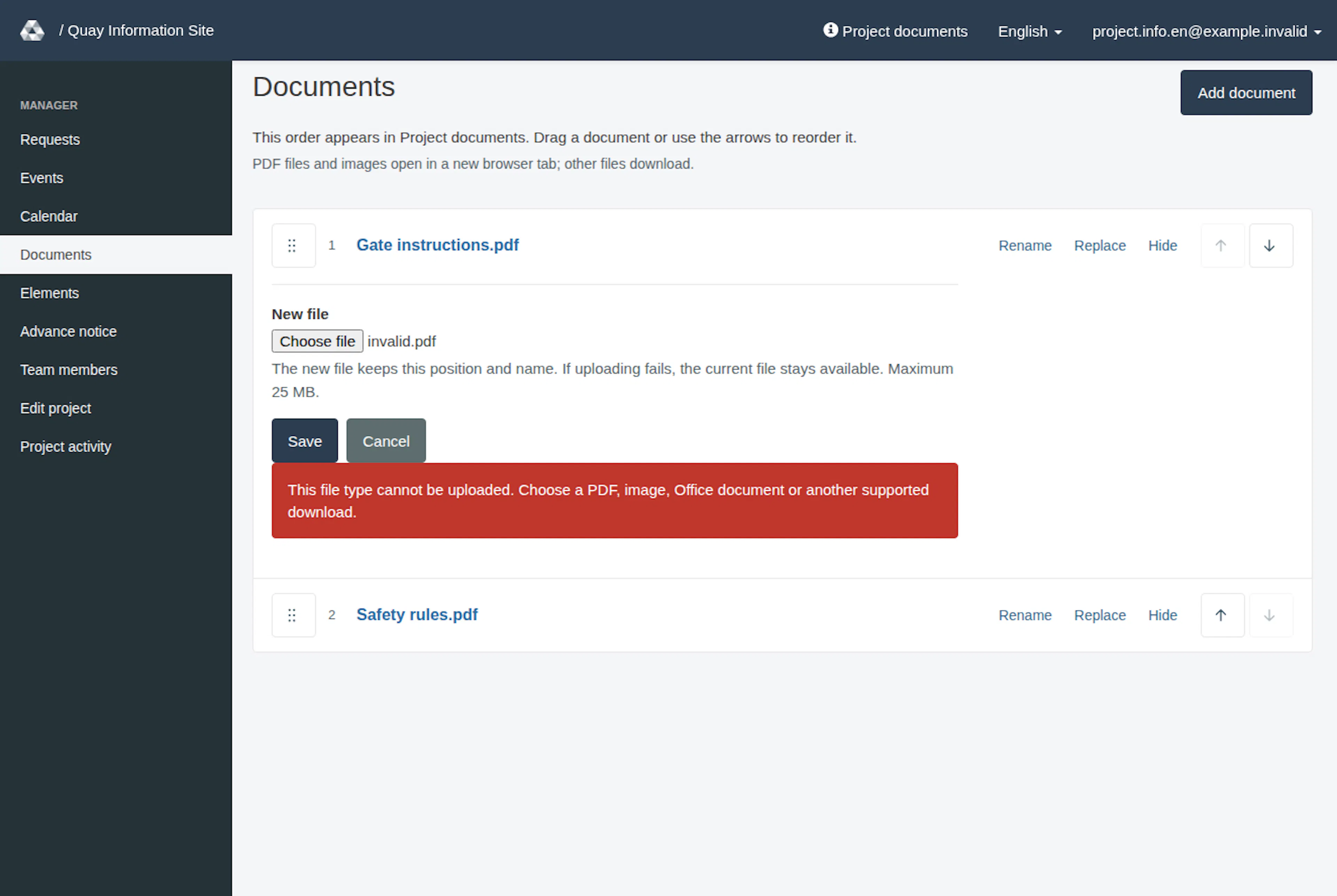
- Choose Replace to open a separate inline editor. Select the New file, then choose Save or Cancel. Replacement keeps the document’s identity, position and current display name. A failed replacement leaves the current document available. Open the filename again to check the current file. A successful rename or replacement shows Document saved. There is no document-version history interface. Replacement does not revoke already issued signed storage links or old public storage URLs to the previous file.
- Drag a document by its handle, or use its up and down arrows, to change the order. A successful move saves the new order. If a move is refused, read the message and reopen the management list to check the saved order before trying again. If the same refusal persists, contact a project administrator. The same saved order appears in Project documents, in the Check the project files dialog.
- Choose Hide and confirm to remove a document from the normal lists. Open Hidden documents and choose Show to return it to the end of the active list; move it again if needed. Hiding is reversible; there is no permanent-delete action here. Its RERA application link stops opening while hidden. Hiding does not erase the stored file or revoke old public storage URLs or already issued signed storage links; these links may remain accessible, with signed links subject to expiry.
In supported browsers with JavaScript enabled, successful document saves and order changes update in place without a full-page reload or jump to the top. Dragging and the arrows use the same saved-order update. In this mode, unsaved names and selected files in other active document rows stay in place while those documents remain listed. The Check the project files dialog on this page also updates. Wait for the success message. Without the required JavaScript support, forms use normal full-page submission. If dragging is unavailable, use the arrows to change the order.
During an in-place update, if saving cannot be confirmed, your entries remain and the original form is blocked to prevent saving twice. Check current state opens the current list in a new tab. Check whether your change took effect before continuing from a freshly opened management page. Keep the original tab open if you need its entries. RERA does not automatically resend the change.
Files may be up to 25 MiB (26,214,400 bytes); the form labels this limit as 25 MB. Supported uploads are PDF, JPEG, PNG, WebP, DOC/DOCX, XLS/XLSX, PPT/PPTX, ODT/ODS/ODP, RTF, TXT, CSV, ZIP, DWG and DXF. PDF and supported images can display in the browser; the other formats download. Unsupported file types and files recognised as active web content or executable programs are rejected. These checks do not inspect inside ZIP or Office files or guarantee the absence of malware. Content signatures can also reject ordinary text files. Choose a supported file and follow any upload validation message. PDF and preview-image bytes must match their extension: for example, a PNG named .jpg is rejected. Do not change an extension to bypass validation. If an upload or replacement fails, correct the reported issue and retry the affected action. After a failed upload or replacement, check the selected file before resubmitting; if the file chooser is empty, select the file again. Check the intended document and project before retrying. You cannot attach another project’s stored document by its link; upload the file in this project instead.
When replacing a file with a different format, check Display name too. A title such as plan.pdf can keep its old extension and produce a download name such as plan.pdf.docx; remove the old extension from the display name if you do not want both. The new format can also change whether the file opens in the browser or downloads.
Preview is limited to PDF, JPEG, PNG and WebP. Some older documents now download instead of opening in the browser. An older format can remain listed even when it is not accepted for new uploads or replacements; export a copy in a format accepted for uploads (listed above) before replacing it.
Update project information
- If your existing project-settings permissions allow editing, open the correct project and choose Edit project in the project menu (on a phone, tap Menu first; as a global administrator you find it under Admin in that menu). The page is headed Editing project.
- Change the relevant fields, using the table below to check their purpose. Fields that are not required are marked (optional); the others must be filled in.
- Manage files separately through Documents in the existing account menu. The project-settings page has no document section, document upload control or document-management link. The logo, background and calendar-legend image upload controls remain on the project-settings form.
- Choose Update project. The page stays open and shows the green message Project settings saved. Open the public project page to confirm the stored details, and Project documents to confirm the document list.
| Setting | What it controls |
|---|---|
| Name and slug | Project name and the address in project links (rera.io/your-slug; the field is labelled Slug). A new or changed address may only contain ASCII letters (A–Z, a–z), digits and single hyphens, for example muster-baustelle. Existing addresses stay as they are unless you edit them. |
| Legal and description | Project terms and introductory information |
| Start time and end time | The site's opening hours. The booking form offers 15-minute steps within these hours for new times; new or changed arrivals must respect them and be at least 15 minutes before a configured closing time. Departure must be after arrival; a new or changed departure must not be later than a configured closing time. A saved time can remain unchanged when its date stays the same. Managers accepting with changes or amending a request can use times outside this window. An entered end time must follow the start time. |
| Enable dimensions | Visibility of delivery goods and vehicle-detail questions listed beside the option |
| Logo and background | Project branding images |
| Use Google Calendar / Use RERA calendar | Calendar choice; Google settings include URL and Legend image |
The Google URL field is labelled for a Google Calendar link shown in an embedded frame. See Project calendar for reading the calendar.
If a change fails
If the form cannot be saved, a red summary at the top says Please check N entries (Please check 1 entry for a single problem) and lists each problem as a link to its field. The field also shows its own message in red. For example, an address with spaces is rejected: the summary lists "Slug: may only contain letters, digits and single hyphens (e.g. muster-baustelle)", and the Editing project page stays open. Nothing is saved until you correct the errors and choose Update project again. Only the green message Project settings saved. confirms a save. If access has changed, reload the project and ask a current manager or administrator to check it. Upload a document through this project’s Documents page; a file belonging to another project’s upload cannot simply be attached here.
For a document that will not open, reopen it from the project list. If that still fails, ask the project manager to check the attachment. Hiding a file is a guarded project action; public reading does not grant document-management rights.
Manage project documents
These images show the English RERA interface, captured on 13 November 2026 UTC in a synthetic local project. Example project dates use a synthetic January 2030 clock. The GIF presents selected actual steps. Options depend on the project and your role.