Resubmit a declined delivery request
Correct a declined request, submit it for review and understand the confirmation.
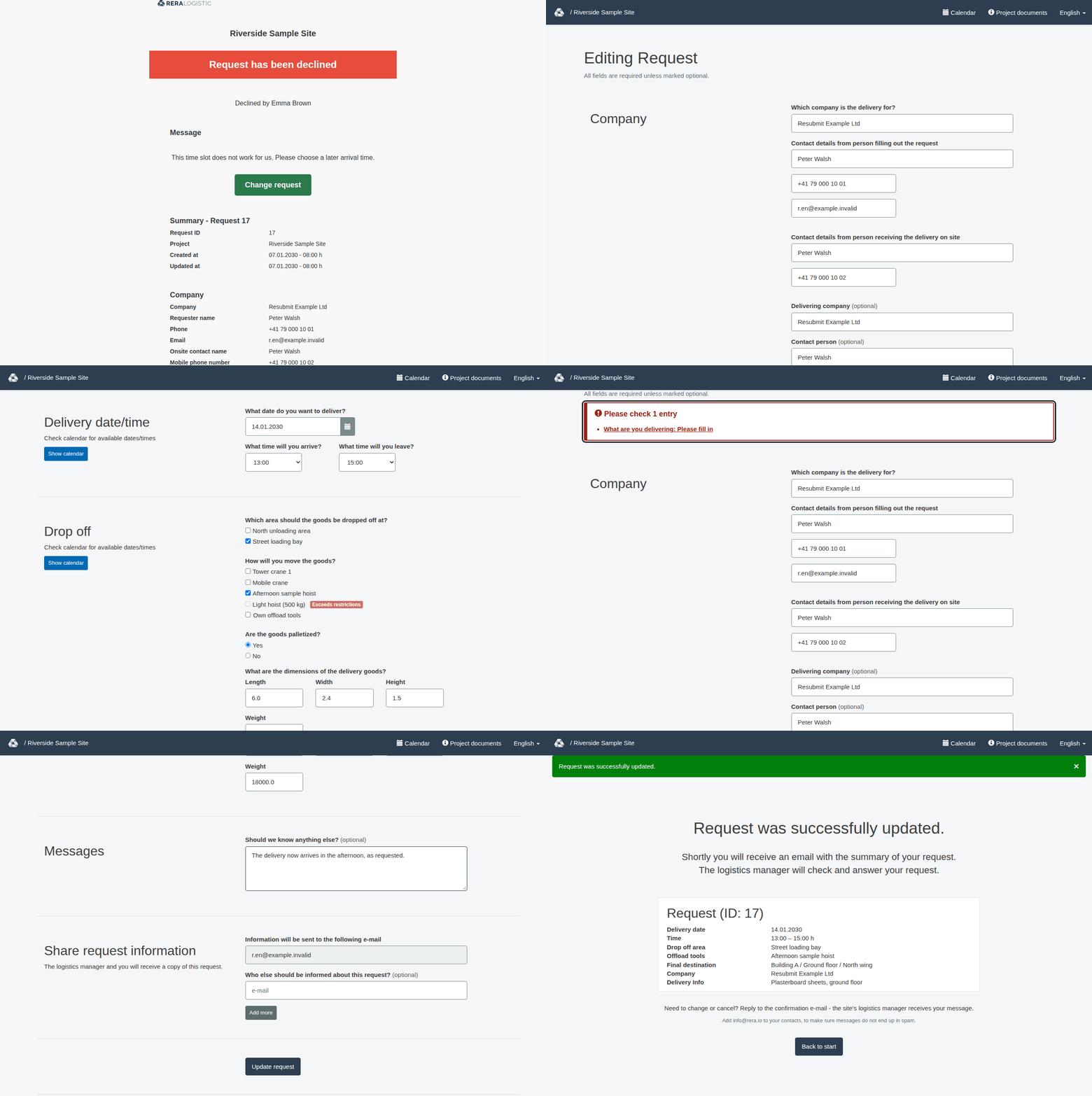
You can revise a declined request using its private change link. Submitting the revision returns the request for review; it does not approve the request. The request remains open for manager checking.
Before you begin
Use the declined request’s private change link while the request is still declined. You find it as the Change request button in the email that tells you the request was declined. Keep that link private: someone it is forwarded to can use it without signing in. If you are signed in, the requester-link permission applies only when the account email matches the request’s current requester contact. Ordinary manager or administrator permissions are separate.
Send the revision
- Open the private change link. The page “Editing Request” shows the request with your earlier answers. Under the heading it says “All fields are required unless marked optional.”; fields you can skip are marked “(optional)”.
- Correct the requested information in the form. You can change any answer, for example the date and times, the drop-off area and offload tools, the vehicle details (only if the project asks for them) or your message to the manager (“Should we know anything else?”).
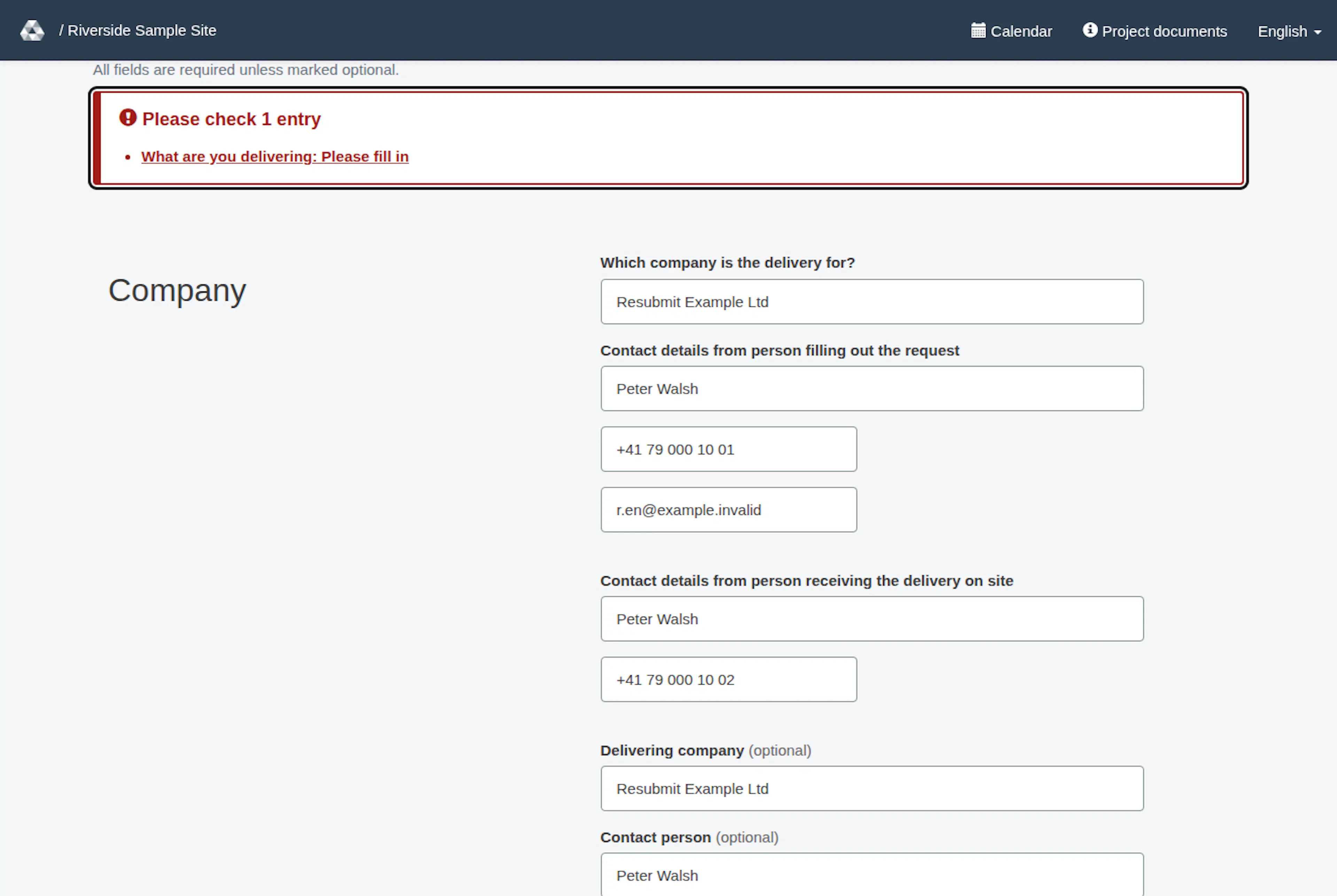
- Select Update request. If the submission is not accepted, RERA returns the edit form with a red box at the top, for example “Please check 1 entry”. The box lists each problem as a link that takes you to the field. Correct the entries and select Update request again; contact the project logistics manager if you cannot proceed.
Date and times
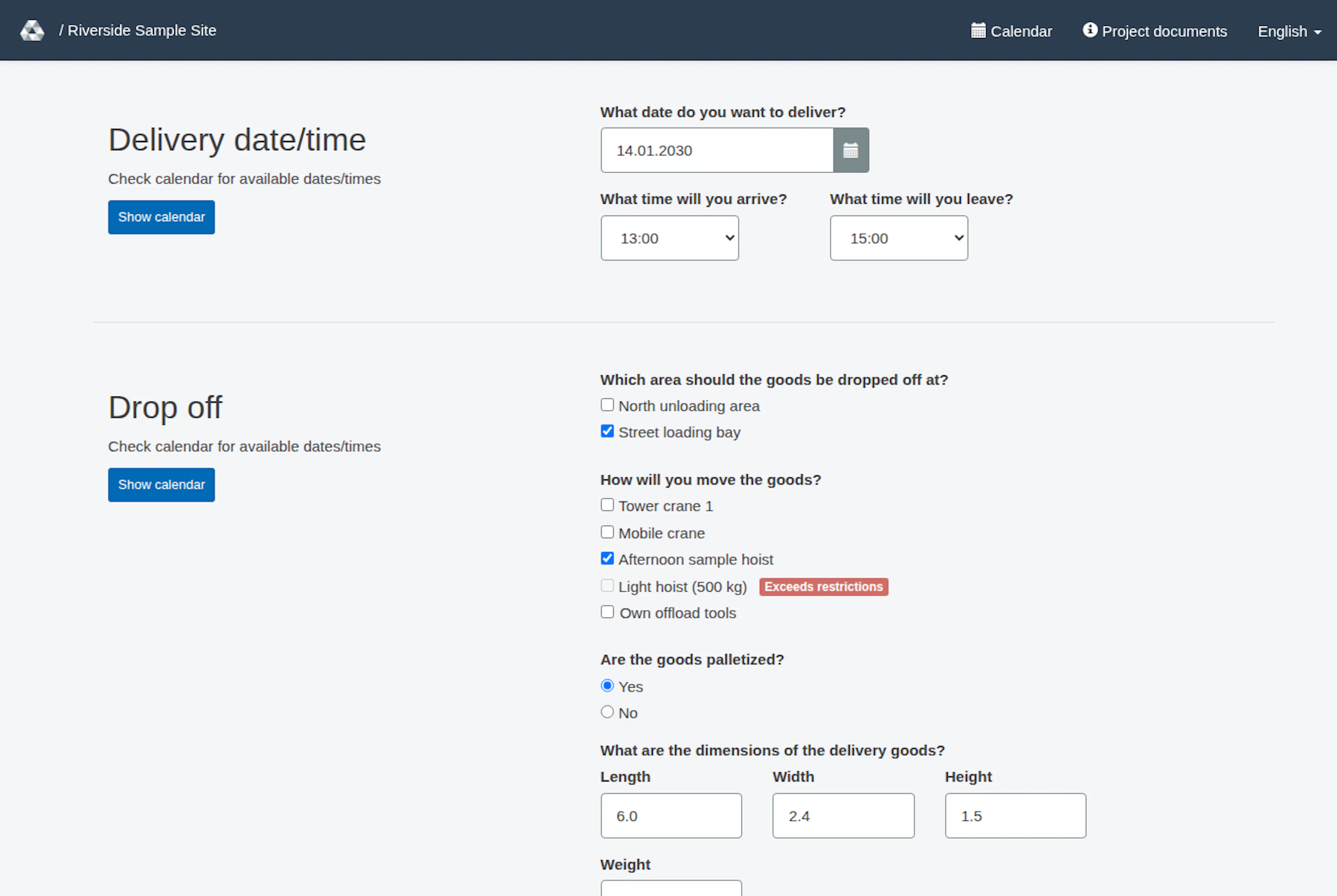
- The date field keeps the calendar pop-up. You can also type the date as dd.mm.yyyy.
- Arrival and leave times are plain lists with 15-minute steps. The first entry is “Choose time”. The lists only offer times within the opening hours of the site. In the lists, leave times at or before the arrival you chose are greyed out.
- Both times are required: “What time will you arrive?” and “What time will you leave?”. The departure time must be later than the arrival time (clock times on site). Otherwise the form does not save and shows the error “Please choose a time after the arrival” for the departure time.
- If you change a time to one outside the opening hours, the form does not save. The message names the allowed window, for example “Please choose an arrival between 06:00 and 17:45 (the site's opening hours)”. A time you did not change is kept as it is.
What you see after a successful resubmission
| Your access | Where RERA takes you |
|---|---|
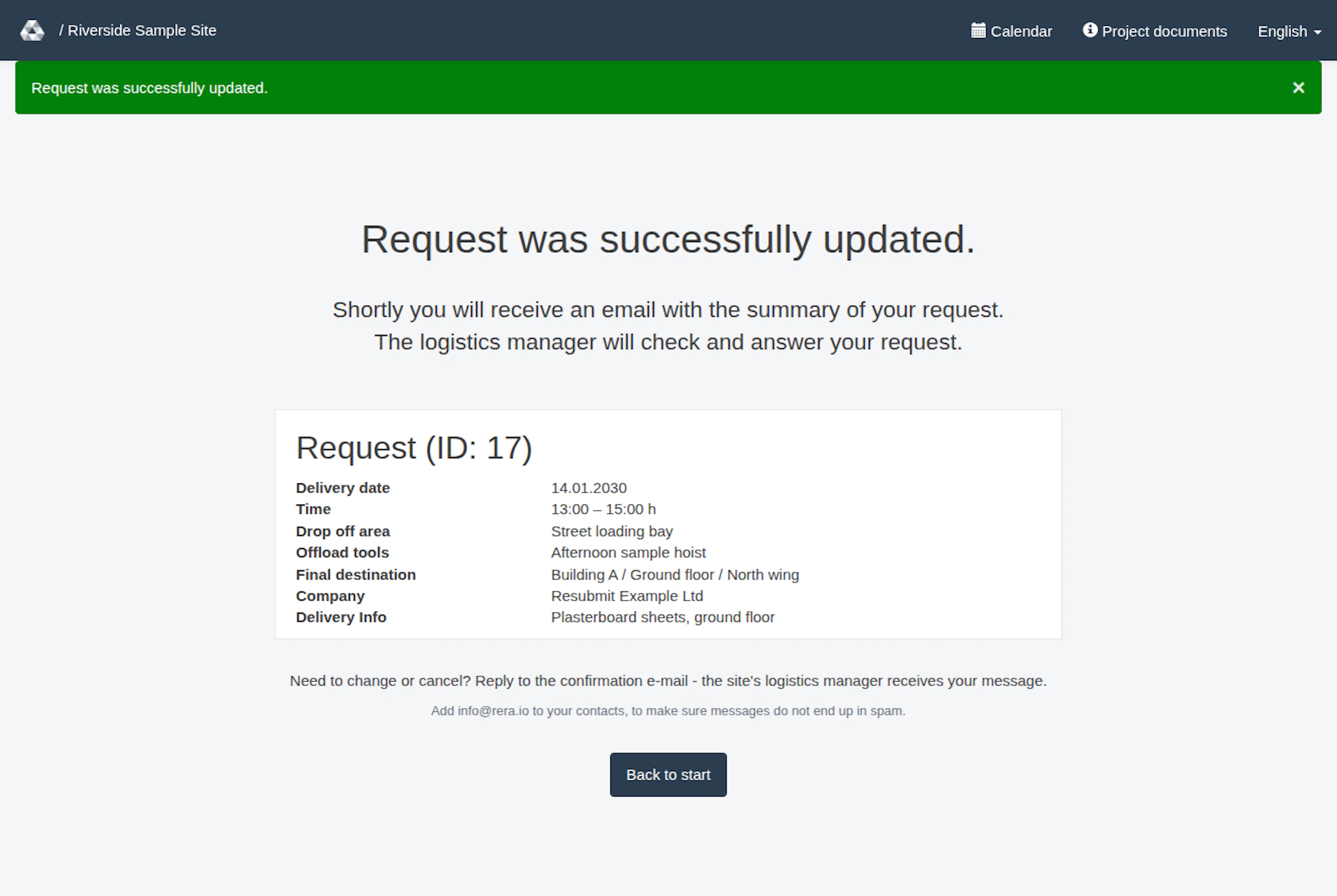
| You are not signed in | A public confirmation that the request was successfully updated. |
| You are signed in as a requester but cannot view the project’s request list | The same public updated confirmation. Signing in alone does not grant list access. |
| You are authorized to view the project’s request list | The project’s request list. |
The updated confirmation, headed “Request was successfully updated.” and with a Back to start button, is distinct from the confirmation for creating a request for the first time. The page shows a short summary of the request you just updated: “Request (ID: …)” with the delivery date, time, drop-off area, offload tools, final destination, company and delivery info. This summary appears only in the browser that made the update. The page does not show the private change link, and seeing it does not grant later access to the request. It also tells you to reply to the confirmation e-mail if you need to change or cancel the request.
The page tells you to expect an email summary. Confirmation on screen does not establish that an email has arrived. Check your inbox and spam folder; contact the project logistics manager if you need help.
If the link or next screen is unavailable
A requester’s private change link works only while that request is declined. After successful resubmission the request is open for review again, so the same requester capability no longer grants access to its summary. Contact the project logistics manager if you need another change or cannot complete the form. Do not assume that the confirmation is an approval.
Project settings, feature availability and your permissions can affect which screens you see. Ask the project logistics manager if your screen differs.
Element availability
Resubmission checks all retained elements against the selected delivery date and arrival time and their current availability, even if you keep the original date and time. An unavailable saved area, drop-off zone or tool remains visible; replace or remove it as the form requires before resubmitting. The previous selection is not silently discarded or reassigned.
Resubmit a declined request
These images show the English RERA interface, captured on 13 November 2026 UTC in a synthetic local project. Example project dates use a synthetic January 2030 clock. The GIF presents selected actual steps. Options depend on the project and your role.