Find and inspect delivery requests
Filter the project request list, inspect delivery details and choose the action appropriate to a request’s status.
Use Requests to find deliveries awaiting a decision and inspect accepted or refused requests. Sign in as a manager assigned to the project, or as an administrator. Manager access applies to assigned projects; receiving request notifications does not by itself provide this access.
On a large screen the project menu is the dark column on the left. On a phone, first tap Menu; Requests and Calendar are also directly in the top bar.
Find a request
- Open the correct project and select Requests in the manager navigation.
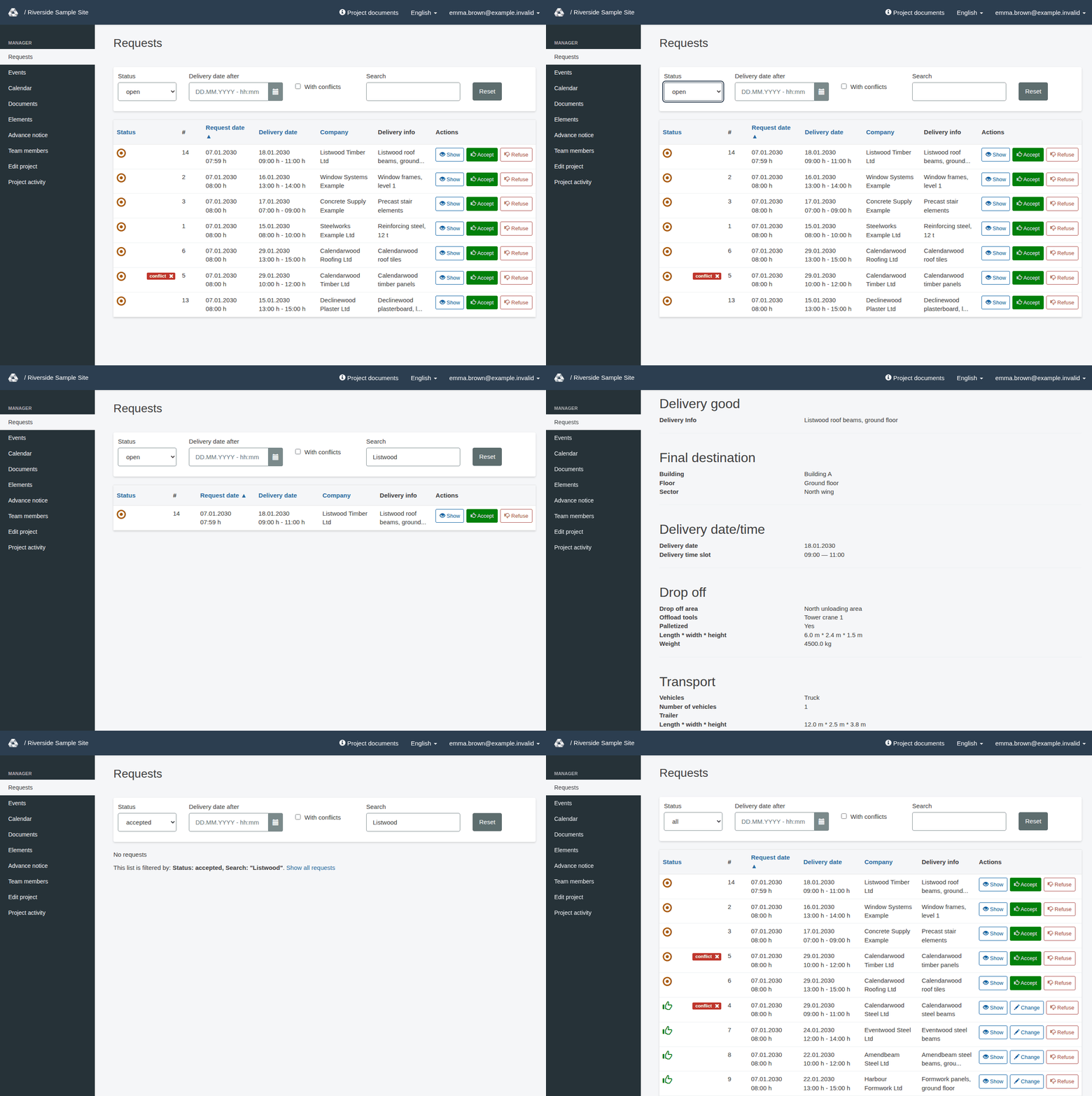
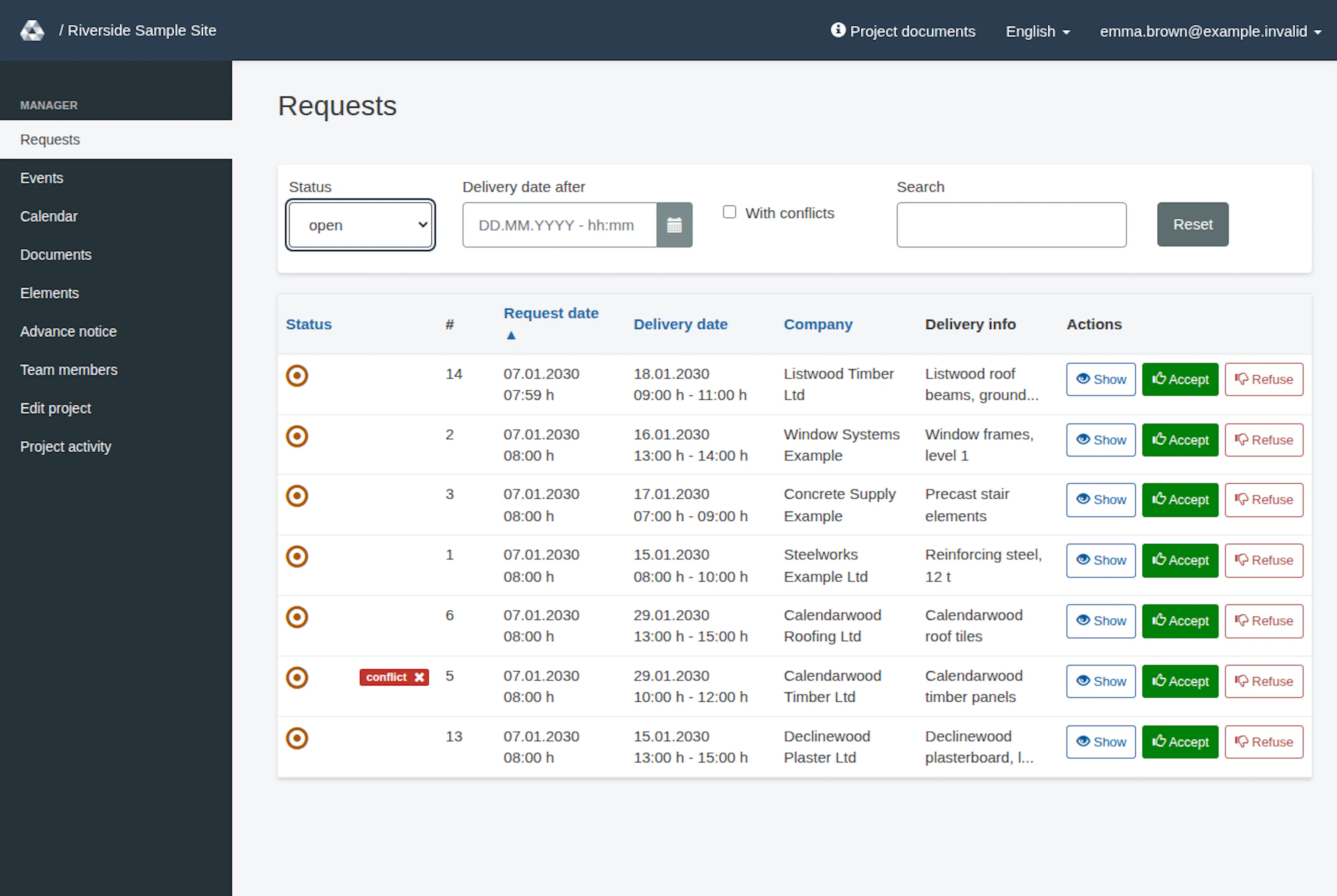
- Check Status. The default list shows open requests, ordered by request date from oldest to newest. Choose accepted, refused or all when looking for other requests. The list remembers your filters while you are signed in.
- Use the other filters to narrow the list. Combine them carefully: a request must match the active filters to appear. The list updates when you press Enter in Search or leave a field.
- Select a sortable column heading to change the order. Use the page controls below the list to continue through results; requests are displayed in pages of 20.
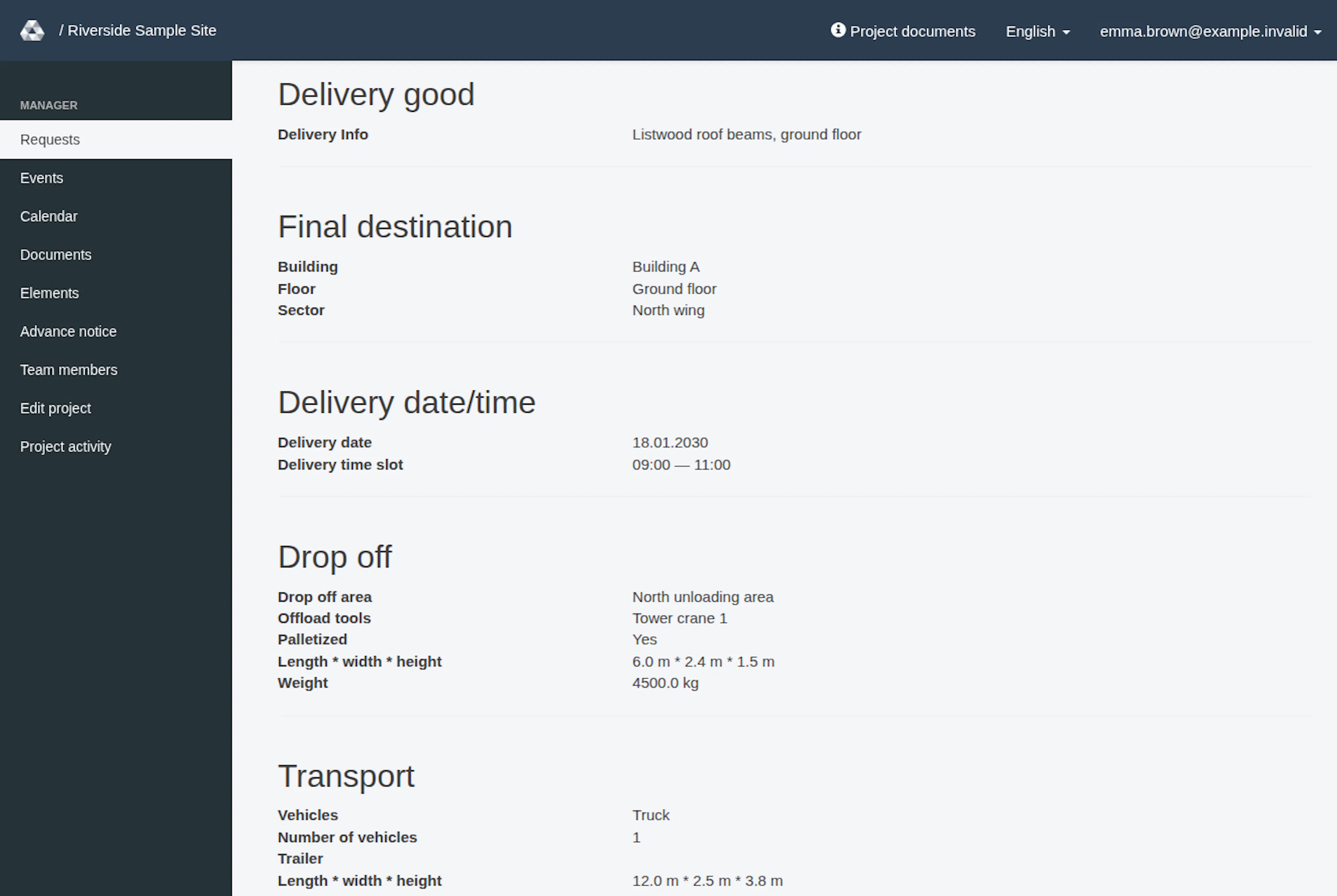
- Select Show (the button with the eye icon) in the request’s row to open its Summary. The row buttons are Show, Accept and Refuse for an open request, Show, Change and Refuse for an accepted request, and only Show for a refused request.
When you reach Status with the Tab key, a visible outline shows that the control has focus.
| Control | What it does |
|---|---|
| Status | Chooses from the displayed status-filter options; other active filters still apply. |
| Delivery date after | Shows deliveries at or after the selected date and time. |
| With conflicts | Limits results to overlapping requests whose conflict warning has not been marked resolved. |
| Search | Searches formatted project request numbers, company and delivery information. Number-only matching for longer request numbers is not established by this guide. It does not search every contact field. |
| Reset | Restores the default filters. |
| Status, Request date, Delivery date, Company headings | Change the list’s sort order. |
For a broad search, start with all, clear the date and conflict filters, and enter a request number or a distinctive word from the company or delivery description. Multiple search words must each match one of the searchable fields.
Read the summary
Check Request ID, Project and Status first. The summary includes creation and update times, company contact fields (Company, Requester name, Phone and Email), on-site contacts, delivery information, destination, delivery date, the Delivery time slot and handling resources. Additional delivery contacts appear when present in the current or previous saved version. Goods and vehicle dimensions appear when the request’s dimensions condition applies: lengths are shown in metres (m) and weights in kilograms (kg), and vehicle types are shown in the page language.
Shared with lists request-watcher email addresses when present. Messages shows recorded messages with their times and available author information. A Request was amended marker appears on the list row and summary for a marked amendment. The summary also supports changed-value display using the latest previous saved version; it is not a complete history browser.
Choose the next action
| Current status | Manager action |
|---|---|
| open | Accept the request or Refuse it. |
| accepted | Change its scheduling details or Refuse it. |
| refused | Inspect the record; the normal Accept and Refuse buttons are absent. |
You can start these decisions from the list row or from the request’s own Summary page. The buttons appear at the top of the summary (without Show) and open the same dialogs there. After the dialog, the app returns to the summary with the usual confirmation message.
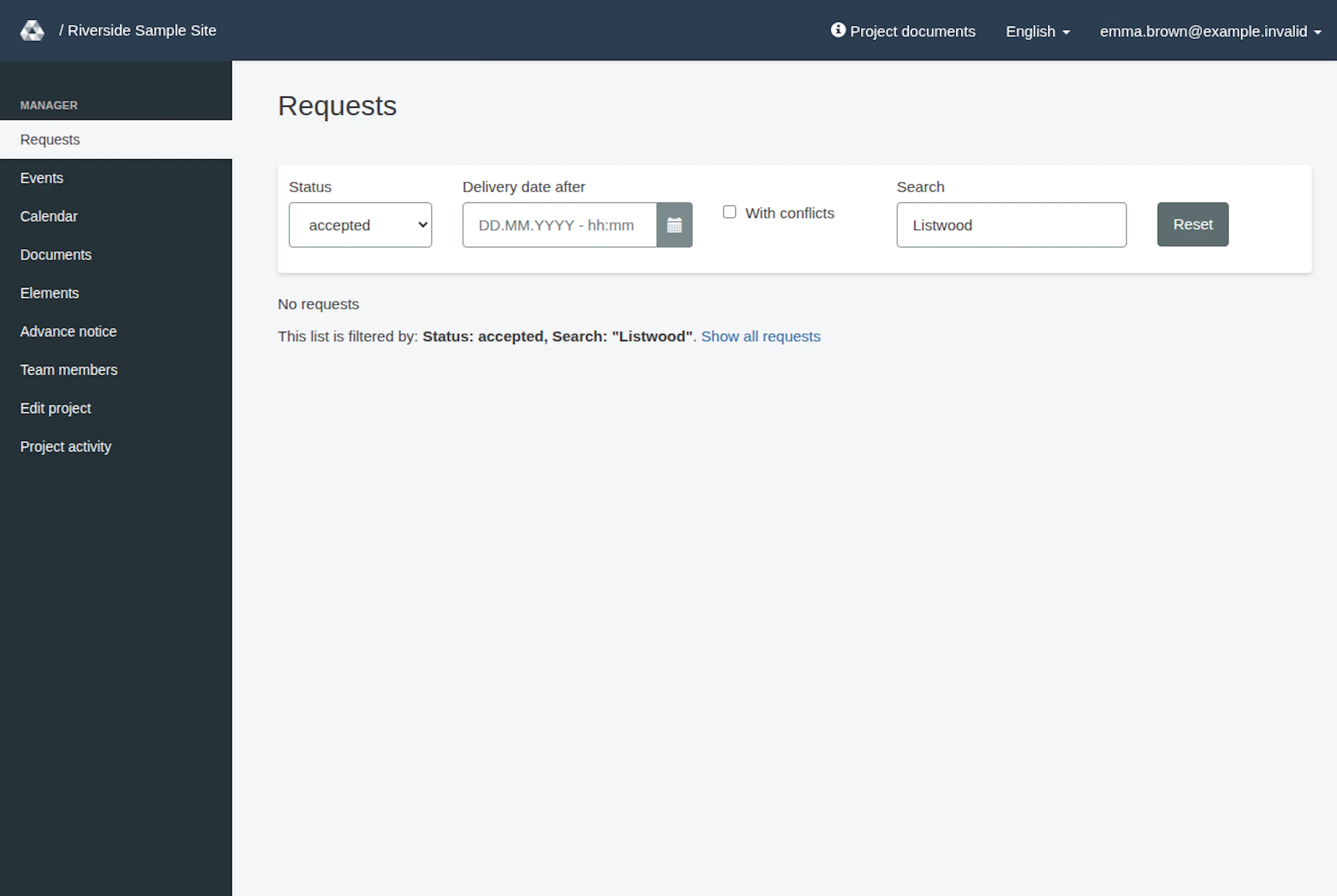
If a request seems missing, check the project, status, remaining filters and later pages before assuming it was removed. When the list is empty because of an active filter, the page says No requests and This list is filtered by: followed by the filters, for example Status: open. Select Show all requests to clear the status, search, conflict and date filters. Open the full summary when a narrow screen hides list columns or truncated text omits details. Inspect a red conflict badge using the conflict guide before making a scheduling decision.
Find a request in the list and open its details
These images show the English RERA interface, captured on 13 November 2026 UTC in a synthetic local project. Example project dates use a synthetic January 2030 clock. The GIF presents selected actual steps. Options depend on the project and your role.