Decline or cancel a delivery request
Use Refuse to decline an open request or cancel an accepted delivery, with an optional explanation.
Use Refuse when an open request cannot be approved, or when a previously accepted delivery must be cancelled. Both decisions leave the request with status refused. The difference is the request’s status before you act.
You must be signed in as a manager assigned to the project, or as an administrator. This guide describes the manager decision process; receiving a notification does not itself give someone permission to make that decision.
Check the decision you intend to make
| Current status | Meaning of Refuse | Result |
|---|---|---|
| open | Decline a request awaiting approval. | refused |
| accepted | Cancel the earlier acceptance. | refused |
| refused | Refuse is no longer offered. | No repeat refusal is supported. |
If the delivery can proceed with different arrangements, consider amending an accepted request instead. For an open request, Accept lets you adjust the scheduling fields as part of approval.
Submit the refusal
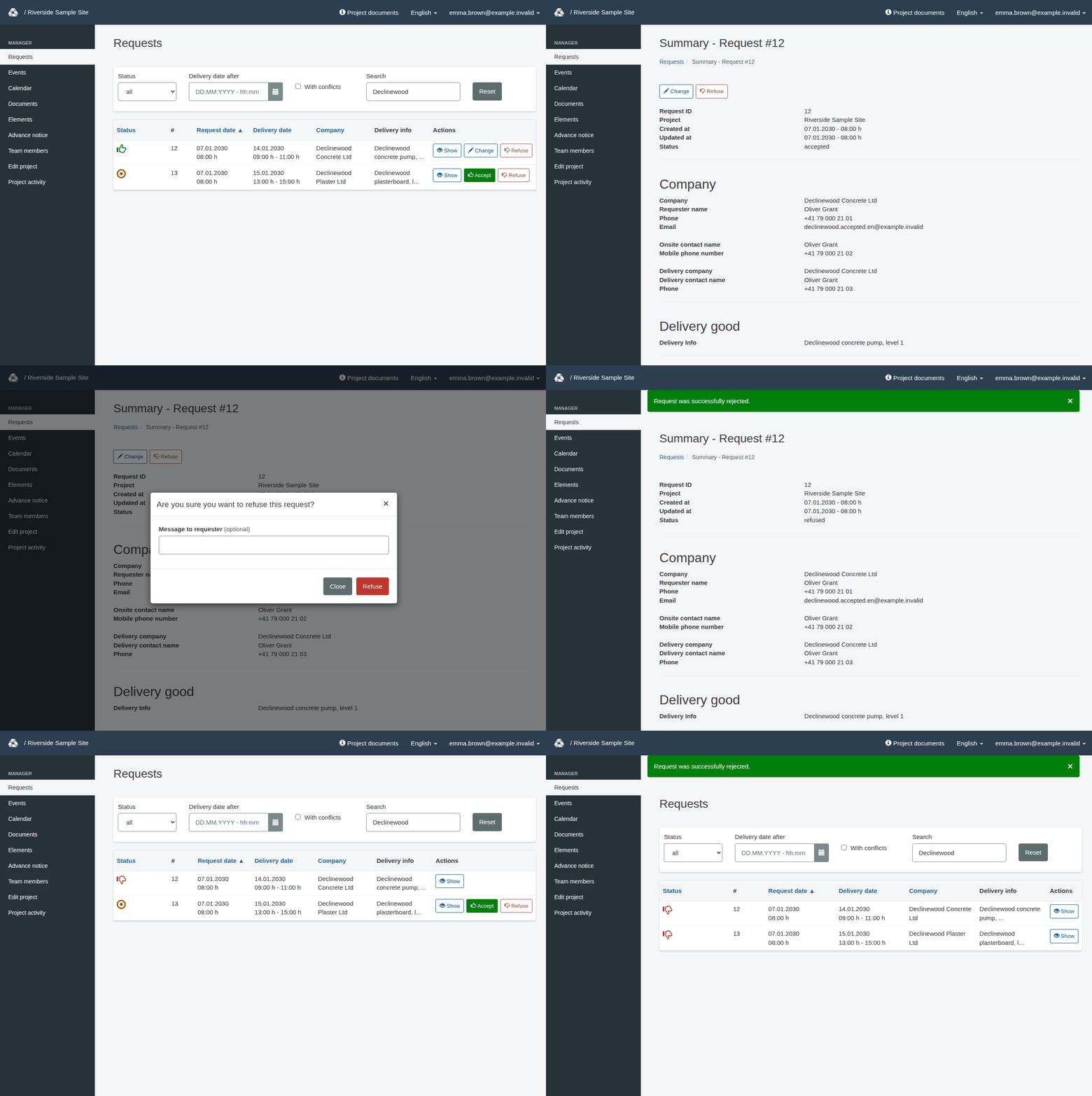
You can start from the request page or straight from the request list. Both open the same dialog.
- Open the correct project’s Requests list.
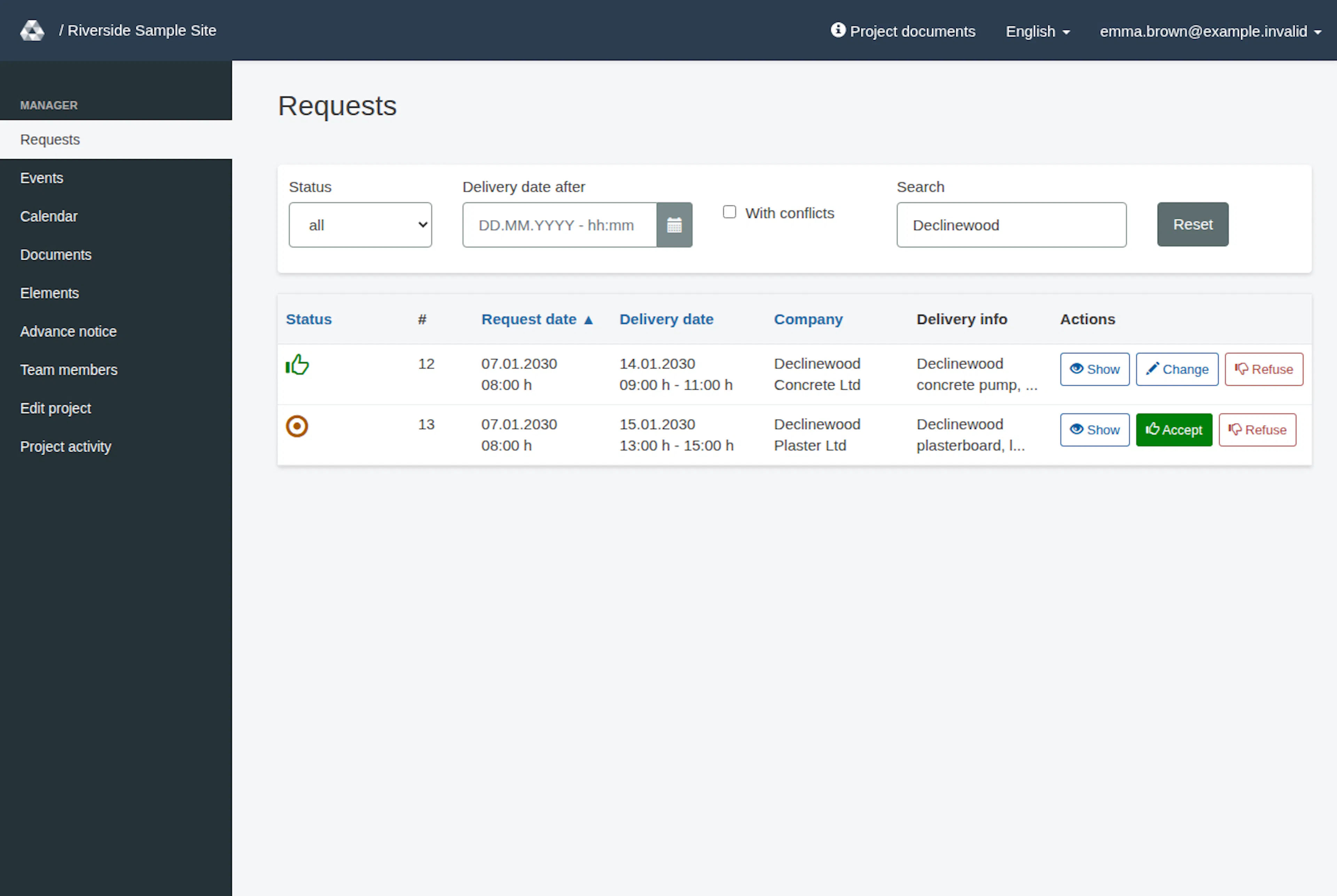
- Set Status to open, accepted or all, as appropriate, and locate the request. If the list is empty, it says which filters are active (for example “This list is filtered by: Status: open.”). Select Show all requests to clear them.
- Select Show. The request page opens. Check the request number, project, Status, Requester name and Delivery time slot so that you do not decline the wrong delivery.
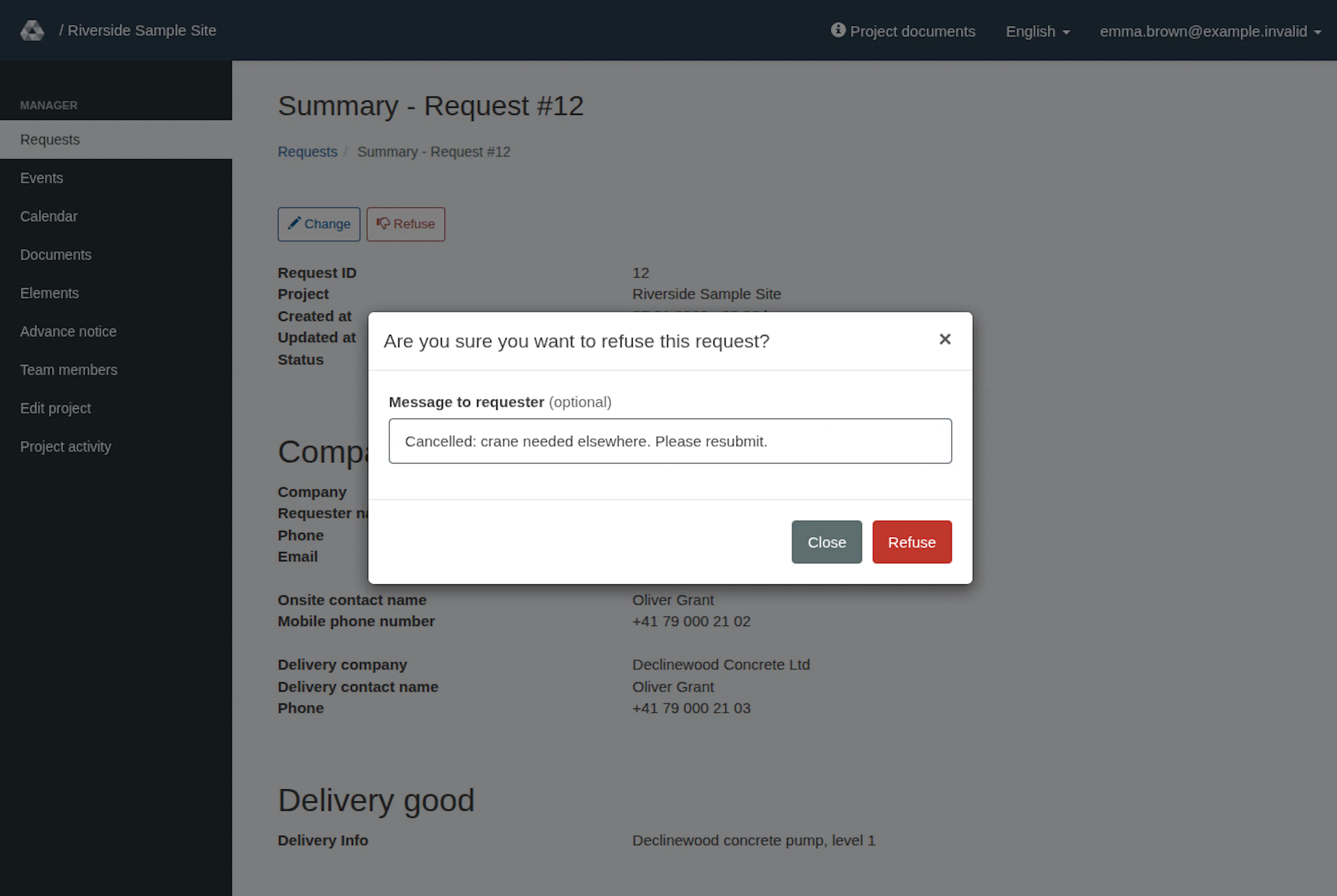
- At the top of the request page, select the outlined red Refuse button. It is shown for open and accepted requests, next to Accept or Change. The Refuse button in the request’s row in the list opens the same dialog without leaving the list.
- In Are you sure you want to refuse this request?, optionally enter a Message to requester. The field is marked (optional), so you can leave it empty. Explain whether the proposed delivery is declined or an earlier acceptance is cancelled, and what the requester should do next.
- Select Refuse to submit. Select Close if you want to leave without submitting this decision.
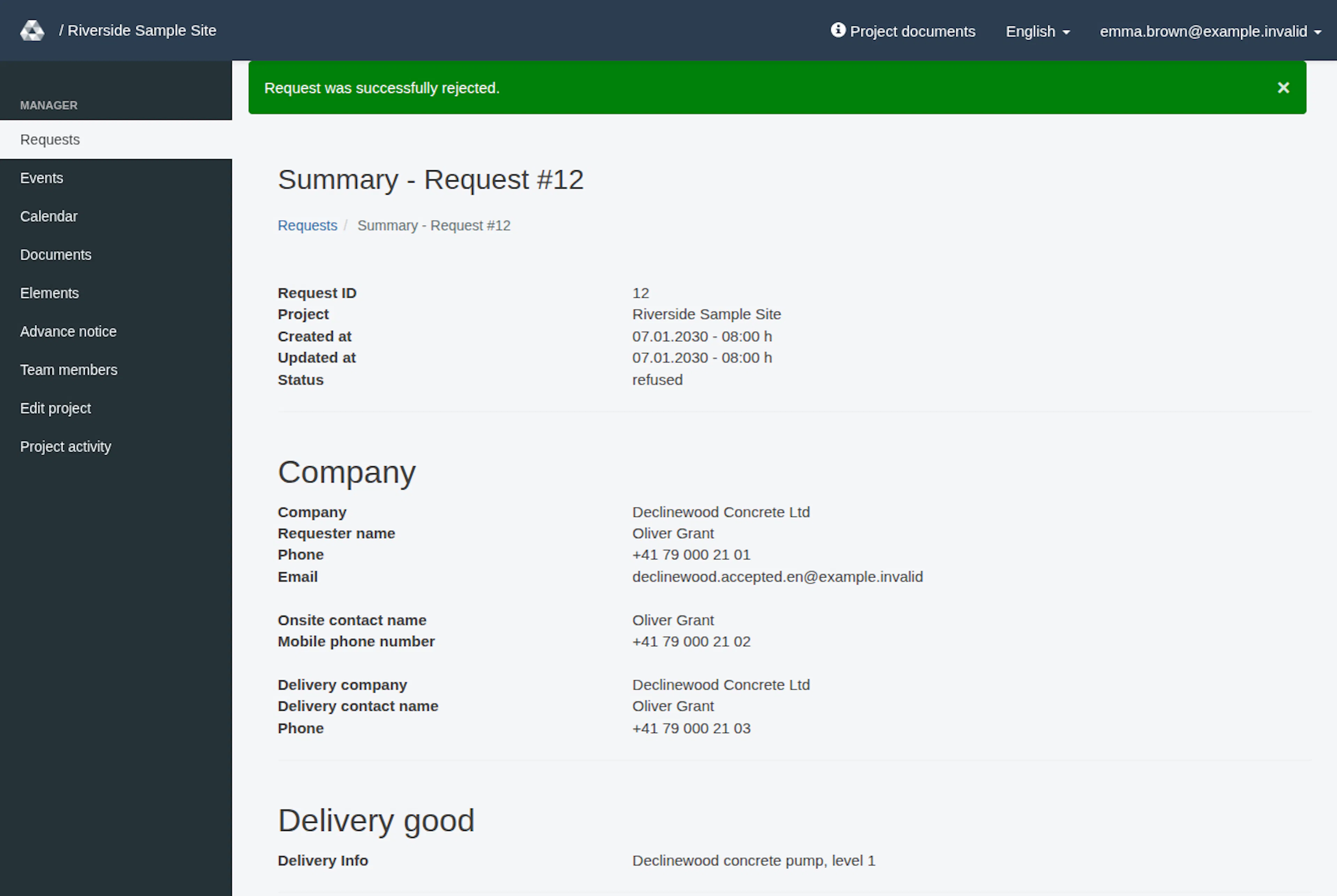
- Check for Request was successfully rejected. RERA returns you to the page where you started, the request page or the list. On the request page, the status now reads refused and the decision buttons are gone. In the list, the request row shows only Show. If the remembered Status filter no longer includes the request, use Show all requests or choose refused or all.
What happens afterward
The decision remains as a request record and is added to its history. A supplied message is recorded with the request. Refusal is a status change; it is not a request-deletion procedure.
RERA schedules separate requester and information notifications after the decision is saved. Each email names who made the decision (“Declined by” and your name, plus your phone number only if your account has one) and includes your message. The requester’s private message can include Change request, while information copies do not receive that edit link. Do not forward the requester’s private message as a general information copy.
The link provides the separate change and resubmit process; a refused request is not automatically accepted again. Email scheduling does not guarantee arrival, so use the saved request status to verify your decision and handle any urgent coordination directly.
If the decision fails
A failed submission returns an alert beginning Failed to reject the request (in English in every language). Read the error, reopen the current record and check whether its status has changed before trying again. Refusal is valid only for open or accepted requests. If it is already refused, the supported refusal action has already reached its resulting status; do not look for a delete action to repeat it.
Decline or cancel a request
These images show the English RERA interface, captured on 13 November 2026 UTC in a synthetic local project. The GIF presents selected actual steps. Options depend on the project and your role.