Accept a team invitation
Accept a project invitation as a manager or notification watcher, and resolve common invitation problems.
A team invitation applies to the project named in the invitation. Check both the project and invited email before continuing. This process is available only when team management is enabled for that project.
Opening the invitation or signing in does not accept it. You must submit Accept invitation on the invitation page before the invited role starts. An email reply does not accept an invitation.
Choose the correct acceptance path
| Invited role | What you need | Result of acceptance |
|---|---|---|
| Manager with an existing account | Sign in using the invited email and your existing password | Manager access to the invited project |
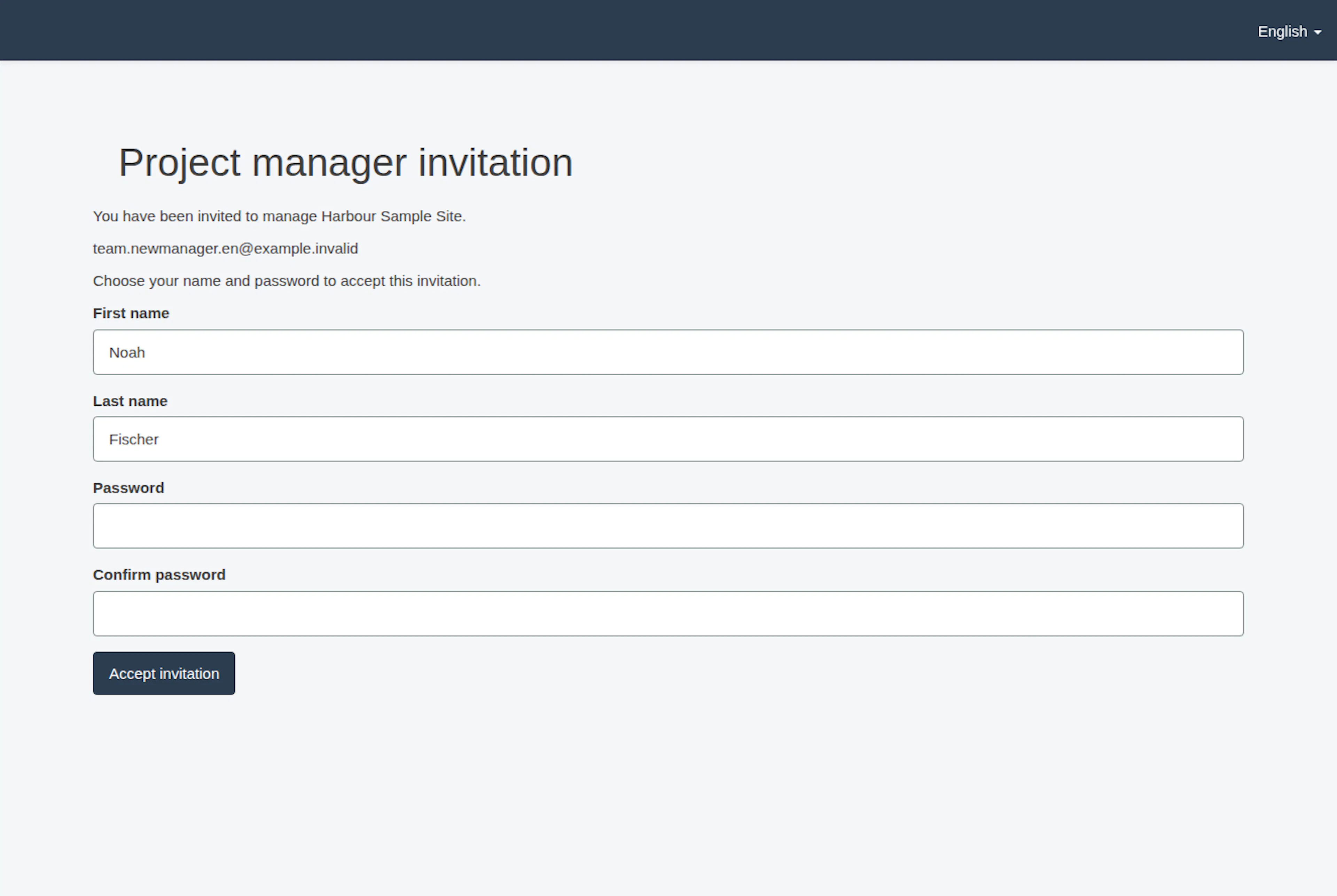
| Manager without an existing account | Choose your name and password in the invitation form | An account and manager access to the invited project |
| Watcher | Complete any requested project contact details; no account is required | Request notifications for the invited email, without project access |
A Watcher invitation does not make you a manager. If you need to review requests or edit the project, ask a current manager to check the invited role.
Accept the invitation
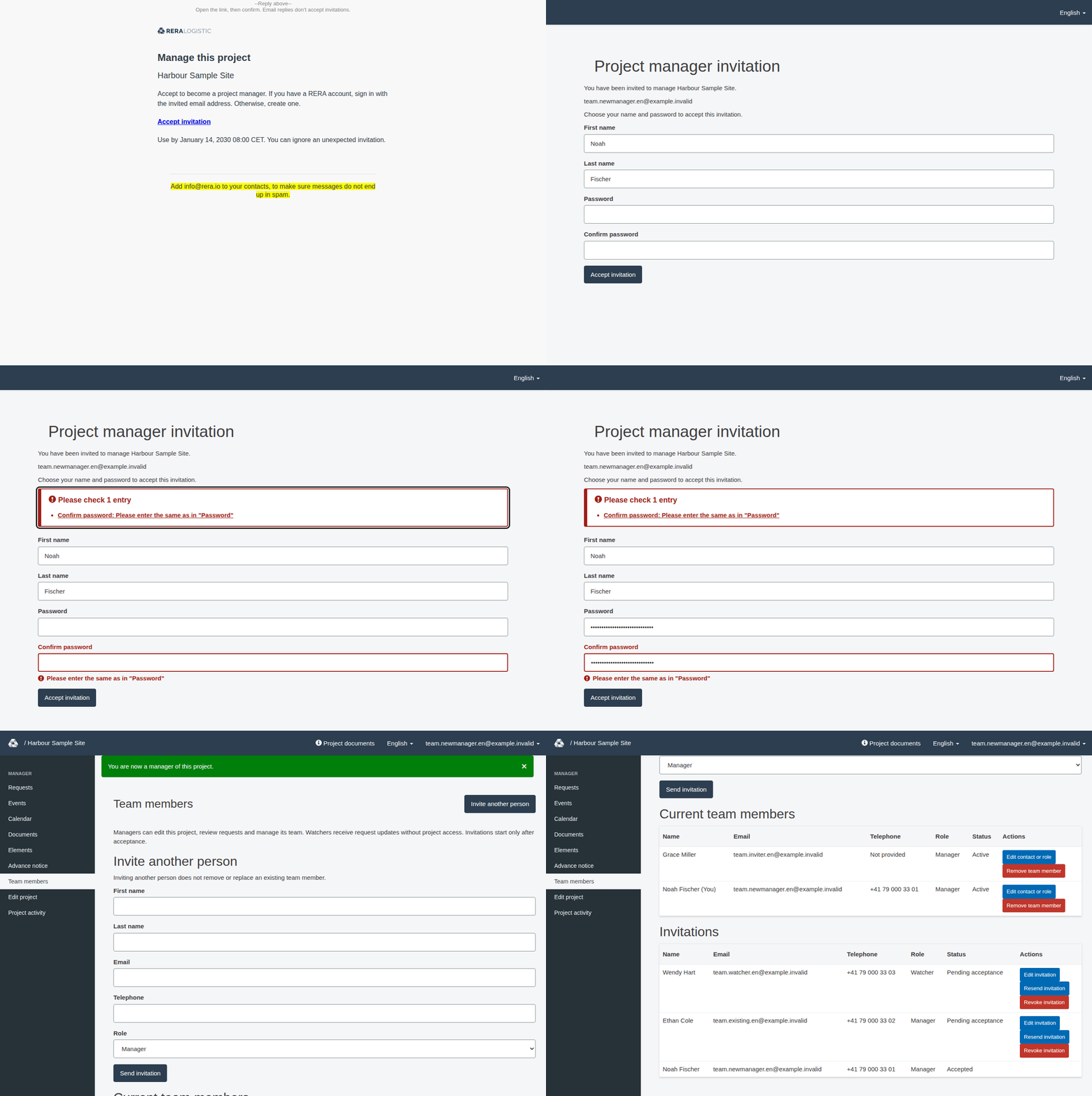
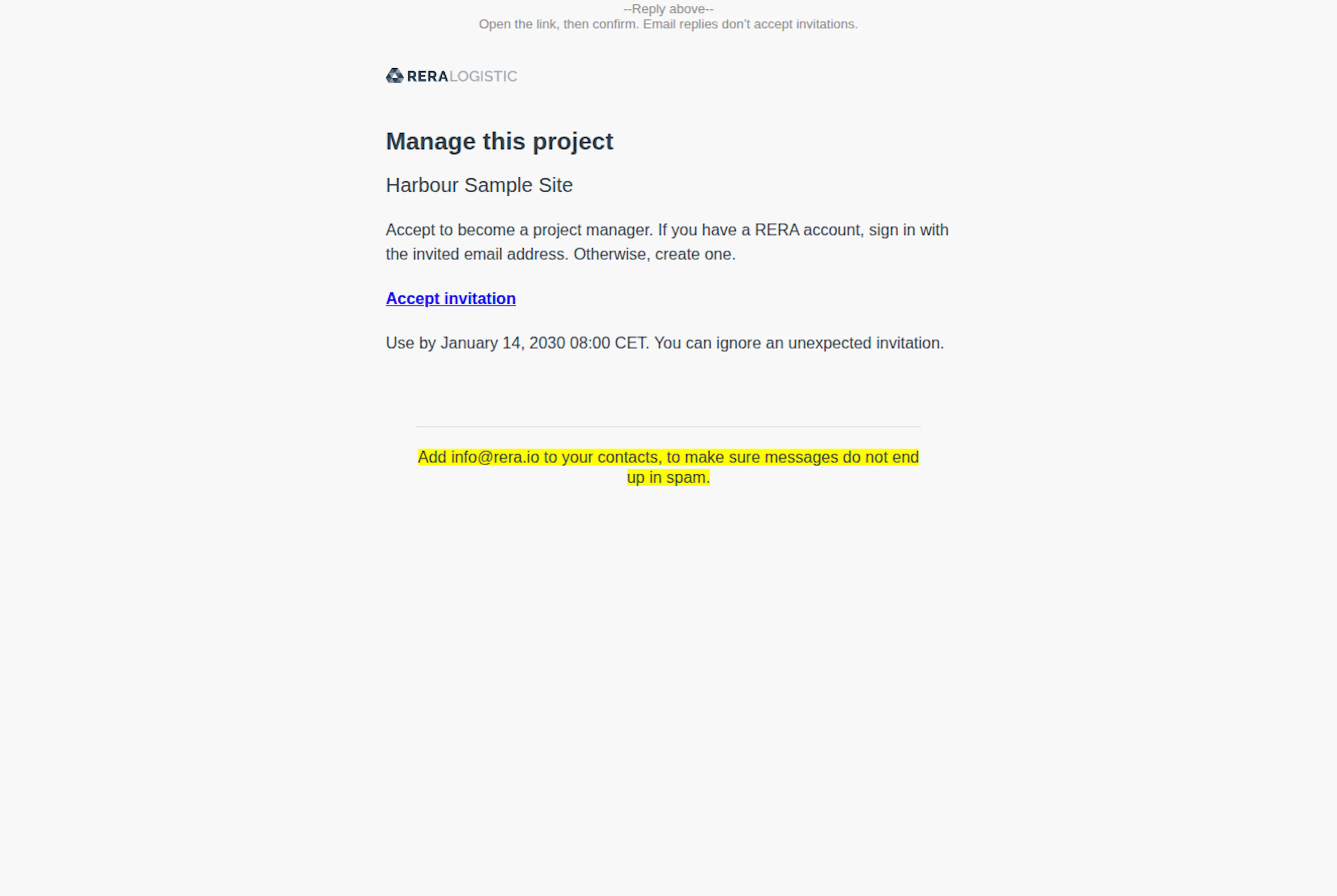
- Open the invitation link and check the displayed project and email address.
- If you are signed in with a different email, choose Logout. Open the invitation again. For a Manager invitation, sign in with the invited email; for a Watcher invitation, you can continue without an account.
- For an existing Manager account, choose Login and use your existing credentials. Show next to the password field shows what you type. Forgot your password? is available if needed. After you sign in, you return to the invitation page. Signing in alone does not finish acceptance; choose Accept invitation there.
- For a new Manager account, complete First name, Last name, Password and Confirm password. Complete Telephone if requested. A Watcher instead completes any contact fields shown without choosing account credentials.
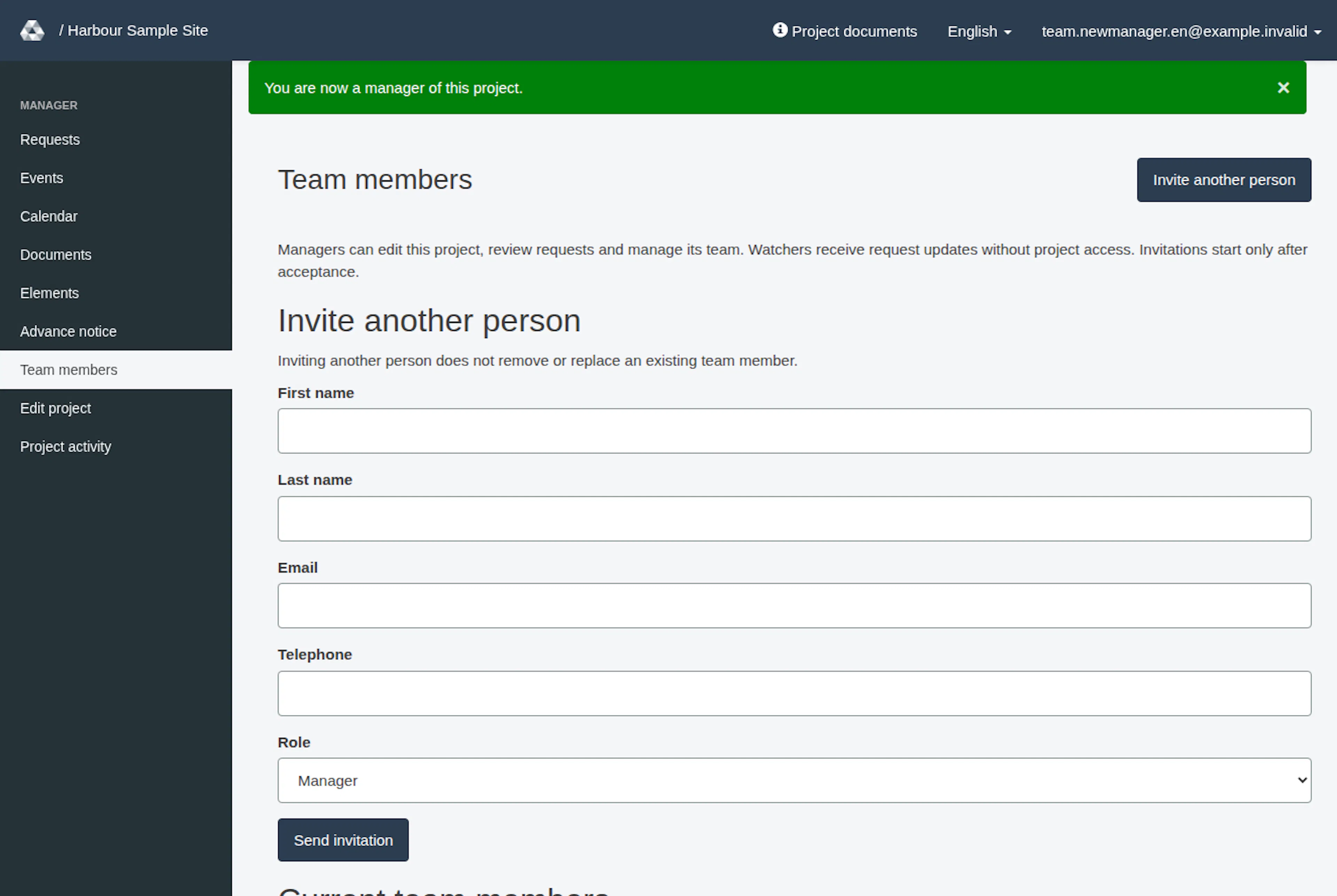
- Choose Accept invitation. Successful Manager acceptance opens Team members with the green message "You are now a manager of this project." The page has a button Invite another person at the top right. Successful Watcher acceptance shows the page Watcher invitation accepted.
First name, last name and telephone must be complete for acceptance. Details already supplied with the invitation may not need to be entered again. Existing Manager account holders retain their password and access to other projects.
If acceptance fails
| Situation | Next step |
|---|---|
| The page asks for missing contact details | Complete the required fields and submit again |
| The account email differs from the invitation | Sign out and reopen the invitation using the correct email |
| The page Invitation unavailable appears | Ask a current project manager for a fresh invitation or resend |
| Account or password validation fails | A red box at the top says "Please check 1 entry" (or the number of entries) and lists each problem as a link to its field, for example that the password confirmation does not match. The same message also appears under the field. Select a link to jump to the field, correct it and submit again; contact support if the invited account remains unusable |
Links expire after seven days. Resending or changing a pending invitation replaces its previous link. Revoked, replaced, expired or already accepted links cannot be used to accept the invitation. A pending link also becomes unavailable if its inviter no longer has the required project authority. Use the deadline shown in the invitation email, including its date, time and time zone. An invitation may become invalid before seven days have elapsed.
This article covers project team invitations. If a link from an account invitation sent by an administrator is not valid, the home page shows the message "This invitation link is not valid or has expired. Please ask the person who invited you to send you a new invitation." On that invitation's page Please set your password, the button Show next to the password field shows both password fields.
Use the newest invitation you receive. A saved or sent invitation is not evidence that it has been accepted, and an email dispatch does not guarantee arrival in your inbox.
For the manager's side of the process, see Manage team members and watchers.
Accept a project invitation
These images show the English RERA interface, captured on 13 November 2026 UTC in a synthetic local project. Example project dates use a synthetic January 2030 clock. The GIF presents selected actual steps. Options depend on the project and your role.