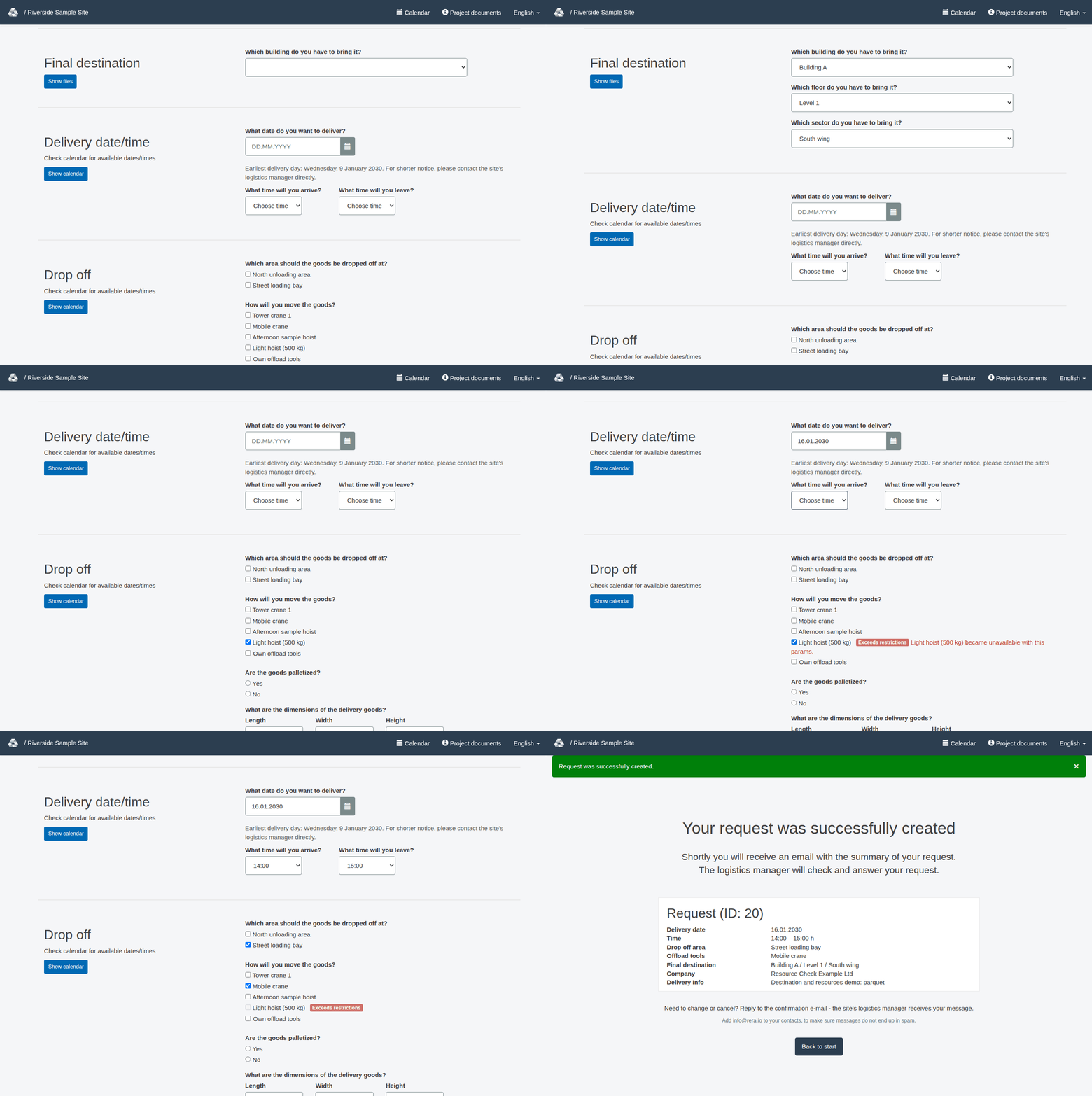
Choose a destination and handling resources
Select the delivery location and the handling resources offered by your project.
Choose the destination shown on your form
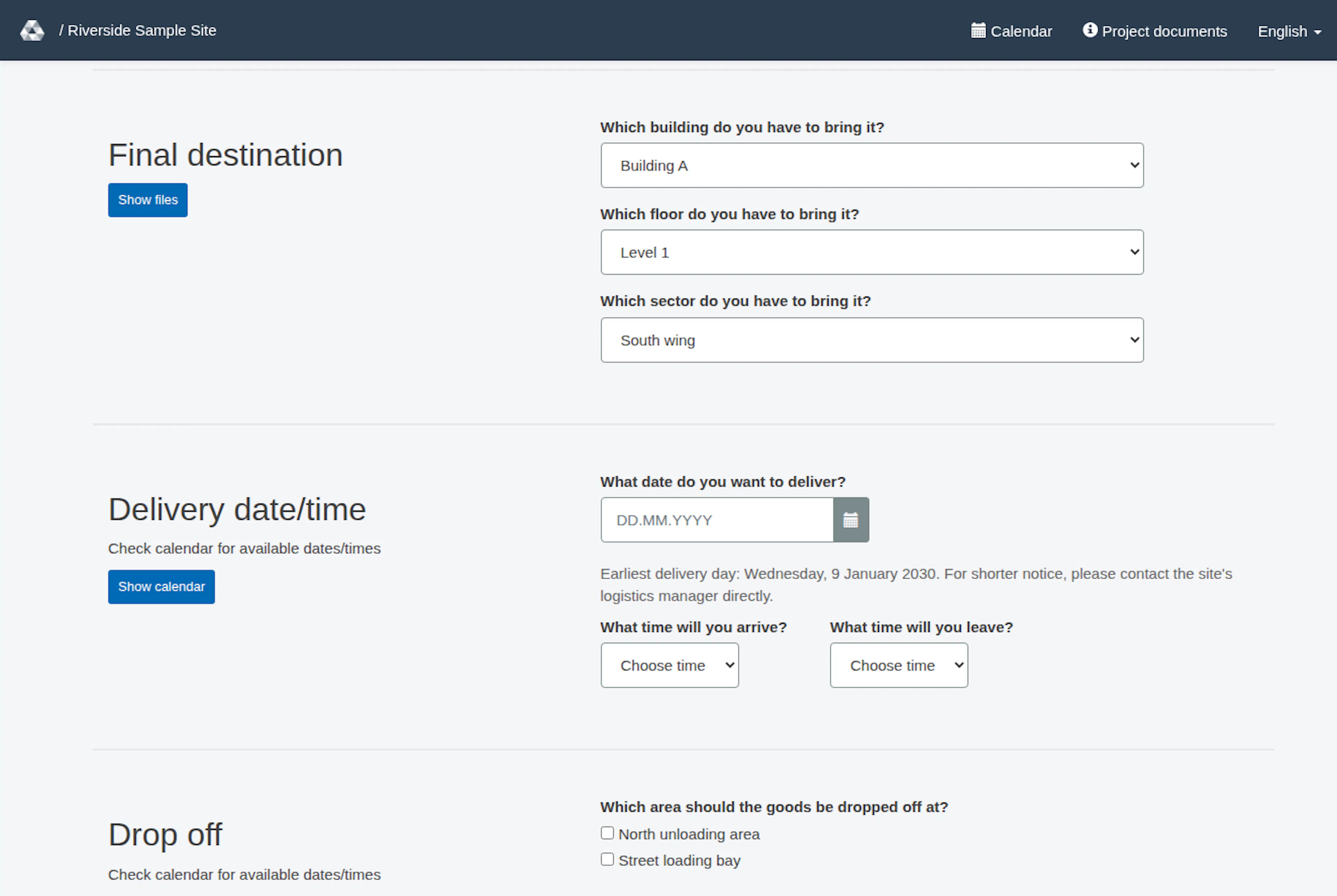
The Final destination section may show a destination area or a building, floor and sector. Follow the fields presented for your project. The available choices depend on project settings, options enabled for you and whether the request already has a building; contact the project team if the form appears inconsistent.
- If the form asks Which area do you have to bring the goods to?, select the configured area that matches the delivery destination.
- If it asks Which building do you have to bring it?, select the building, then select a floor when the chosen building has floors. Select a sector when the chosen floor has sectors. Use the choices offered and recheck the floor and sector after changing a parent selection.
A building is required when the project has buildings and area selection is not being used. The fields shown and the required choices can differ if feature availability is configured inconsistently; contact the project team if they disagree. A floor is required when the selected building has floors; a sector is required when the selected floor has sectors. If the form’s destination choices seem inconsistent, contact the project team rather than guessing.
Select tools and drop-off zones
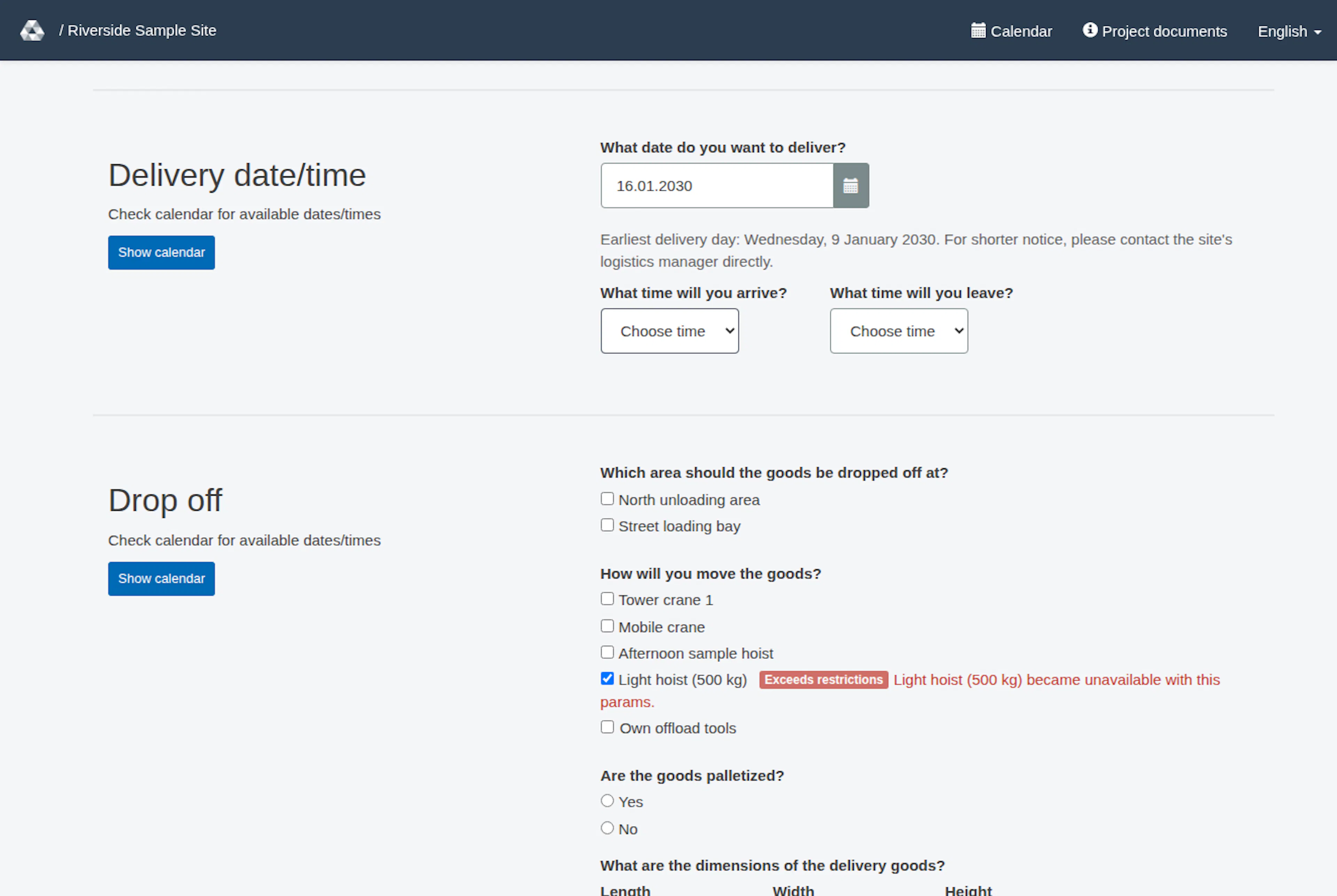
In the Drop off section, select the drop-off area under Which area should the goods be dropped off at? and the handling tool or tools under How will you move the goods? If you are bringing your own tools, tick Own offload tools when it is offered; a tool selection is required unless that choice is selected. Resource lookup and configured restrictions use the selected delivery date; separate request/event blocking checks can affect whether a tool or zone selection is valid. When a project has drop-off zones, select the required zone or zones available for your delivery. When zones are configured, their presence is required for a regular-user request, a new request or a resubmission. Follow any zone validation messages shown by the form.
The form may also show Show files near the destination section. Use it to open the files offered for your project. Follow the form’s displayed labels; the list of resources is project-specific.
If a choice is unavailable
Type the delivery date as dd.mm.yyyy or pick it in the calendar; the check runs as soon as a date is entered. In the same section, arrival and leave are chosen from two lists in 15-minute steps within the site's opening hours; a sentence under the date names the earliest delivery day.
On a new request, the form can already omit elements whose availability ends before the earliest permitted arrival or show them as unavailable. Enter a delivery date and arrival to check choices for that instant. After you enter a delivery date and arrival, an unselected tool or drop-off zone can be disabled with Exceeds restrictions if your load exceeds the tool’s size or weight limits, or your vehicle exceeds the zone’s limits. An unavailable choice that you already selected stays visible so you can replace it, or remove it where the form allows; RERA does not silently select another resource.
If the form reports that a tool or drop-off zone is unavailable, select an available option or adjust the delivery date, then review the timing fields as needed. Date-based resource restrictions and request/event conflicts may require a different selection. When you send the request, it can also be refused, because an accepted request or an event already uses the resource at that time, with “At least one of the selected offload tools is not available at the requested time. Please check the calendar for available time.” (drop-off zones have a matching message); choose another time or resource and send it again. If no suitable choice appears, contact the project team to confirm the available resources. Do not assume all projects have the same buildings, areas, tools or zones.
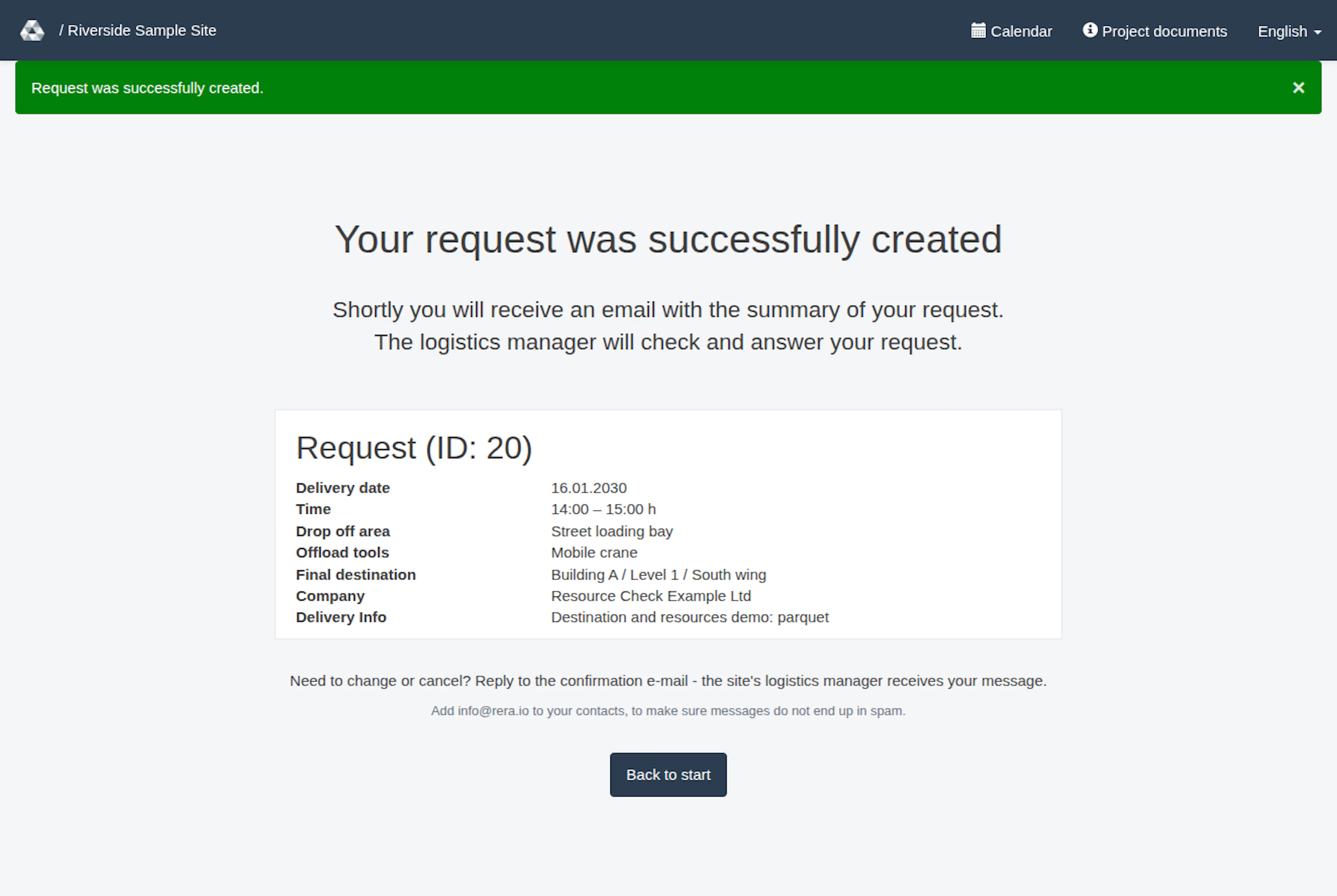
Use the form options offered to you. For a new request, continue to the delivery-time guide for any duration or transport information requested: Choose delivery time and enter transport details.
Element availability
Availability uses the selected delivery date and arrival time for areas, drop-off zones and tools. Before a date is entered on a new request, elements whose availability ends before the earliest permitted arrival may already be omitted or shown as unavailable; elements with a future start can remain because a later booking may still be possible. This same initial filtering applies if you clear the date on a new form. On an existing request, a blank date does not trigger that initial new-request filter. Once a date and arrival are selected, choices are checked for that arrival. Size limits that apply only on certain dates are checked once both a date and an arrival time are entered. A previously selected element that is no longer valid stays visible for correction; RERA does not silently replace it.
An earlier selection that becomes unavailable stays visible for correction; RERA does not silently choose another element. Replace or remove it as the error requires. Once you remove a selection unavailable at that time, it can disappear from the choices; change the date or time before trying to select it again. If no date or time makes it available again, it may no longer be offered; ask the project team. A choice that exceeds size limits can remain visible but disabled.
If no tools are available, check the date, time and size limits, or use your own equipment where that option is offered. If no drop-off zones are available, check the date, time and size limits. If no destination areas are available, choose another date or time.
Choose a destination and resources
These images show the English RERA interface, captured on 13 November 2026 UTC in a synthetic local project. Example project dates use a synthetic January 2030 clock. The GIF presents selected actual steps. Options depend on the project and your role.