Read the project calendar
Read delivery and event availability, understand the legend and distinguish the manager calendar from the public timetable.
The RERA calendar helps you compare delivery requests and events against the project’s handling resources and destinations. The manager calendar and external timetable use the same RERA scheduling information, but they serve different audiences. Some projects instead configure the public Calendar link to display an embedded Google Calendar.
Choose the correct view
| View | Access and purpose |
|---|---|
| Manager Calendar | Sign in as a manager assigned to the project, or as an administrator, then select Calendar in the project menu. On a phone, tap Menu first, or use the Calendar link in the top bar. Authorized request and event actions are available from booking details. |
| External RERA timetable | Visitors can open the project’s external timetable without a manager account. It does not grant management permissions. Read-only refers to management capability: external viewers may still see booking details of that project, including company and on-site contact information shown in the booking details. |
| Configured Google Calendar | If the project uses this option, its public Calendar link opens Check available dates with the configured embedded calendar instead of opening the external RERA timetable. |
An external timetable is a webpage. These instructions do not describe a calendar subscription, feed or standalone export.
Read a day’s schedule
- Open the appropriate calendar for the project.
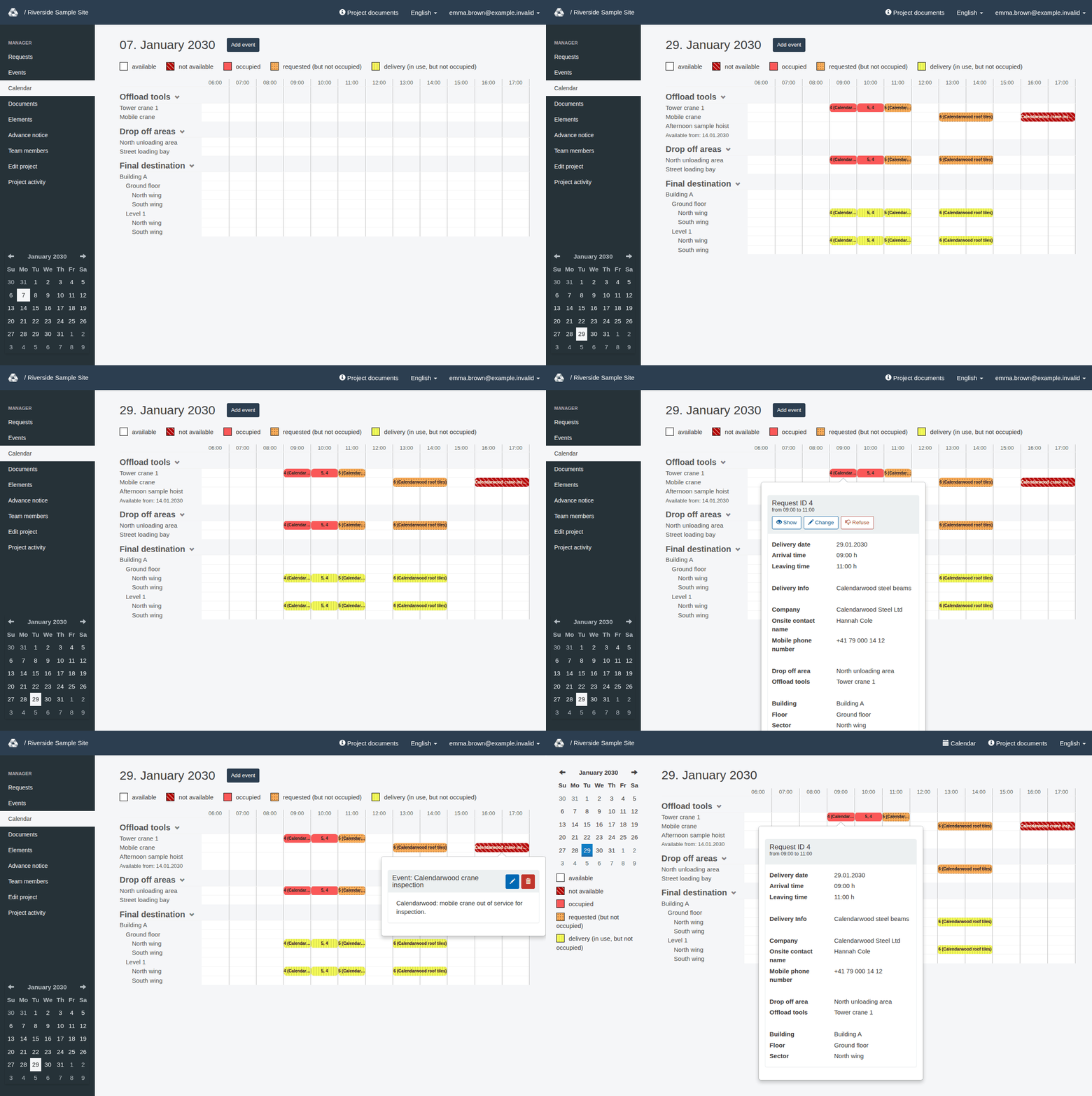
- Select a date in the date picker. The RERA timetable starts with the current day and displays one day at a time. In the manager calendar the date picker sits at the bottom of the dark menu column on most screens. On a phone, the arrows beside the date (Previous day, Next day) step one day at a time. If you change the interface language, the page and the chosen day stay.
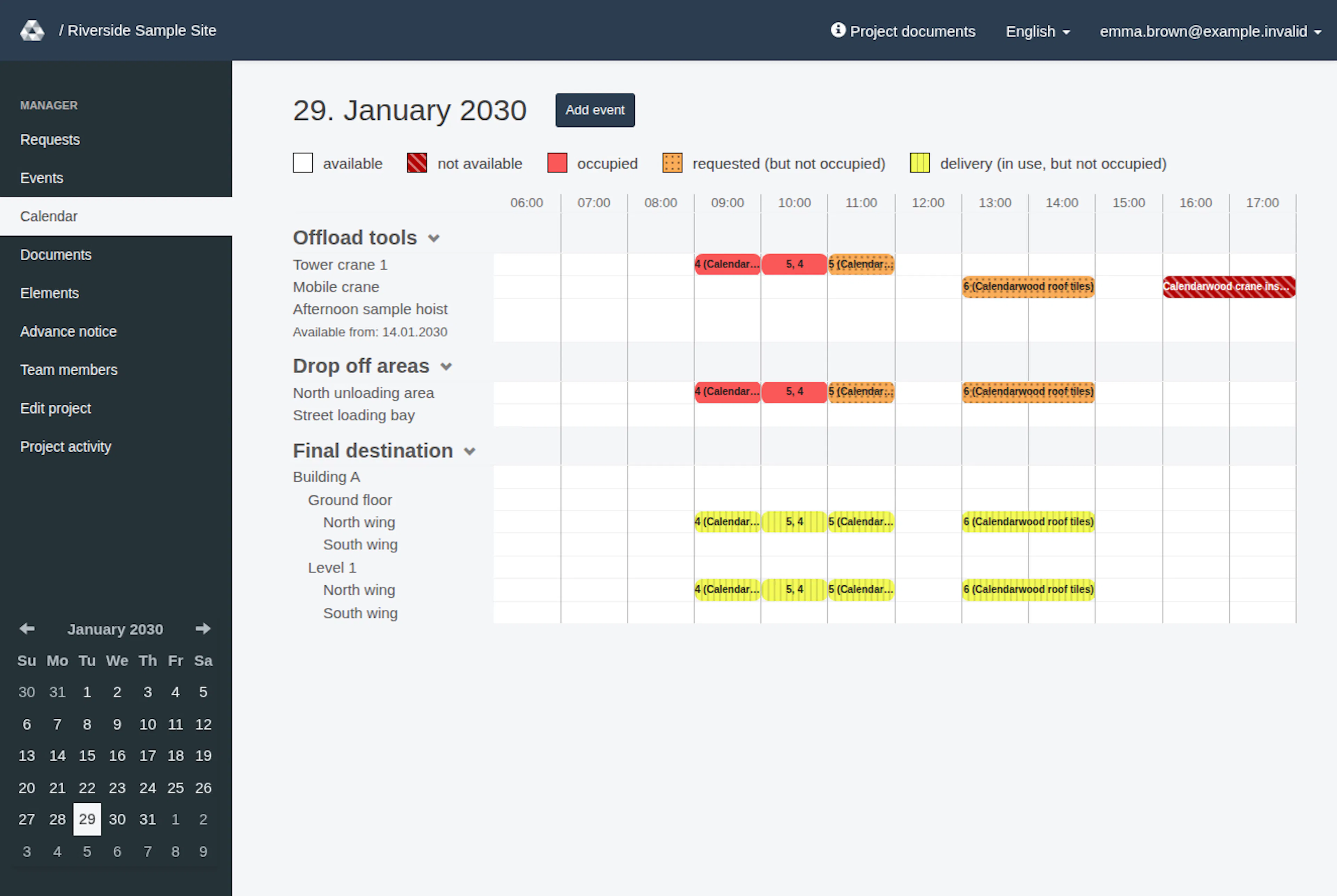
- Find the relevant Offload tools, Drop off areas or Final destination row. Destination rows can include buildings, floors and sectors. Drop-off rows appear when operating drop-off zones exist.
- Read across the time grid for the delivery window. The underlying cells represent half-hour intervals; consecutive cells with the same booking set can be combined visually.
- Compare the cell’s appearance with the legend rather than treating every colored interval as an accepted reservation. Each state has its own look: not available, requested and delivery combine a color with a pattern, while available and occupied are plain. Booked cells carry the same look as their legend swatch, so the states can be told apart without relying on color alone.
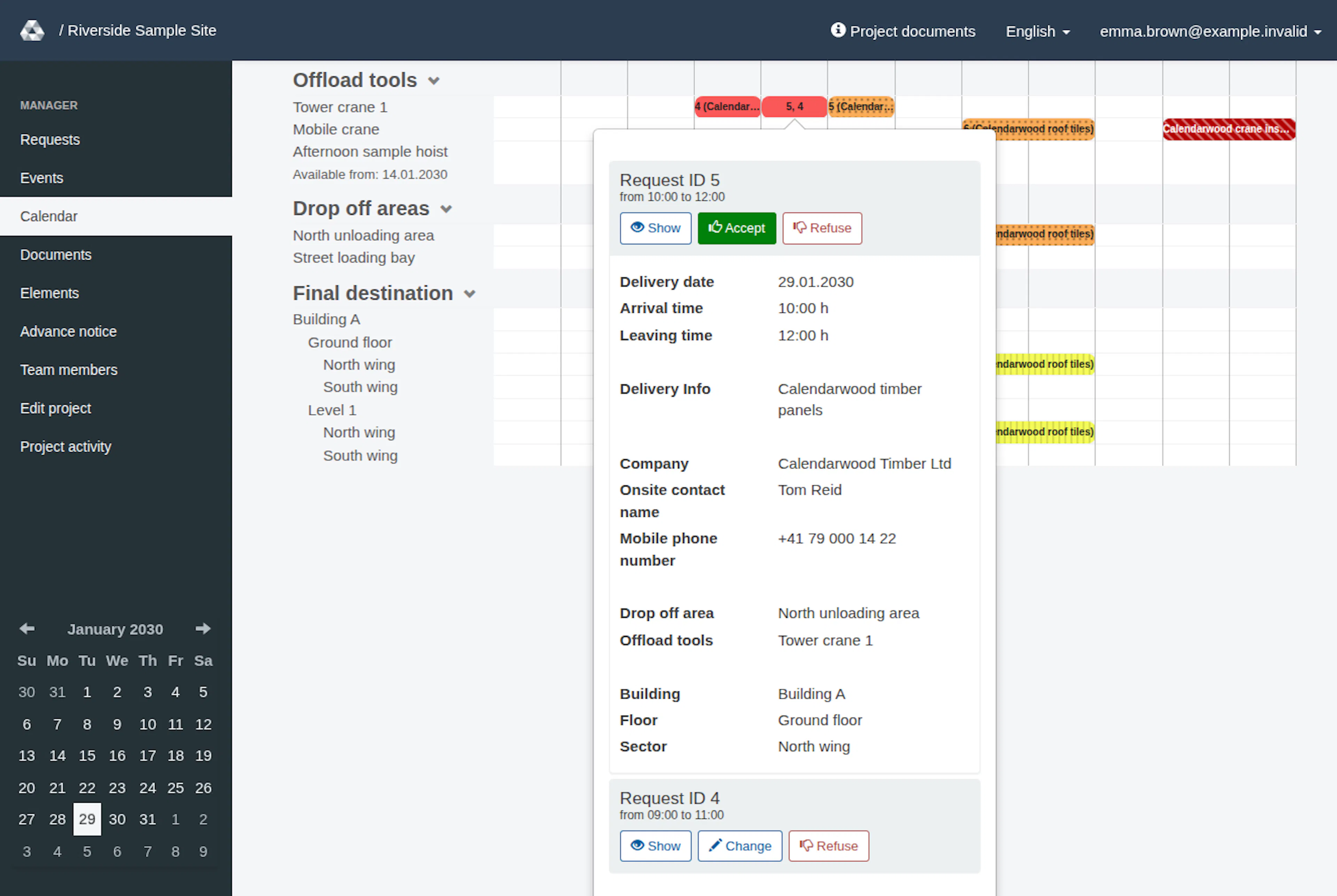
- Read the label in a booked cell. A single request shows its number and description, for example “5 (Steel beams)”. Where several requests share the interval, the cell lists every request number separated by commas, for example “3, 7”. An event or closure cell shows the event’s own title first. Point at a label to see its full text. Select the interval to inspect the request or event details; where several bookings share it, the details list each one.
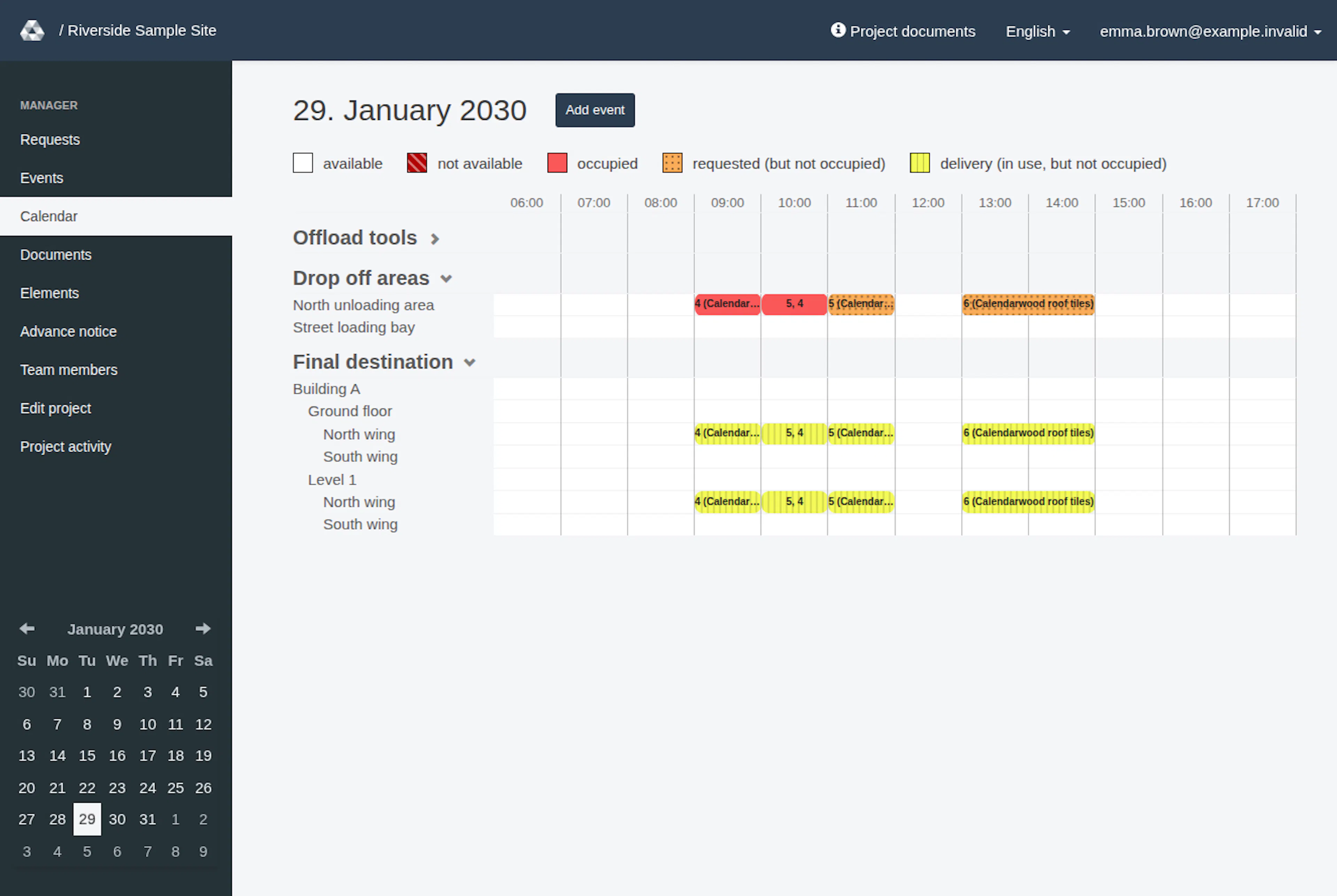
Click Offload tools to hide its rows; click the heading again to show them. The other groups stay as they are. This works in both the manager calendar and the external RERA timetable.
| Legend label | Look | How to interpret it |
|---|---|---|
| available | Plain white | No booking is displayed for that cell. |
| not available | Dark red with slanted lines | An event affects the resource or destination. |
| occupied | Plain salmon red | An accepted request occupies a tool or drop-off zone. |
| requested (but not occupied) | Orange with dots | Only open requests are shown for that tool or zone interval. |
| delivery (in use, but not occupied) | Yellow with vertical lines | A request uses the destination; this is not exclusive destination occupation. |
Use booking details
Selecting a booked interval opens its details. Each request shows its number, times, delivery date, company, on-site contact, drop-off zone, offload tools and destination. In the manager calendar, the request’s action buttons sit under its title, each with a visible word: Show opens the request page, Change appears on accepted requests, Accept on open requests and Refuse on open or accepted requests. You only see the buttons your role and the request’s status allow. Accept and Change open a dialog on the same page. There, Start time and End time are chosen from lists in 15-minute steps that cover the whole day; managers are not limited to the opening hours. Visitors using the external timetable see the details without any buttons. Details only ever show bookings of the project whose calendar is open.
On a phone and on paper
On a phone, the day grid is wider than the screen. Only the time grid scrolls sideways inside its own area, while the date heading and the legend stay in place. Soft shadows at the left or right edge show that more columns lie beyond. Printing the calendar uses A4 landscape and leaves out the header and menu, so the day grid fills the sheet. The patterns keep the states distinguishable in grey print.
Understand what is included
The RERA timetable includes open and accepted requests and project events. Refused requests are absent. Tools and drop-off zones are selected according to their operating dates, while the displayed time range follows the project’s configured hours or defaults.
A free-looking cell is a planning aid, not an approval. Submit a request through the delivery-request process, and use conflict guidance when comparing overlapping arrangements.
If something looks wrong
Check the project and selected day first. If a tool or zone is missing, ask the project team whether it operates on that date. If a request is absent, check its status and saved delivery date. The external timetable does not provide manager access merely because you can inspect bookings.
If the embedded Google Calendar is blank or unexpected, ask the project team to check its configured calendar. Do not assume it is automatically synchronized with the RERA timetable. Managers should use saved request details when confirming an acceptance or amendment.
Element availability in the day view
Tools and drop-off zones appear in the saved element order when they are available for any part of the selected day. Reordering them in Elements changes their row order in both the manager and external RERA calendars. The row name includes Available from and Available until when set; precise boundaries include their time. A row can appear even though the element is unavailable at your intended arrival. A free cell does not validate that arrival: submitting or approving a booking checks the exact arrival and can reject an unavailable selection. For a new request, correct the date/time or element and submit again. For an approval, correct them in the approval dialog and choose Accept again.
Use the project calendar
These images show the English RERA interface, captured on 13 November 2026 UTC in a synthetic local project. Example project dates use a synthetic January 2030 clock. The GIF presents selected actual steps. Options depend on the project and your role.