Understand and resolve scheduling conflicts
Interpret overlap warnings, coordinate delivery changes and mark an inspected conflict warning resolved.
A conflict means that delivery or event arrangements overlap in time on a relevant resource within the same project. Requesters can encounter availability feedback while completing a request. Signed-in managers assigned to the project, and administrators, can inspect saved request conflicts and mark a warning resolved.
A warning and a blocked submission are different outcomes. Open requests can appear in conflict feedback even though they do not have the same blocking status as accepted deliveries. Managers must inspect the actual arrangements before deciding whether a delivery can proceed.
Understand the overlap
| Situation | Meaning |
|---|---|
| Accepted request uses the same tool or drop-off zone at an overlapping time | That accepted booking can block a competing new or resubmitted request. |
| Open request overlaps | It can be shown as a conflict; it is still awaiting a decision. |
| Event affects the destination, tool or drop-off zone | It can make that selection unavailable during the event. |
| Requests share only a building, floor or sector | A shared destination alone is not treated like exclusive tool or zone occupation between requests. |
| Request is refused | It is excluded from the persisted overlap warnings. |
Check the date, start/end times and exact resources rather than relying only on similar delivery descriptions. Use the calendar to compare the arrangements visually. In the calendar, a closure or event cell shows the event's own title, and a cell with several overlapping requests lists every request number.
Investigate a saved warning
- Open Requests for the correct project.
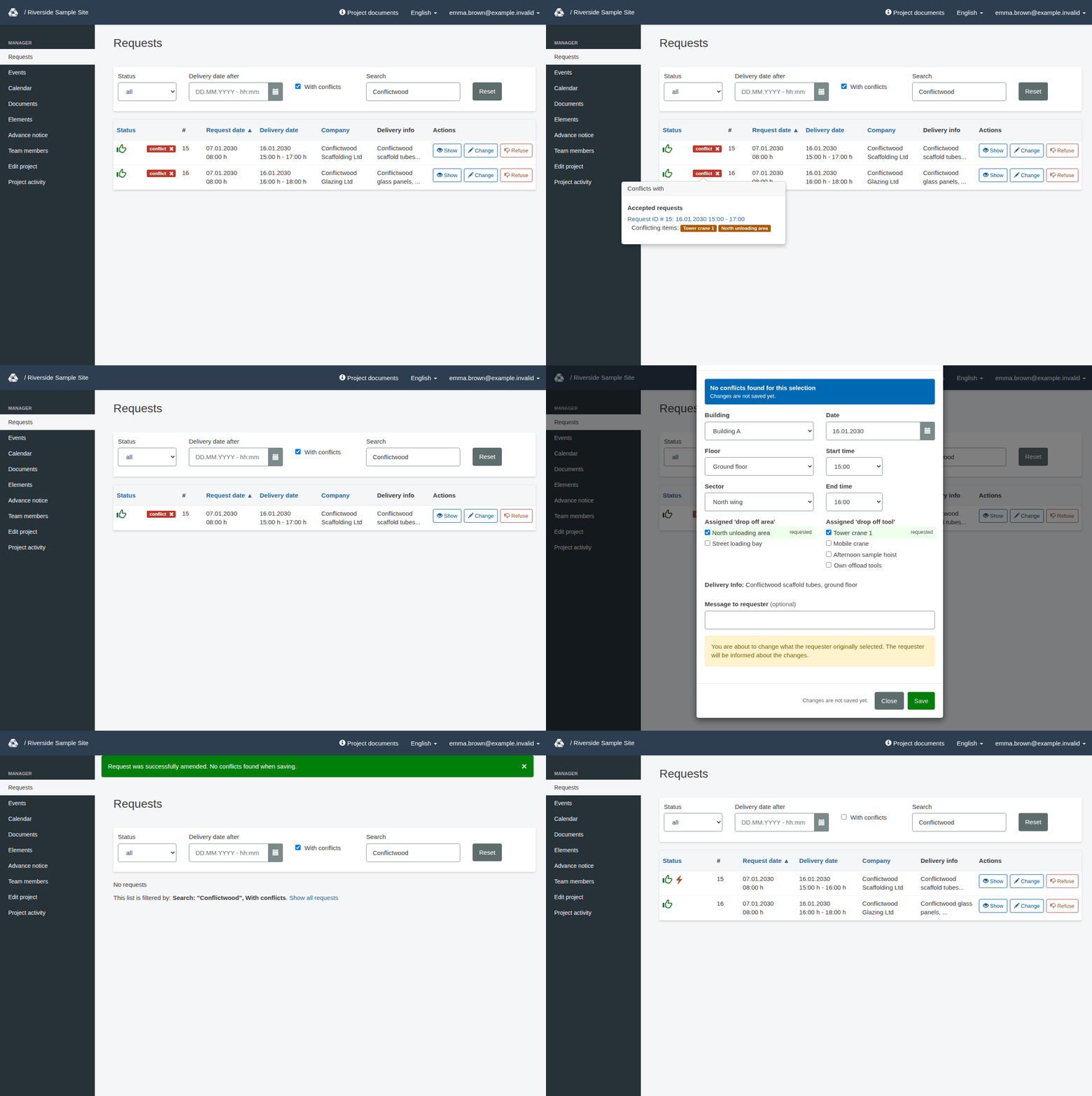
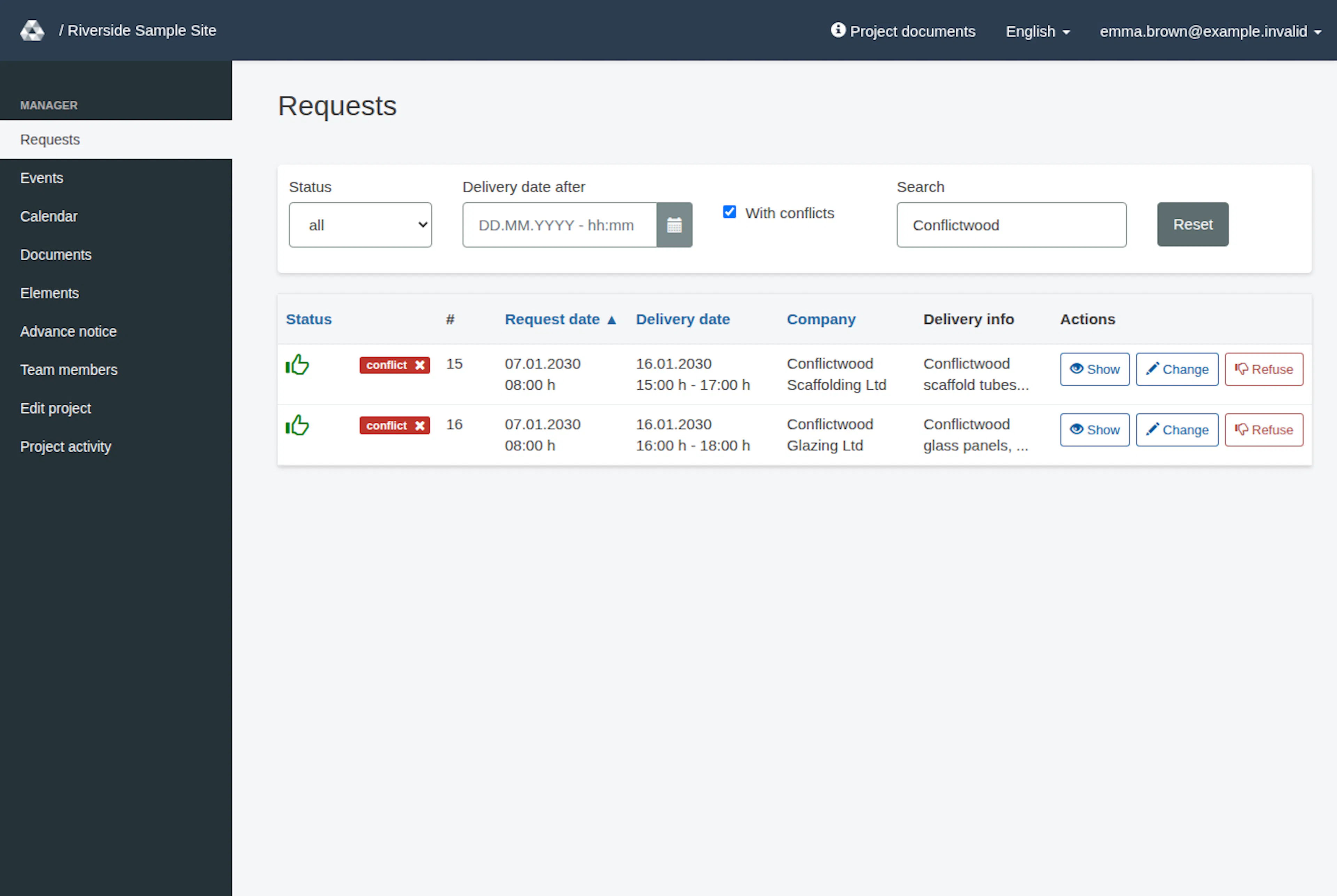
- Choose the relevant Status, or all. Enable With conflicts if you want to focus on unresolved warnings. The list remembers your filters while you are signed in, and it starts with open requests only.
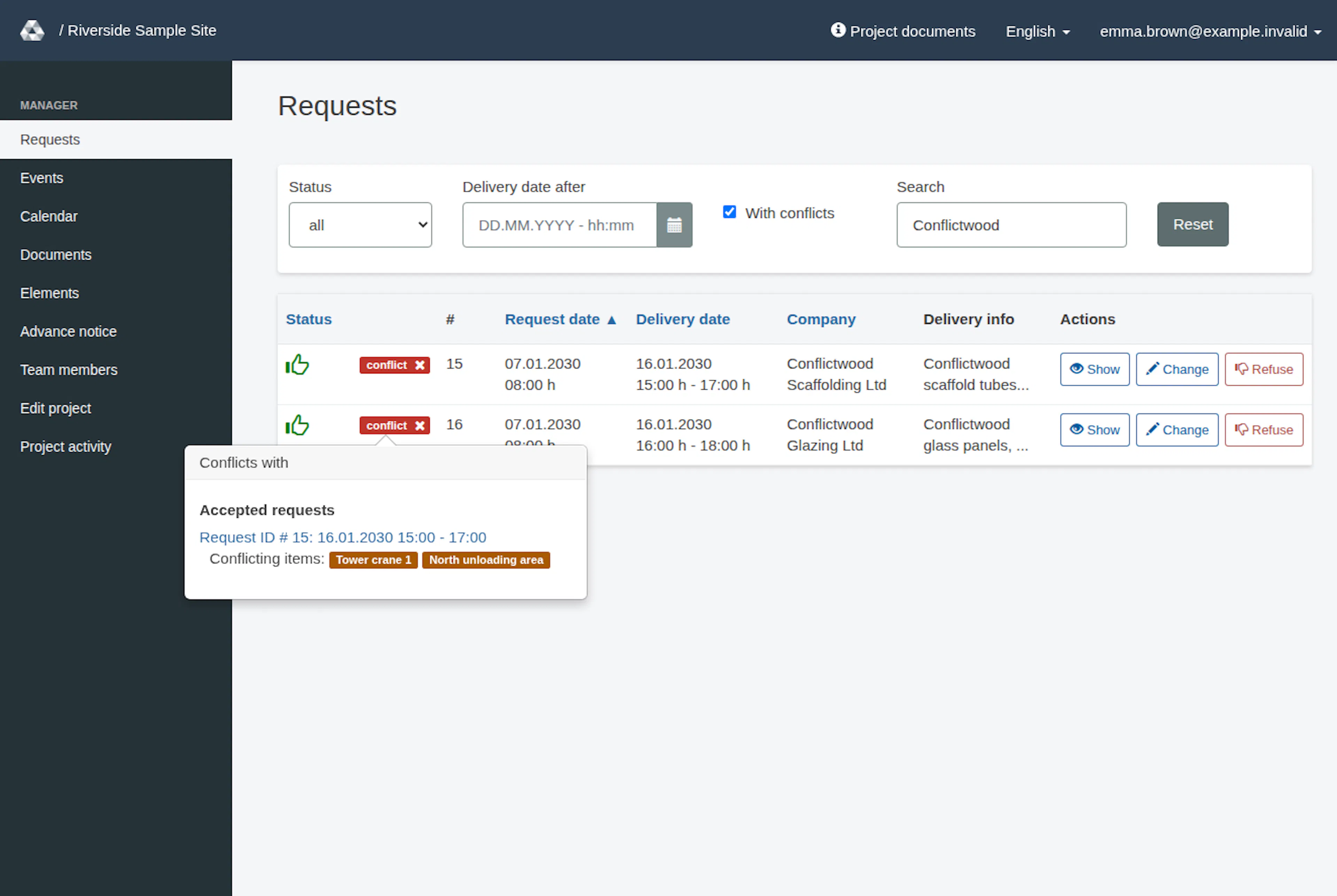
- Select the red conflict caption to inspect Conflicts with. The list groups the overlapping bookings as Accepted requests, Open requests and Events. A request reads Request ID # 2: 14.01.2030 09:00 - 10:00, an event reads Event ID # 3 followed by its title. Conflicting items names the tools, drop-off zones or destination parts that overlap.
- Open the relevant request summaries with Show and compare their time windows, assigned tools, drop-off areas and any affected event destination.
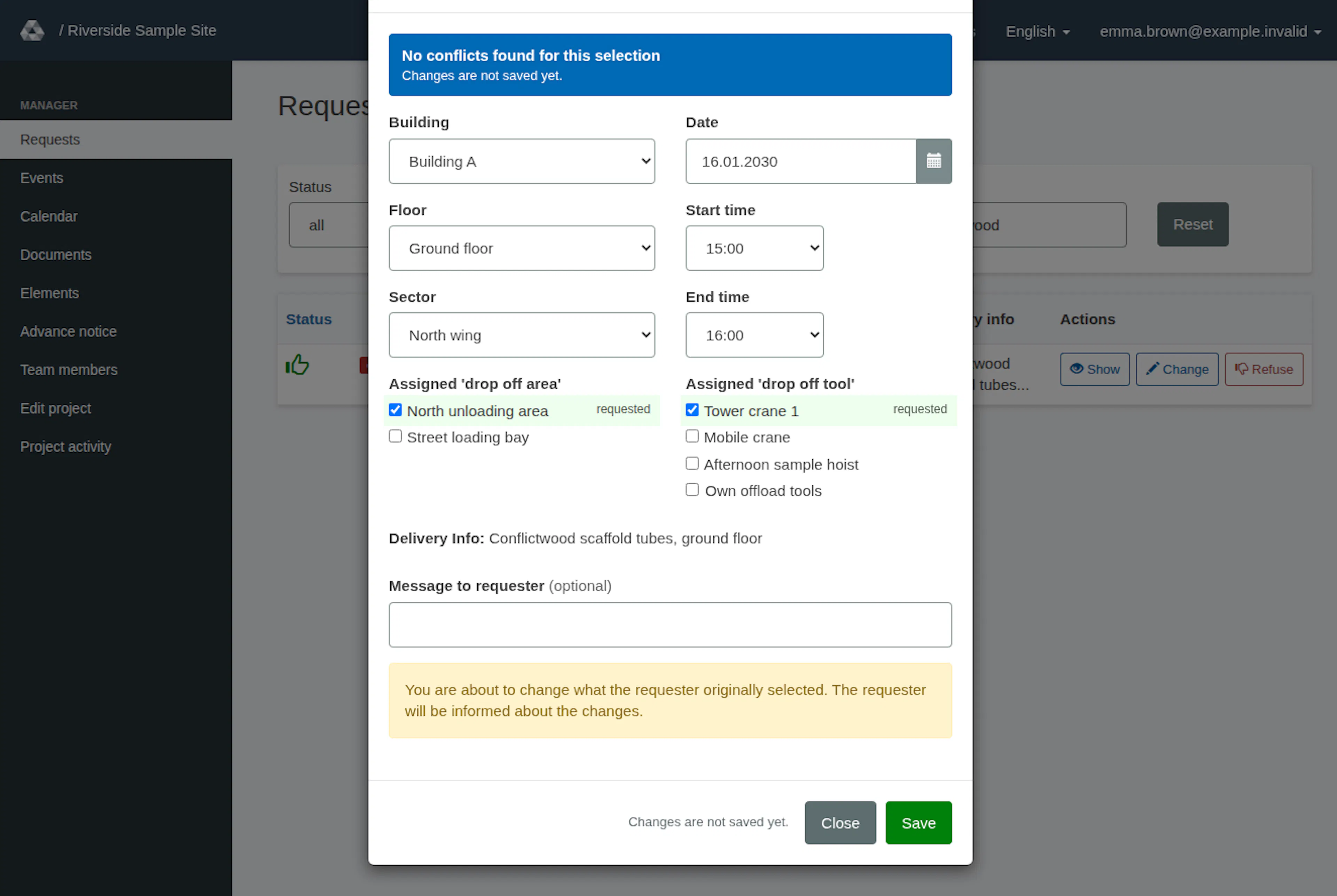
- Decide what needs to change. You may adjust an open request during acceptance, amend an accepted request with Change, or edit the event. If a delivery cannot proceed, use Refuse. When you move a delivery in the Change or Accept dialog, choose Start time and End time from the lists in 15-minute steps (any time of the day for managers). The Conflict warning is checked again after each change and disappears when the overlap is gone.
- Recheck the saved arrangements before marking the warning resolved.
If a filter leaves nothing to show, the page says No requests and This list is filtered by: followed by the active filters, for example Status: open, Search: "…" or With conflicts. Select Show all requests to clear the status, search, conflict and date filters. When With conflicts is the only active filter and the list is empty, no unresolved request overlap is left.
The orange lightning icon marks an amended request. It is separate from the red conflict badge.
Communicate with affected requesters
The conflict-message field used by approval, amendment and event flows is labelled Send a message to requestors of the conflicting requests. The accompanying guidance specifies that only requesters of accepted requests will be notified. Do not use this as a way to message every open request. The notification path also copies request subscribers and project watchers and BCCs active administrators; delivery is not exclusive to the requester.
This is separate from Message to requester in an individual request decision. A conflict message does not move either delivery, change an acceptance or establish email receipt. Confirm urgent operational arrangements through your normal coordination process.
Mark the warning resolved
After inspecting and addressing the situation, select the small cross beside the request’s conflict badge and confirm Are you sure? This marks that request’s warning resolved and removes it from the unresolved-conflict presentation.
The action does not approve a request, change its timing, reassign resources or remove the underlying overlap. Changes to assigned tools, drop-off zones, building, floor, sector or start/end times reset the resolution marker, so a warning can return.
If you cannot submit a new or resubmitted request because a selection is unavailable, choose another time or suitable resource and check again. If a manager save succeeds while an overlap remains, inspect the conflict rather than assuming saving proved the schedule conflict-free.
Check the current selection before saving
In Accept and Change, the compact check status describes the date, time and resources currently selected in the dialog:
| Check status | What to do |
|---|---|
| Checking this selection… | Wait for the current selection to be checked. |
| Conflicts remain for this selection | Inspect the overlapping Accepted requests, Open requests and Events, their links and conflicting items. |
| No conflicts found for this selection | No overlaps were detected by this check for the selected time and resources. This check does not save the selection. |
| Complete the date, time and required selections to check conflicts. | Complete the date, time and required destination selections; End time must be later than Start time. Select an unloading tool or Own offload tools, and enter a numeric Duration when shown. The form automatically checks the updated selection. |
| The conflict check is unavailable. Please try again. | The check failed; this is not a clear result. Select the Check again link. |
When conflicts remain, the short hint links to the existing time controls. It can additionally link to an affected unloading area, unloading tool, building, floor or sector when those controls are present. Change the selection using the indicated controls, then let it be checked again. The hint disappears when the check finds no conflicts. It does not find a free slot or choose an alternative for you; all existing fields stay directly editable.
The notice Changes are not saved yet. remains separate from the conflict result. Select Accept or Save to submit the decision, then check the actual success message and saved request. A successful acceptance or amendment can still retain overlaps; inspect its saved conflict result and coordinate the arrangements when needed. Managers may deliberately retain a coordinated overlap. A clear draft does not confirm that anything has been saved, and a successful save does not prove that the schedule is conflict-free.
The existing Message to requester and separate message to requesters of conflicting accepted requests keep their different audiences. See conflict communication before sending either message.
If saving reports Saving could not be confirmed. Check the request before trying again., the dialog stays open with your entered values. A failed response or network interruption does not establish whether the server saved the decision. Select Close, then reload or reopen the request to get its current status and details before submitting again; the page behind the dialog may still show the earlier state. Do not immediately repeat the decision. This save warning is separate from a failed conflict check. A response with validation errors can display a new form without this warning. Its disappearance does not tell you whether the earlier decision was saved; still reload or reopen the request before submitting again.
A successful acceptance, or a changed amendment, also includes the saved conflict result after its success sentence: Conflicts remain for this booking. or No conflicts found when saving. Read that suffix as well as the success sentence. An amendment with no changed details and no added messages returns without a success notice.
Element availability
An element’s operating date/time boundaries and archived state are a separate availability check from the overlap warnings described here. A request summary can name an element unavailable at its arrival time and link to its editor. Marking an overlap warning resolved does not make that element available. A manager can review current project elements under Elements. For an archived element, ask an administrator to review it; managers without administrator access cannot open its editor. You can instead replace/remove the unavailable selection when changing the booking.
Resolve a scheduling conflict
These images show the English RERA interface, captured on 13 November 2026 UTC in a synthetic local project. Example project dates use a synthetic January 2030 clock. The GIF presents selected actual steps. Options depend on the project and your role.