Configure resources and account access
Administrator reference for project resources, restrictions, relationships and global account invitations.
Use this guide for global administrator operations. Current project managers and administrators can create, edit and order their project’s elements through Manage project elements. A pending invitation or a Watcher subscription grants no management access. Archiving and restoring elements remain administrator actions.
If a signed-in person opens a page they may not use, RERA brings them back to the page they came from or, for a manager with a project, to their project's request list, and shows a red message: "You do not have permission to open this page. Please contact RERA support (service@rera.io) if you need access." If neither is possible, for example for a person without a project who did not come from another RERA page, they land on the home page, which shows the same message.
Start with the correct existing project. For project records and general settings, see Provision and configure a project.
Maintain project elements
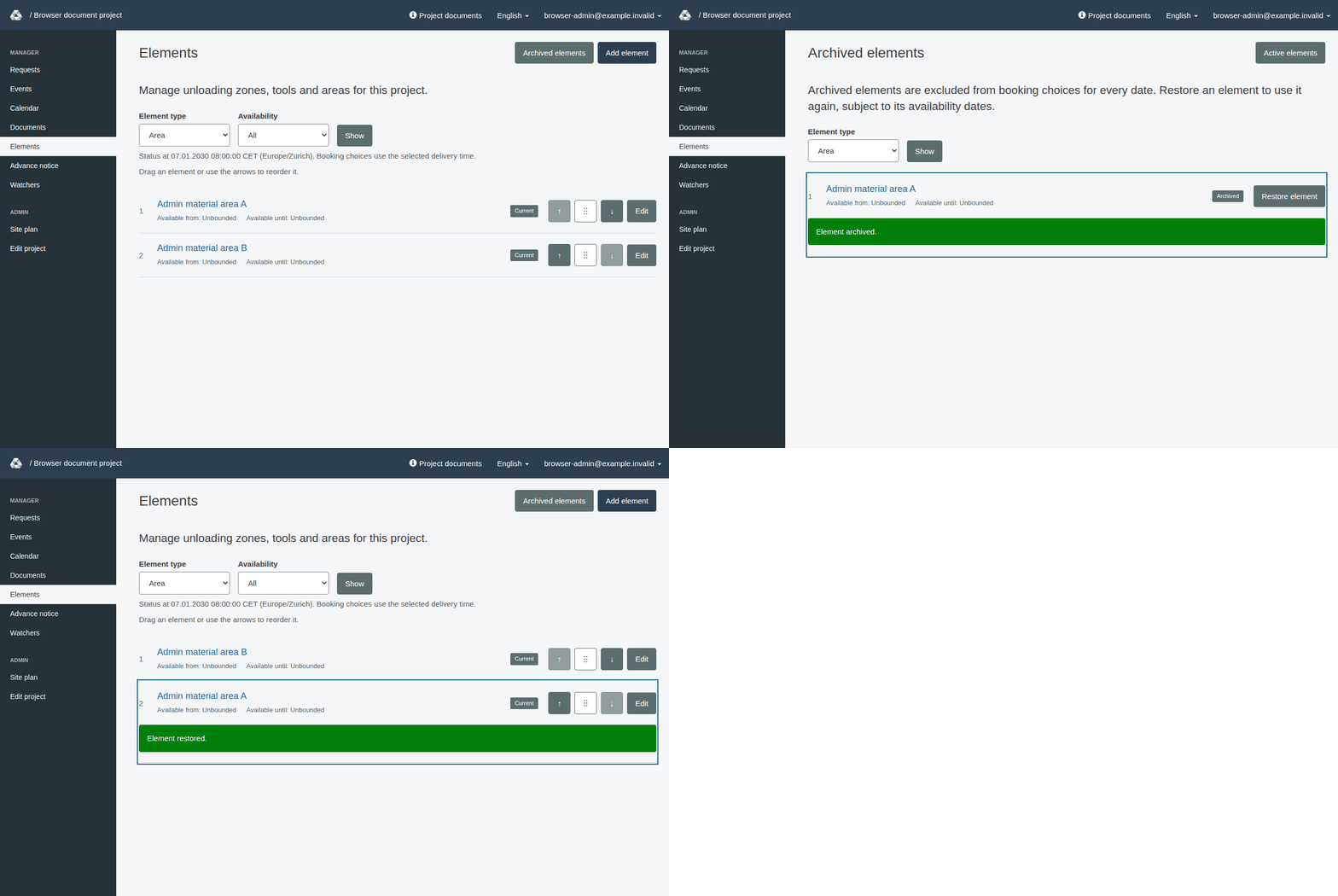
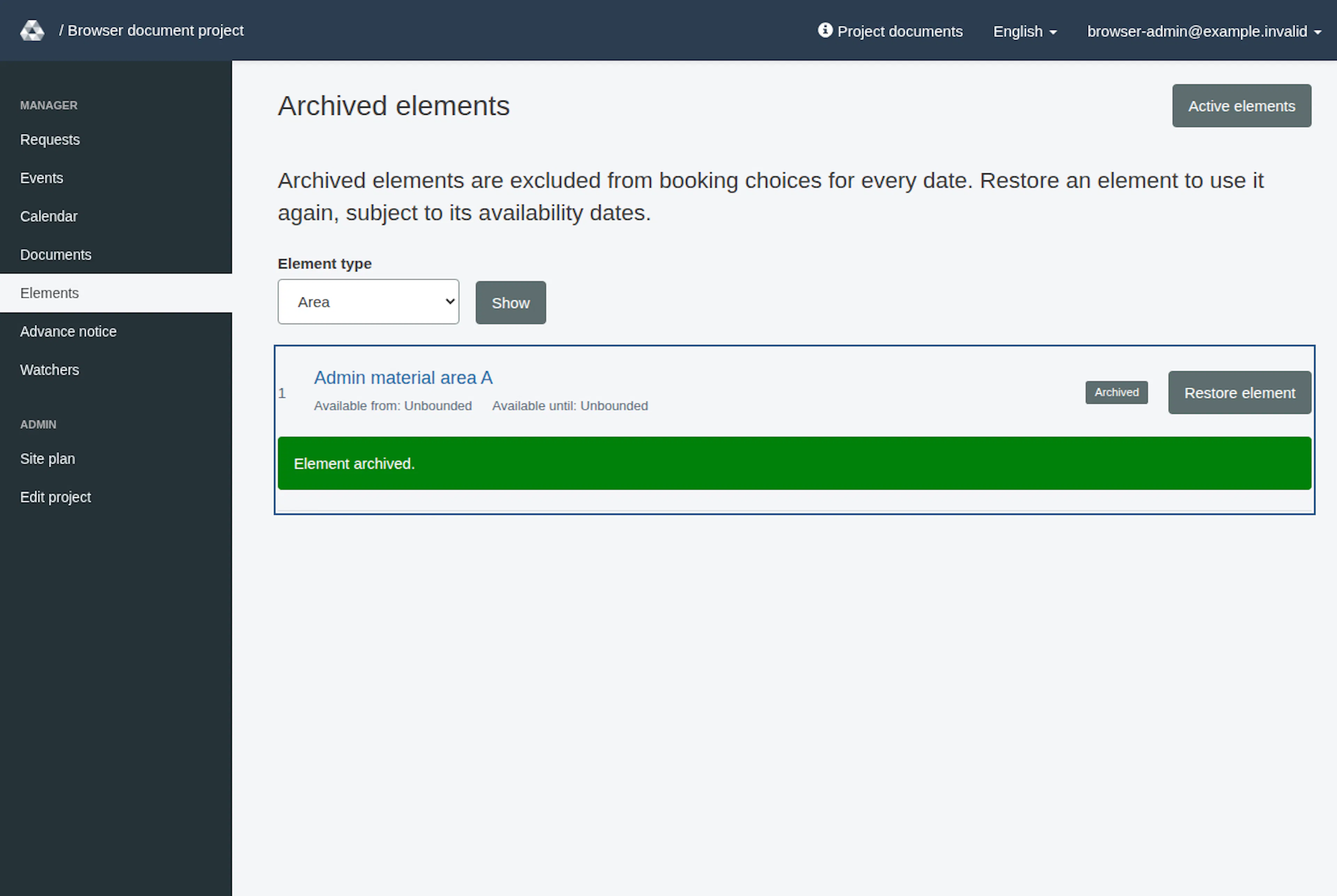
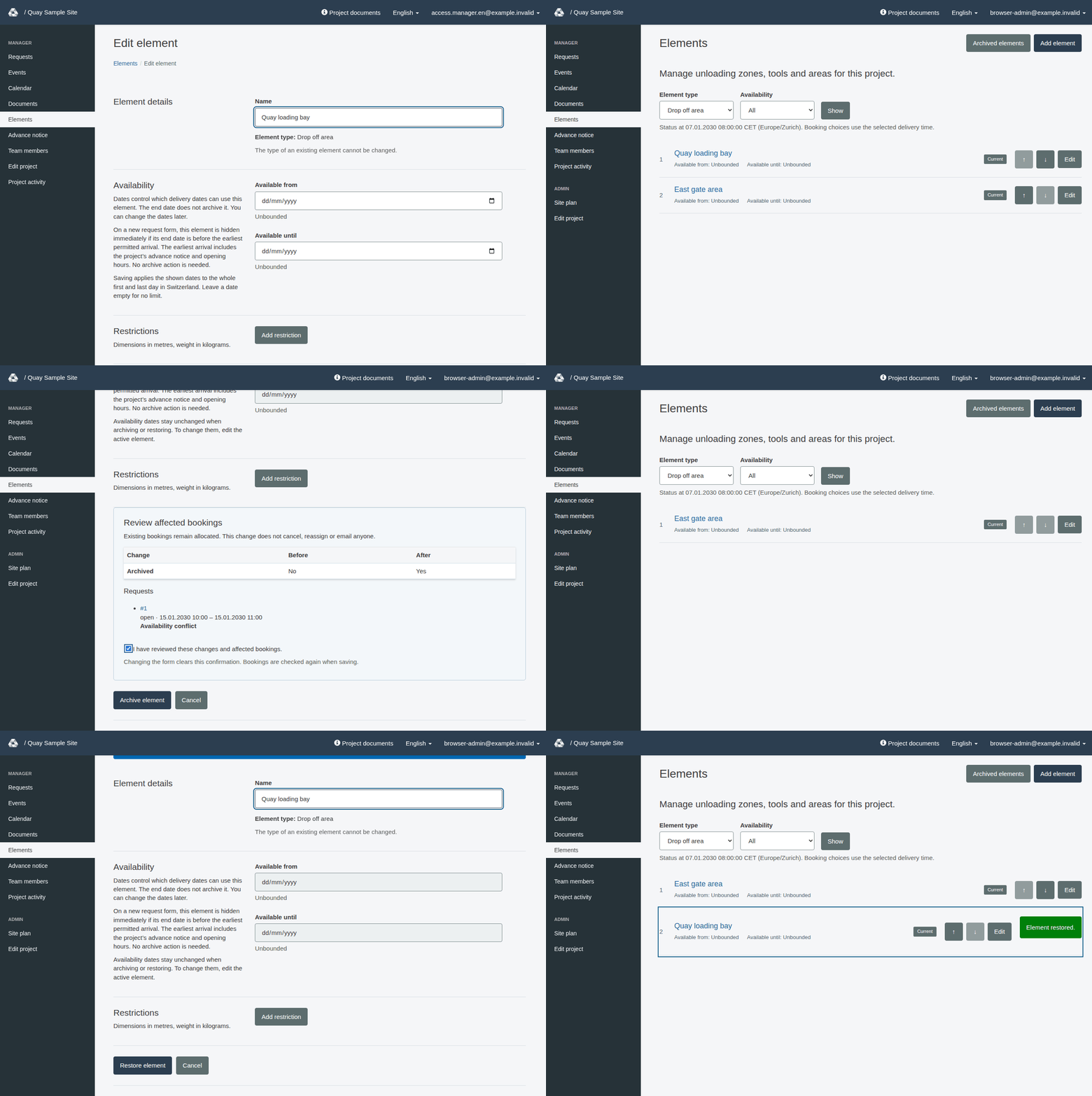
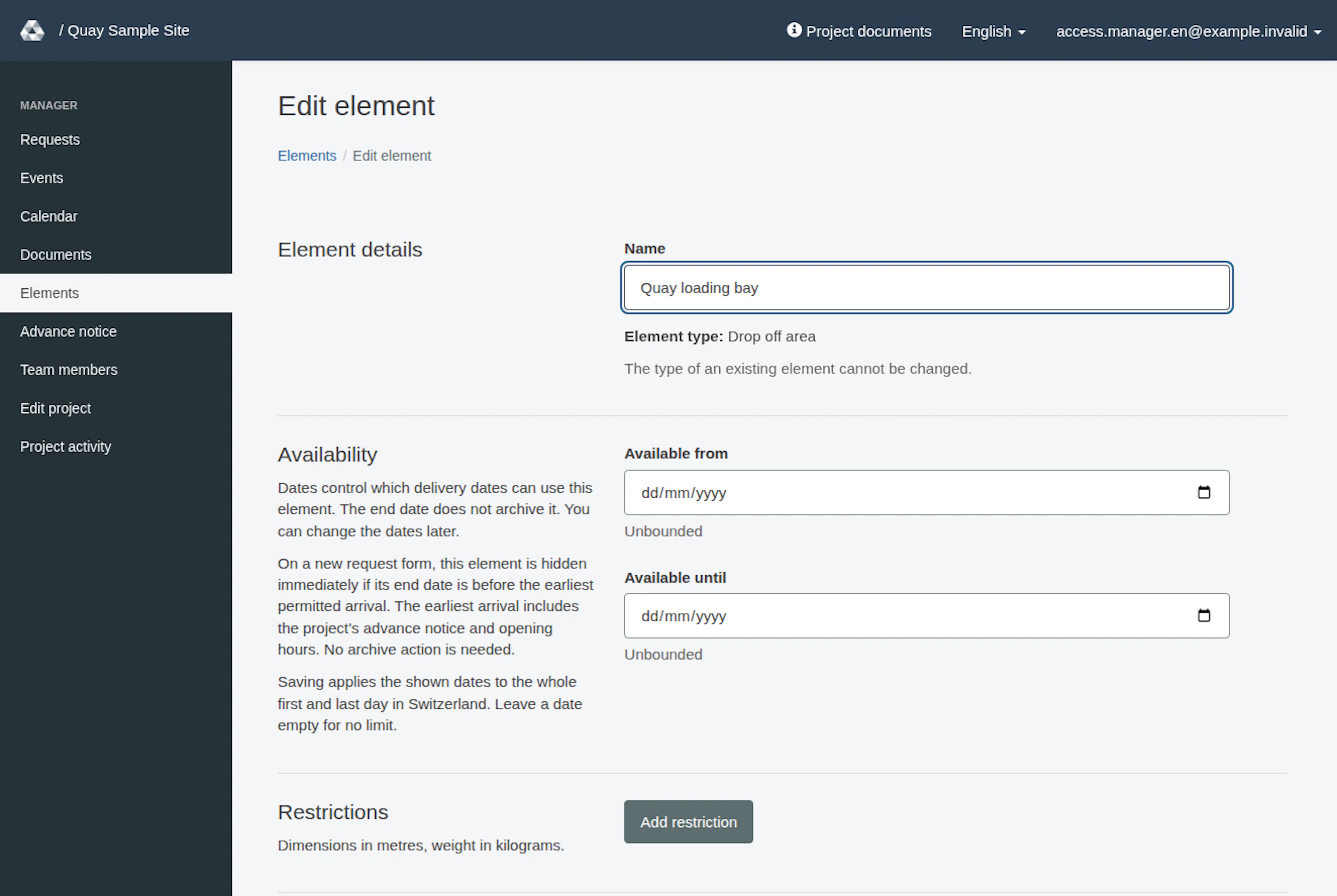
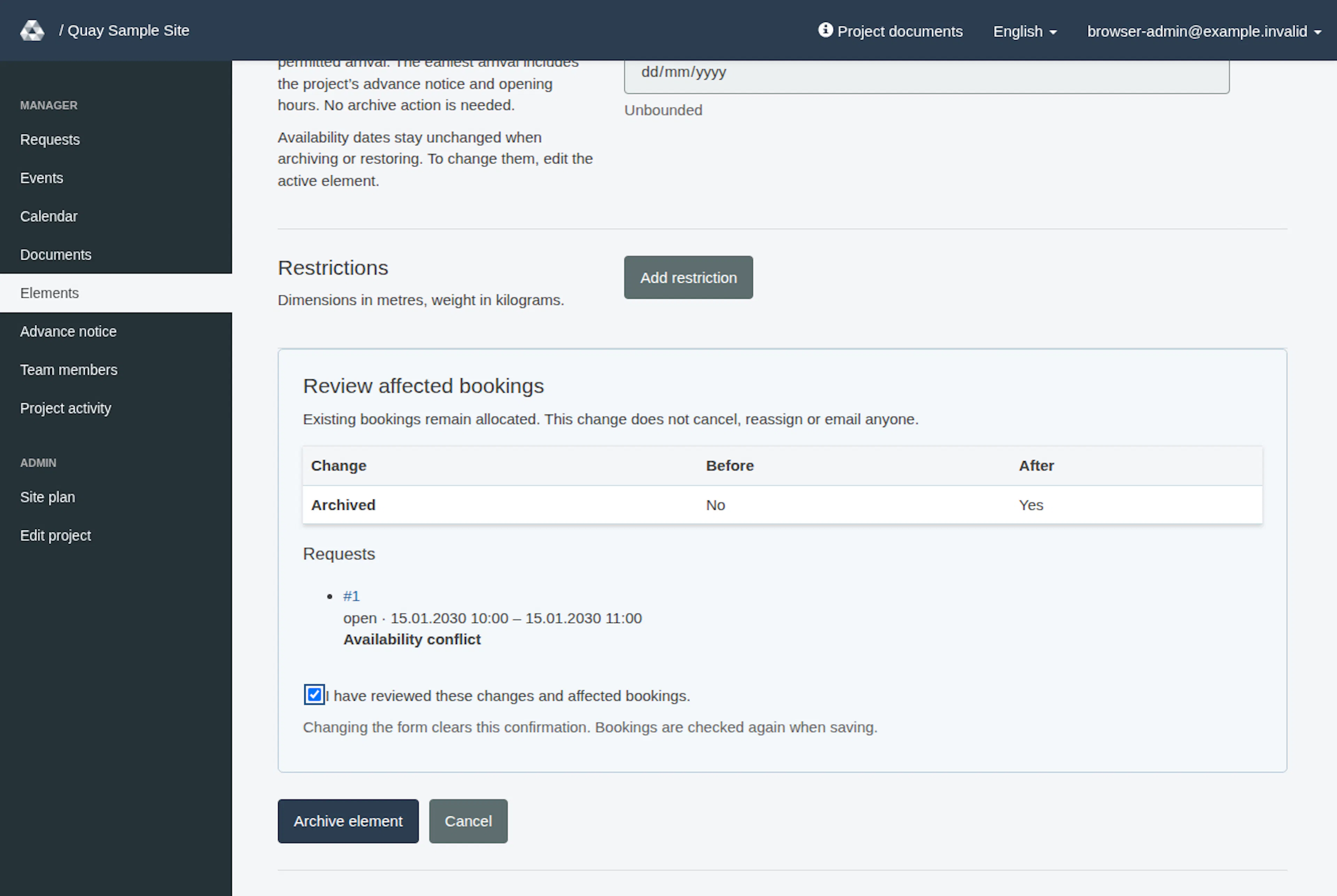
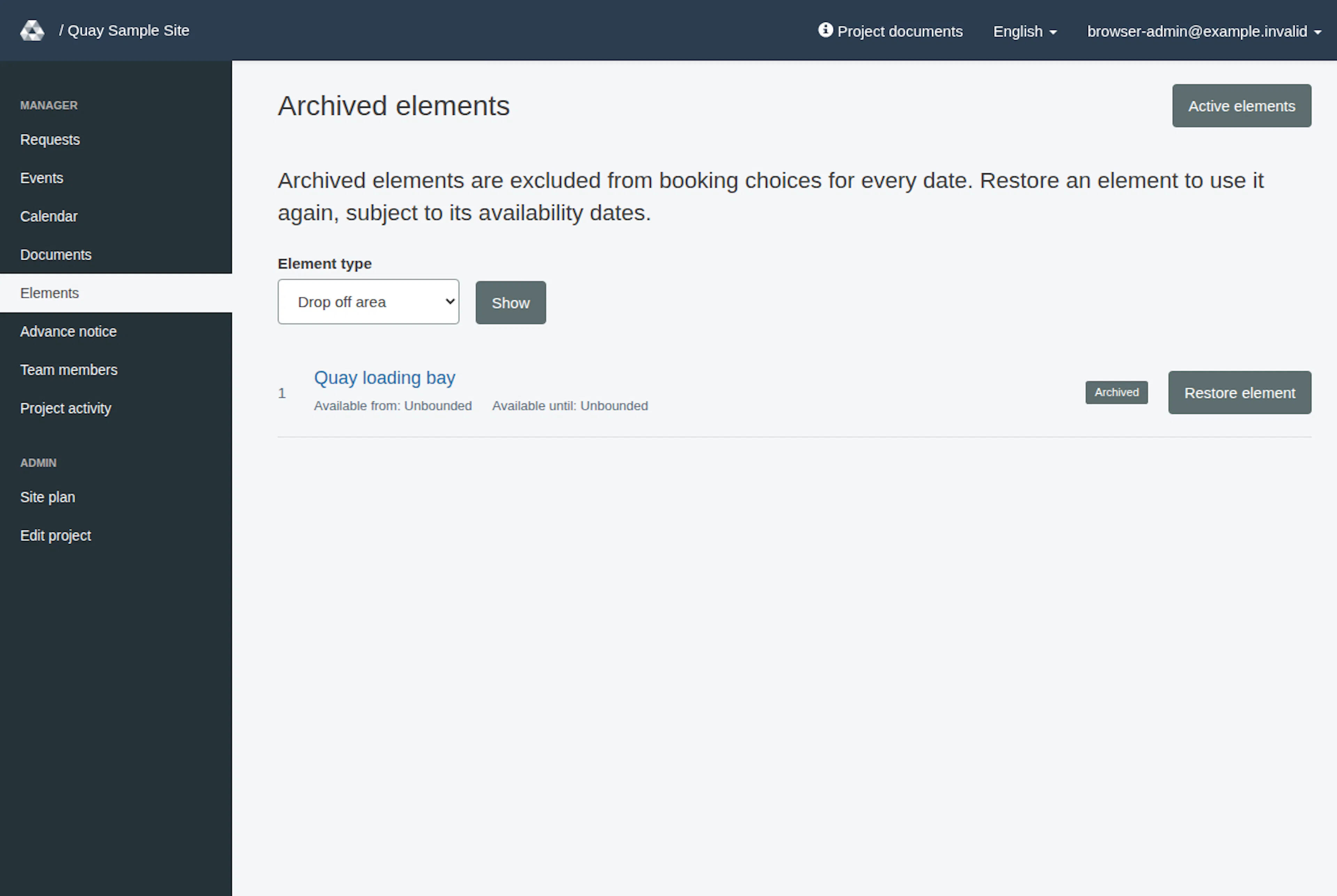
Use Elements for names, whole-day availability dates, restrictions and ordering. Follow Manage project elements, including the affected-booking review. An assigned project manager can open Advance notice from the project menu to change notice, whether or not team-member management is enabled. This dedicated page does not grant Edit project or team-management access; managers who already have general project-settings permission can also change notice in Edit project. Managers can set Available until to limit eligible arrival dates, but only administrators can archive or restore elements. Archiving immediately removes an element from normal booking choices for every date and keeps its history; restoring follows Elements → Archived elements → select Element type and Show → Restore element → Restore element, retaining the dates. An expired restored element remains unavailable until a project manager or administrator changes dates in its active editor. Permanent deletion is not offered in this workflow.
Open Elements from the correct project menu (on a phone, open Menu first). Administrators can choose Archived elements from the Elements list. Select the intended Element type and choose Show. Select Restore element beside an archived element to open its restore form. Review and acknowledge any affected-booking review RERA presents, then choose Restore element.
Saving in the Elements editor retains previously saved element relationships. The administration relationship grid (/PROJECT_ID/components/relationships) and schema (/PROJECT_ID/components/schema) remain read-only views; replace PROJECT_ID with the saved project’s ID. The Elements editor does not offer relationship changes.
In the active All list, administrators and assigned project managers can reorder elements with the up/down arrows or, in supported browsers with JavaScript enabled, drag the grip before or after another element of the same type. Ordering is unavailable in filtered or archived lists. Follow Manage project elements for ordering and stale-list guidance.
Maintain supporting records
For supporting record types offered in administration, use their record views to maintain buildings, floors, sectors, tool types, vehicle types and event types. Buildings belong to projects, floors to buildings and sectors to floors. Tool types belong to projects. These records require names. Floor and sector form lookups are not public setup screens.
Invite an account through administrator tooling
This administrator account-invitation form opens from a project context. It differs from Team members, which handles project-local membership and contacts.
- If Invite user appears in the administrator navigation, open it. Its visibility depends on whether invitations are enabled for your account. If it is missing, ask an authorized RERA administrator or support. The page is titled Invite new user.
- Under Personal information, supply first name, last name, email and phone number. All four are required.
- Under Role, tick Admin or Manager, and complete the required project selection under Which project will this person manage?
- Choose Send an invitation. If something is wrong, the red box at the top (Please check N entries) lists each problem as a link to its field. An existing accepted manager or administrator account can be rejected by this invitation form; do not assume it is a general account-editing tool. If you reload the page after an error, RERA shows the empty Invite new user form again.
The invited person opens the link in the email and sets a password on a page headed Please set your password. It has a password field with a Show button (it shows or hides both password fields), the rule "Use at least 6 characters." and the button Continue. A link that is invalid, already used or expired leads to the home page with a red message: "This invitation link is not valid or has expired. Please ask the person who invited you to send you a new invitation."
For project-team invitations, the invited role starts after explicit acceptance. Do not infer acceptance or inbox arrival merely from submitting either invitation form. Use the appropriate project team workflow for project-local contacts and roles. Project activity, team invitations and team-contact records are excluded from generic administrative editing; use their dedicated pages.
Enable or disable an account
Global administrators can use the account actions on a user record. The change always needs a confirmation.
- In administration, open Users and find the intended user (the search box accepts the email address). Open the record with its Show icon.
- Choose the tab Disable user (for a disabled account the tab reads Enable user). RERA does not change the account yet: it opens a confirmation page.
- Read the question "Disable this user?" with the account's email address, and the explanation "The user can no longer sign in until enabled again. No data is deleted." When enabling, the question is "Enable this user?" and the explanation is "The user can sign in again."
- Choose the red Disable user button (blue Enable user when enabling) to confirm, or Cancel to leave the account as it is.
- After you confirm, a message appears: "You have disabled the user: " followed by the account's email address (or "You have enabled the user: " and the address). The tabs now offer the opposite action, so you can check the current state.
- Disabling sets the account's disabled state. A disabled account cannot authenticate.
- Enabling clears that disabled state. It does not promise access beyond the account's existing roles, project assignments and other authentication requirements.
The disable action is offered for an authorized record that supports disabling and is not already disabled; enable is offered for a disabled record. These are account-wide controls, not project-local team removal. To change membership of one project, use Team members.
Other administrative record actions
For Component, Tool, DropOffZone, Area, ComponentRestriction and ComponentRelationship records, native administration keeps read tools such as lists, Show and history (and export where offered). It offers no create, edit, bulk-delete, archive, restore or delete action for these six types. Use the Elements editor for creation, changes, archiving and restoration; permanent element deletion is not offered.
The administration configuration also registers new, show, edit, export, bulk-delete, history and show-in-app actions. Availability depends on the model, record state and authorization; use the actions actually offered for the selected record. Administrative export is not a separate public customer API or calendar subscription.
| Action | Important distinction |
|---|---|
| Soft delete | Offered for an authorized record with an empty deletion timestamp; the implemented action calls the model's normal destroy path. For records supporting soft deletion this is the archive path. |
| Soft restore | Offered for an authorized record with a deletion timestamp; invokes that model's restore operation. |
| Delete | The separate delete action permanently destroys a record that supports soft deletion, rather than archiving it again. Other records use their normal destroy behavior. |
| Export / history | Administrative record tools configured by the application. They are separate from the project's curated activity feed. |
The history of a user record never shows password digests or one-time tokens; older entries show [FILTERED] in their place.
Confirm the intended record and action before applying a deletion. Do not assume a permanent deletion can be undone through Soft restore. The administration index can include soft-deleted records for models that support them; inspect record state rather than assuming every listed item is active.
Archive and restore an element
These images show the English RERA interface, captured on 13 November 2026 UTC in a synthetic local project. Example project dates use a synthetic January 2030 clock. The GIF presents selected actual steps. Options depend on the project and your role.
The walkthrough and three images below are dated task illustrations. They omit the newer drag grips and Help links; the additional states at the end show the newer list controls.
Current Elements lists
Additional synthetic local states captured on 13 November 2026 UTC. The animation combines selected states and does not record continuous pointer movement or every step of the task.